/HubSpot%20-%20eBook%20-%20Proof%20Card%20Mockup%20001.jpg?length=1000&name=HubSpot%20-%20eBook%20-%20Proof%20Card%20Mockup%20001.jpg)
/HubSpot%20-%20eBook%20-%20Proof%20Card%20Mockup%20001.jpg?length=1000&name=HubSpot%20-%20eBook%20-%20Proof%20Card%20Mockup%20001.jpg)
/HubSpot%20-%20eBook%20-%20Proof%20Card%20Mockup%20001.jpg?length=1000&name=HubSpot%20-%20eBook%20-%20Proof%20Card%20Mockup%20001.jpg)
/HubSpot%20-%20eBook%20-%20Proof%20Card%20Mockup%20001.jpg?length=1000&name=HubSpot%20-%20eBook%20-%20Proof%20Card%20Mockup%20001.jpg)
/HubSpot%20-%20eBook%20-%20Proof%20Card%20Mockup%20001.jpg?length=1000&name=HubSpot%20-%20eBook%20-%20Proof%20Card%20Mockup%20001.jpg)
/HubSpot%20-%20eBook%20-%20Proof%20Card%20Mockup%20001.jpg?length=1000&name=HubSpot%20-%20eBook%20-%20Proof%20Card%20Mockup%20001.jpg)
/HubSpot%20-%20eBook%20-%20Proof%20Card%20Mockup%20001.jpg?length=1000&name=HubSpot%20-%20eBook%20-%20Proof%20Card%20Mockup%20001.jpg)

/HubSpot%20-%20eBook%20-%20Proof%20Card%20Mockup%20001-min.jpg?length=1000&name=HubSpot%20-%20eBook%20-%20Proof%20Card%20Mockup%20001-min.jpg)


Microsoft Teams is a proven powerhouse platform when it comes to collaboration on documents, files, and projects – and many of the over quarter of a billion people using it daily would agree.
As end users become more comfortable with Teams and learn the ropes, they begin to use it more confidently, but even then, accidents can and do happen. Let’s look at how to recover content that has been deleted from Microsoft Teams!
When something gets deleted in Microsoft Teams, on the surface it disappears, and oftentimes the end users start to panic, as they rarely know where to look first to find or recover the deleted documents and files.
Let’s take a look at how to recover content that’s deleted from Microsoft Teams.
What can be recovered after deletion?
Most of the content we can delete from Teams can be (mostly) recovered. This includes:
- Files and documents (including PDFs), images, and folders
- Audio and video files (e.g. MP3, MP4)
- Channels
- Tabs (sort of)
- OneNote notebooks
- Planner plans (can be deleted)
 Before we go further remember, user permissions dictate who can delete what. It’s important to also remember, from a collaboration perspective, if you’re in the Team, you’re on the team. Going out of your way to introduce granular permissions to Members is rarely a good thing.
Generally, team members with the Member role can delete:
- Files: Team members can delete files from team channels.
- Chat messages: Team members can delete chat messages that they have posted, but they cannot delete chat messages posted by others.
- Tabs: Team members can remove tabs added to channels. It’s not really a deletion… more to come later.
- Keep in mind, Team Owners can modify the default Member permissions (if allowed by policy).
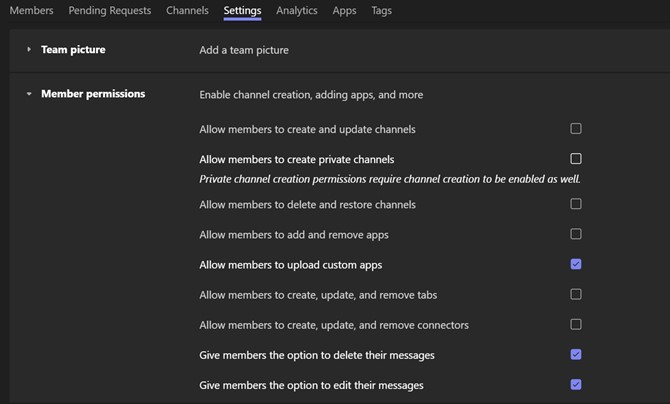
Owners, of course, have more control over the Team:
- Files: The owner of a team can delete files from team channels, including those uploaded by other team members.
- Chat messages: The owner of a team can delete chat messages from team conversations, including those posted by other team members.
- Channels: The owner of a team can delete channels along with the channels’ contents, including channels created by other owners or team members.
- Tabs: The owner of a team can remove tabs from team channels, including those added by other team members.
- Teams: The owner of a team can delete the entire team, including all its channels, files, chat messages, and other elements.
What’s Really Happening When I Delete from Teams?
Teams is not a file management tool… 😎
This means that when I delete content (uploaded documents, images, or media) out of Teams I’m actually deleting it from the Team’s connected SharePoint site. Because SharePoint is the document management tool of Microsoft 365.
SharePoint’s Recycle Bin
SharePoint holds content indefinitely, or until an explicit action is taken to delete it.
The action could be a manual deletion, automated retention policy, or workflow. When an item is deleted from SharePoint it goes to the Recycle Bin. The SharePoint Recycle Bin holds deleted items for up to 93 days. During this time content can be restored back to where it was deleted from.
OneDrive for Business
Scenario:
You and I are chatting in Teams and I share a file with you. The object you click on lives in my OneDrive and you are granted access to it via a sharing link. There’s no option to delete that file from the Files tab in our chat because it doesn’t truly live there. I simply need to revoke the sharing link in OneDrive.
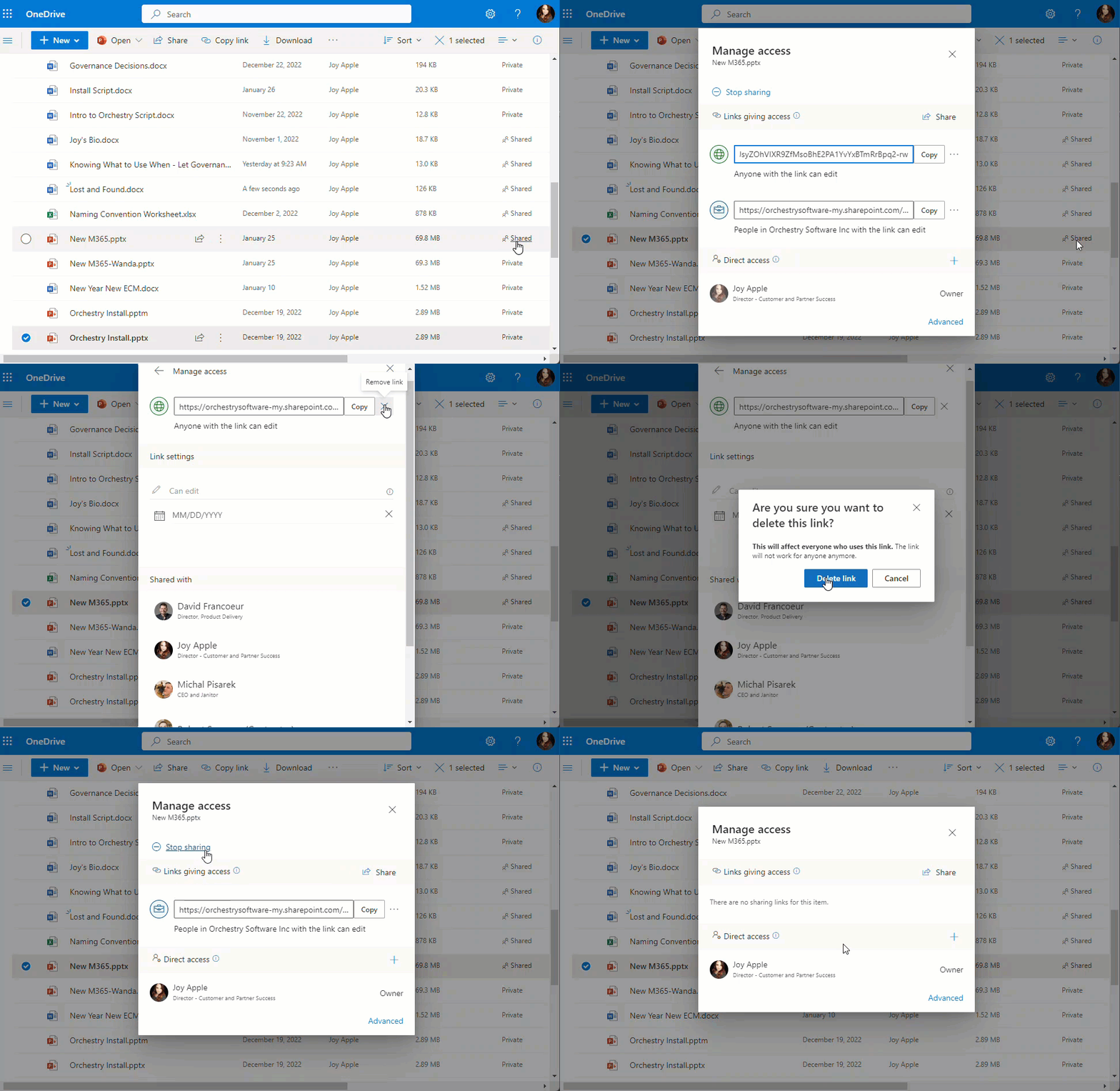
Note:
Since OneDrive for Business is hosted in SharePoint the same retention period applies to content deleted in OneDrive content. After 93 days, they are permanently deleted and can no longer be restored.
The 93-day Recycle Bin retention period is set by Microsoft and applies to all SharePoint sites and OneDrive for Business users.
Recovering deleted files
Let’s step back for a moment and think about Teams’ information architecture.
We know that SharePoint is the document management tool for Teams. And that each channel in a Team is represented by a folder in the connect SharePoint team site.
For example, if a team was created with “General”, “Content”, and “Website” channels to start with, you will see 3 folders In Documents with corresponding names. This is where the documents that are created or uploaded within the Team get automatically stored.
It makes sense then, when a file gets deleted in Teams we simply need to look to the connected SharePoint site’s Recycle Bin to recover that file.
Who can recover deleted files?
By default:
Any Owner or Member of the Team can recover content from the SharePoint Recycle bin.
-
- All members of a Team will have the same view. This means you can recover files deleted by other users – and they can recover files you’ve deleted. (This is a little different from the Recycle Bin of days of old.)
- After about 31 days content cycles to the Second Stage Recycle Bin. Group Owners and Site Collection Admins can recover from here for an additional 60ish days
- The total recovery window is 93 days. 😊
Here are the steps you can follow to restore a file you deleted in Teams:
- To recover any files deleted from Teams, use the Open in SharePoint button (under the …) then navigate to the Recycle Bin on the left navigation.
- This will show a list of all files deleted from every channel in the team. Select the file (or files) you want to recover and then select Restore at the top of the page.
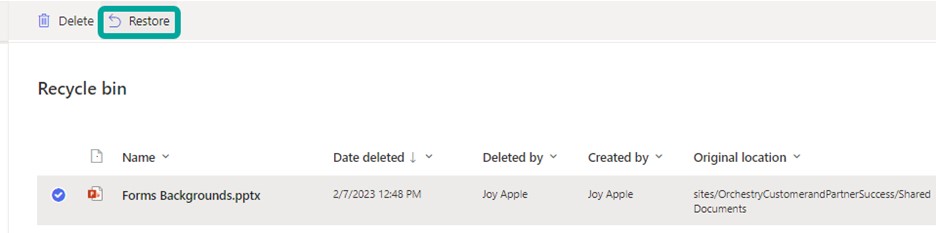
Recovering deleted channels
The ability for Members to delete a channel is at the discretion of the Team’s Owner and/or the organization’s overarching Teams policies.
If a channel is deleted, it will be available for 30 days in a “soft delete” state. You can get to it in the Team’s settings options under Manage Team à Channels.
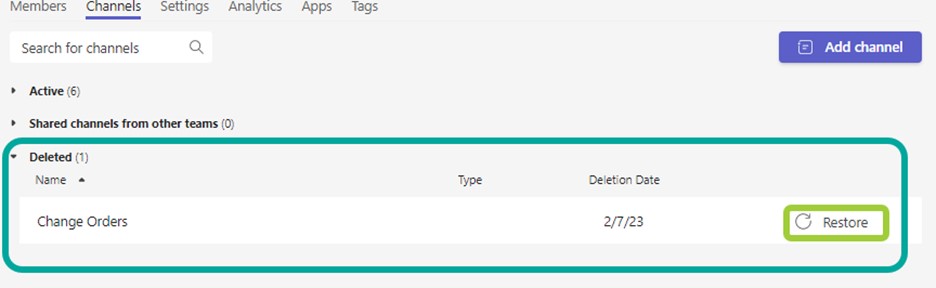
Within that 30-day period the channel, its files, and chat can be restored.
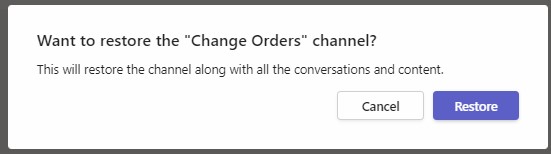
After the 30 days are up the channel, files, and chat will be removed from Teams but the folder and files in the SharePoint site will remain in place. A Member or Owner may choose to delete it, and the Recycle Bin policy will take over.
Recovering Removed Tabs
This is a fairly easy fix since a tab is just a link to specific content within SharePoint, another website, or to an app. Anyone with permissions to create tabs can restore the tabs that have been removed. Honestly, this isn’t a delete/restore situation. It’s remove/recreate. Easy/Peasy!
To restore a Microsoft Teams tab that was removed, follow these steps:
- Go to the Teams channel: Open the Teams channel where the tab was located.
- Click on the “Add a tab” button: Click on the “+” sign next to the channel tabs to open the “Add a tab” dialog.
- Recreate the tab and name appropriately.
Recovering deleted OneNote notebooks
OneNote notebooks for each Team are stored on the corresponding SharePoint site.
Therefore, to restore a deleted OneNote notebook in Microsoft Teams, you will need to head to SharePoint:
- Check the Recycle bin for the deleted notebook. The Recycle bin can be accessed from the site’s settings page in SharePoint.
- Restore the notebook: If the deleted notebook is found in the Recycle bin, select the notebook and click on the “Restore” button to restore the notebook and its contents.
Contact Team Owner or an IT Admin: If the deleted notebook is not found in the Recycle Bin. It will have cycled to the Second Stage Recycle Bin if it’s been more than 30 days.
Recovering deleted Planner Plan
Planner is a little persnickety. Only M365 Group Owners (Team Owners) can delete Planner plans. It’s important to note that the only delete option for a Planner plan is to permanently delete it, there is no option for recovery. The same holds true for Planner tasks. Once deleted tasks must be recreated from scratch.
If a Team Member wants to leave a plan they must leave the Team, entirely.
Whew! There’s a lot to think about when it comes to permissions, security, deletions, and recovery.
Delete is a scary word but remember that permissions are in place to allow folks to do their jobs safely, not to handcuff them. Make sure not to secure Members so much that they aren’t able to be productive Team members.
This is a good place to mention that it’s always a good idea to have a backup plan in place. If you don’t have cloud backup for M365 there’s no time like the present! There are great solution providers out there such as Veeam that allow you to go beyond what’s available out of the box and have self-service options for content owners.
Unleash the Full Power of Microsoft 365 with Orchestry
Most organizations are not using Microsoft 365 to its full potential.
Orchestry makes Microsoft 365 simple for all users.
Orchestry takes the uncertainty out of M365, delighting even the most non-technical members of your team with preconfigured Teams templates, an informative Workspace Directory, and more!
To see Orchestry in action, request a demo and download our features sheet!
