/HubSpot%20-%20eBook%20-%20Proof%20Card%20Mockup%20001.jpg?length=1000&name=HubSpot%20-%20eBook%20-%20Proof%20Card%20Mockup%20001.jpg)
/HubSpot%20-%20eBook%20-%20Proof%20Card%20Mockup%20001.jpg?length=1000&name=HubSpot%20-%20eBook%20-%20Proof%20Card%20Mockup%20001.jpg)
/HubSpot%20-%20eBook%20-%20Proof%20Card%20Mockup%20001.jpg?length=1000&name=HubSpot%20-%20eBook%20-%20Proof%20Card%20Mockup%20001.jpg)
/HubSpot%20-%20eBook%20-%20Proof%20Card%20Mockup%20001.jpg?length=1000&name=HubSpot%20-%20eBook%20-%20Proof%20Card%20Mockup%20001.jpg)

/HubSpot%20-%20eBook%20-%20Proof%20Card%20Mockup%20001.jpg?length=1000&name=HubSpot%20-%20eBook%20-%20Proof%20Card%20Mockup%20001.jpg)
/HubSpot%20-%20eBook%20-%20Proof%20Card%20Mockup%20001-min.jpg?length=1000&name=HubSpot%20-%20eBook%20-%20Proof%20Card%20Mockup%20001-min.jpg)
/HubSpot%20-%20eBook%20-%20Proof%20Card%20Mockup%20001-min.jpg?length=1000&name=HubSpot%20-%20eBook%20-%20Proof%20Card%20Mockup%20001-min.jpg)

If you ran the storage check from our last post and saw your individual OneDrive storage looked a bit high, you might have felt a sense of relief. After all, OneDrive is personal storage, siloed from the shared SharePoint pool, right?
Not exactly.
While it's true that OneDrive doesn't draw from the SharePoint pool that triggers overage costs, it does impact your overall tenant footprint and storage costs. More importantly, it dramatically affects your compliance and legal risk profile in ways that are harder to see and even harder to manage.
SharePoint has sites, owners, and structure. OneDrive? It's a black box of personal working docs, email attachments, and Teams chat files that often have zero lifecycle management.
Without automated offboarding processes, your tenant becomes a graveyard of abandoned files that you're still paying to store, and that still carry security and compliance risks.
Investigating the invisible growth drivers
OneDrive storage grows in ways most admins never see. Unlike SharePoint sites where you can review document libraries and understand what's being stored, OneDrive accumulates content automatically through features most users don't think about.
Email attachments
Email attachments grow OneDrive through user behavior. When users choose to save email attachments to OneDrive (either through Outlook's Save to OneDrive feature or by using Power Automate flows), these files accumulate in their OneDrive.
For users who regularly save attachments this way, especially large files like proposals, presentations, or design files, this folder can quietly consume gigabytes over time.
Teams chat files
When someone shares a file in a Teams 1:1 or group chat (not a Channel), that file doesn't go to SharePoint. It goes to the sender's OneDrive.
This means active Teams users who share documents, screenshots, and working files in private chats can accumulate substantial storage without realizing it. The files appear in chat, but they live in OneDrive.
Massive footprints vs. departed employees
When you review OneDrive usage across your tenant, you'll typically find two patterns: a handful of power users with 500GB+ of active storage, and a long tail of accounts belonging to people who left the organization months or years ago. These are accounts that were never properly offboarded and still hold their full OneDrive allocation.
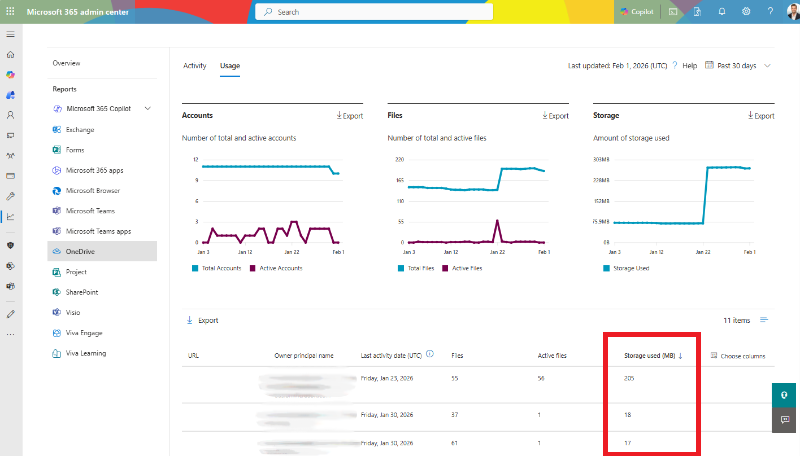
To see this for yourself, go to the Microsoft 365 Admin Center → Reports → Usage → OneDrive. The Storage used field will show you exactly how much each account is consuming. Sort by storage to surface your biggest consumers, then cross-reference with your HR records to identify orphaned accounts.
The Preservation Hold Library (PHL) and “double storage”
If your organization has Retention Policies or Legal Holds active (and most do), there's a hidden storage consumer you need to understand: the Preservation Hold Library.
When a user deletes or modifies content while a hold or retention policy is in effect, Microsoft 365 doesn't actually delete anything. Instead, it moves the original version to a hidden library called the Preservation Hold Library (PHL) to ensure it remains discoverable for compliance purposes.
Here's where it gets problematic: when you delete a file that's under retention, Microsoft creates a second copy in the PHL. Your storage doesn't decrease. In fact, it may actually increase because now you have both the deleted file in the PHL and potentially ongoing edits to a replacement file.
This creates a problem known as “double storage”: a situation where cleanup efforts not only fail to reduce storage, but can actually make the problem worse in the short term.
Why the dashboard doesn't reflect your cleanup efforts
Two timing issues compound this problem:
First, Microsoft 365 reporting has a 24-48 hour lag. The storage numbers you see in the admin center aren't live. They're a snapshot from yesterday or the day before. Even if you successfully delete content, you won't see the impact immediately.
Second, deleted content sits in the recycle bin for 93 days before it's fully removed. During that period, it still counts against your storage quota. This means a major cleanup effort might not show results in your dashboard for weeks, even when everything is working as designed.
Automating offboarding
Microsoft gives you a default 30-day grace period after account deletion before a user's OneDrive is permanently removed. In theory, this gives managers time to access and preserve any necessary files.
In practice, most organizations bypass this entirely because manual offboarding is too tedious and error-prone. The result? OneDrives sit untouched indefinitely, consuming storage and maintaining active sharing links, because no one has the time to methodically work through each departing employee's personal storage.
The real solution is adopting an automated, policy-driven approach to offboarding. This means choosing your organization's posture (either Delete-First or Archive-First) and having systems that handle the execution without requiring manual intervention for every single departure.
Delete-First culture
In a Delete-First approach, the assumption is that active, business-critical files shouldn't live solely in someone's personal OneDrive. When someone leaves, their OneDrive is deleted after the retention period expires unless a manager explicitly requests preservation of specific content.
This approach works well for organizations with strong shared workspace discipline and clear data ownership practices.
Archive-First culture
In an Archive-First approach, departing users' OneDrives are automatically archived to a lower-cost storage tier or moved to a departmental archive site. Managers are notified and given a window to review and claim any files they need, but the default is preservation rather than deletion.
This approach is common in organizations with regulatory requirements or where knowledge workers maintain substantial personal work product.
Building a sustainable OneDrive governance approach
Effective OneDrive governance extends the same principles you apply to Teams and SharePoint. Rather than treating personal storage as an ungovernable black box, organizations need tenant-wide visibility, risk assessment, and repeatable processes.
A comprehensive approach requires visibility into every OneDrive in your tenant, linked to owner, department, and manager hierarchy. You need to track storage usage, sharing link activity, external collaborators, and orphaned accounts, with a way to prioritize the biggest risks first.
For offboarding specifically, the most effective approach moves from manual checklists to automated workflows. Instead of IT manually tracking every departure and hoping nothing falls through the cracks, a mature process:
- Automatically detects when an account is deleted or marked inactive
- Sends notifications to the appropriate manager or department owner
- Provides a defined window for managers to review and claim necessary files
- Executes archival or deletion according to policy if no action is taken
- Records an audit trail of all actions taken
Beyond offboarding, ongoing governance should include regular review cycles where OneDrive owners are prompted to clean up excessive version history, remove outdated sharing links, and tighten search visibility. These reviews can run on a regular cadence or be triggered when storage thresholds are crossed.
This approach transforms OneDrive from an ungoverned blind spot into a managed part of your governance framework.
Closing the blind spot
The pattern is too common: organizations focus exclusively on managing SharePoint site sprawl while OneDrive quietly accumulates abandoned accounts, automated attachments, and ungoverned sharing links. But your storage strategy can't ignore OneDrive.
Over time, this imbalance creates risks. Not just storage overages, but security exposure from orphaned accounts with active sharing links, compliance gaps where departed employees' data isn't being managed according to retention policies, and operational blind spots where IT simply doesn't know what's being stored in thousands of personal drives.
Immediate action: Run a Top OneDrive Users report
Start by running a report of your organization's top OneDrive users by storage consumption. You can do this through the Microsoft 365 Admin Center → Reports → Usage → OneDrive, then export the full user list and sort by storage used.
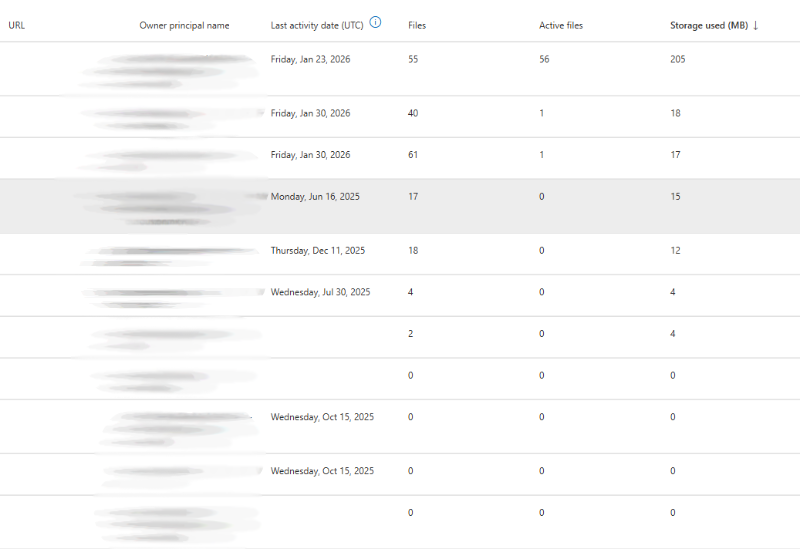
Look specifically for:
- Users with unusually high storage (500GB+) who may need guidance on proper file management
- Accounts that don't match current employee records (these are your orphaned accounts)
- Generic or service accounts with unexpected storage usage
- Accounts marked as “inactive” in your directory that are still consuming substantial storage
This single report will give you visibility into where your OneDrive storage actually lives and where the biggest cleanup opportunities exist.
In our next post, we'll walk through the specific mechanics of handling departed employee OneDrives: what happens during offboarding, where the gaps in default processes exist, and how to build a workflow that closes them.
Reduce sprawl and oversharing across Microsoft 365
Orchestry helps IT and workspace owners apply lifecycle and governance standards across Teams and SharePoint, improving visibility, reducing manual work, and lowering risk as AI makes content easier to discover.
To see Orchestry in action, request a demo or download our Features Sheet to learn more.