/HubSpot%20-%20eBook%20-%20Proof%20Card%20Mockup%20001.jpg?length=1000&name=HubSpot%20-%20eBook%20-%20Proof%20Card%20Mockup%20001.jpg)
/HubSpot%20-%20eBook%20-%20Proof%20Card%20Mockup%20001.jpg?length=1000&name=HubSpot%20-%20eBook%20-%20Proof%20Card%20Mockup%20001.jpg)
/HubSpot%20-%20eBook%20-%20Proof%20Card%20Mockup%20001.jpg?length=1000&name=HubSpot%20-%20eBook%20-%20Proof%20Card%20Mockup%20001.jpg)
/HubSpot%20-%20eBook%20-%20Proof%20Card%20Mockup%20001.jpg?length=1000&name=HubSpot%20-%20eBook%20-%20Proof%20Card%20Mockup%20001.jpg)
/HubSpot%20-%20eBook%20-%20Proof%20Card%20Mockup%20001.jpg?length=1000&name=HubSpot%20-%20eBook%20-%20Proof%20Card%20Mockup%20001.jpg)
/HubSpot%20-%20eBook%20-%20Proof%20Card%20Mockup%20001.jpg?length=1000&name=HubSpot%20-%20eBook%20-%20Proof%20Card%20Mockup%20001.jpg)
/HubSpot%20-%20eBook%20-%20Proof%20Card%20Mockup%20001.jpg?length=1000&name=HubSpot%20-%20eBook%20-%20Proof%20Card%20Mockup%20001.jpg)
/HubSpot%20-%20eBook%20-%20Proof%20Card%20Mockup%20001-min.jpg?length=1000&name=HubSpot%20-%20eBook%20-%20Proof%20Card%20Mockup%20001-min.jpg)


February was a very busy month for Orchestry’s development team. A massive release was pushed out in the middle of February that included over 100 enhancements to the Orchestry app – all of which was a compilation of feedback we’ve received from our Customers and Partners.
Latest release details
The Product team at Orchestry pays close attention to the feedback our valued Customers and Partners provide. In February we pushed out a release with over 100 improvements to the Orchestry app, including bug fixes, enhancements to the user interface and user experience, feature improvements, and more.
But, since an overview of all 100 improvements would take hours to read through, we will focus on covering just a couple.
Owner / Member User Cards
One of the truly noteworthy features of Orchestry is our library of pre-built business-first templates for Teams and SharePoint sites. All of our pre-built templates for Teams come with a Team Information tab, which not only looks beautiful but also offers a ton of useful high-level information about the Team to be viewed by Team members, Owners, Guests, and people who are looking to join the Team.
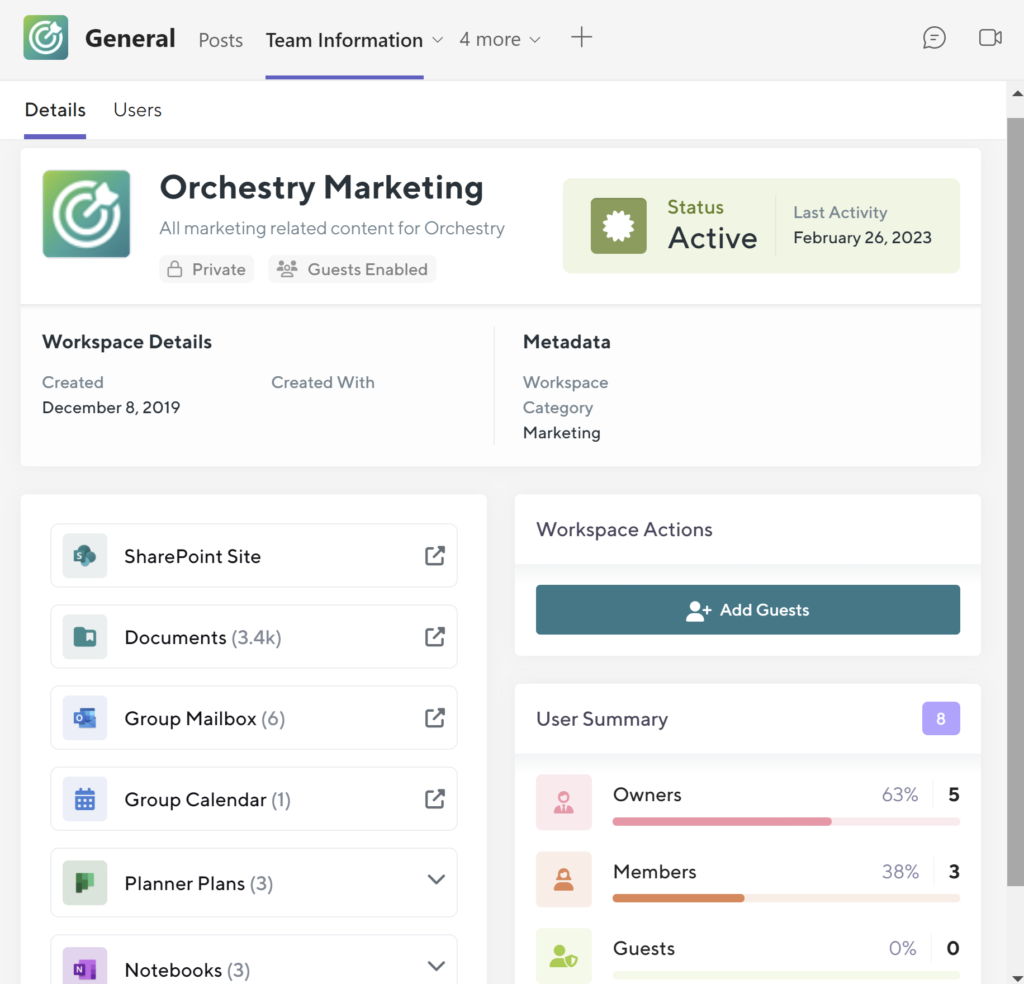
Apart from the basics, like the name of the Team, and the description (a rarity in Teams world, but with the help of Orchestry the description input is enforced at the Team creation stage), the Team Information tab shines a light on many other extremely useful pieces of information:
- Private vs public Team
- Whether Guest users are enabled in the Team
- Whether the Team is active (vs inactive, so not being actively used) and the latest activity date
- Additional metadata, for example, department, division, or location (all metadata can be customized and the collection of it can be enforced at the Team creation stage with the help of Orchestry)
- Date when the Team was originally created
- Quick links to all components of the Team, including the associated SharePoint site, Documents, Microsoft Group mailbox, Calendar, Planner plans, Notebooks, and more.
- Summary of all users within the Team, including the total number of Owners, Members, and Guests
- The ability to add new Guests directly from the Team Information tab (this is enabled by Orchestry’s advanced Guest management features).
While none of this is new and the users of Orchestry have been enjoying the benefits and the user-friendliness of the Team Information tab for some time, the updates released this February were to the Users section of the tab.
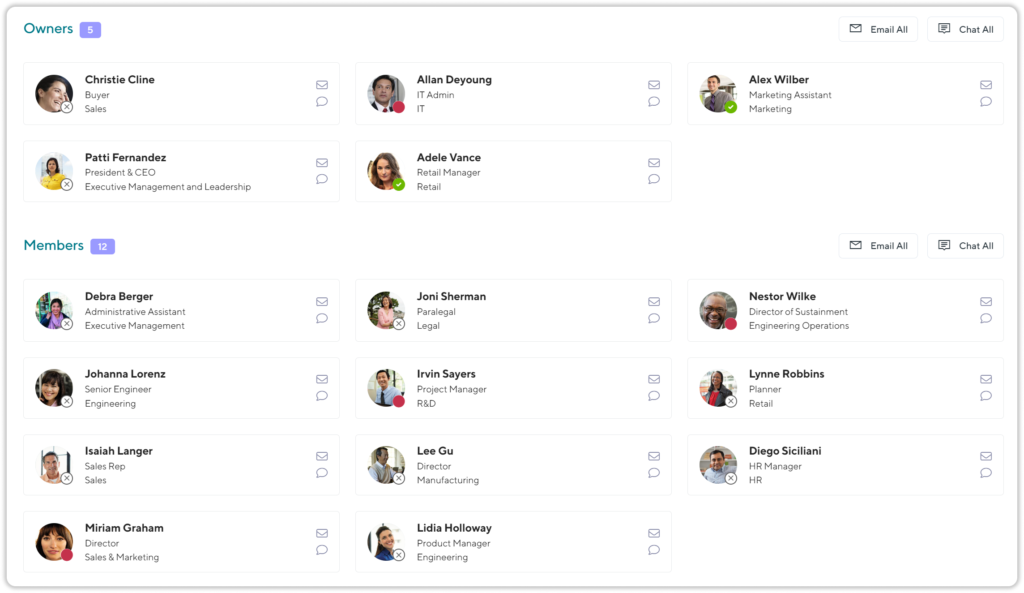
The Users part of the Information tab now displays users in their respective sections (Owners, Members, Guests) using custom condensed cards with all the necessary information, including the user’s image, full name, and now their job title and department (provided that information is available in Azure AD).
Although not a significant change to this feature, it goes to show how Orchestry as platform endeavors to make Teams ridiculously accessible, user-friendly, and enjoyable to interact with on a daily basis, even for the most non-technical users. Implementing custom tabs like this one is bound to improve company-wide adoption and the usability of Teams, however, would take hours to custom code. Orchestry’s templates come pre-configured with tabs like this (on top of many other web parts and customizable elements) and require zero coding or scripting to use.
Speaking of templates, our future product releases over the next couple of months will include the addition of a whole bunch of new templates, including employee onboarding and offboarding, product release, risk assessment and so much more. So make sure to join our newsletter list by subscribing below to stay in the know of what’s coming and what is being released.
Metadata editing within the Team Information tab
As we’ve covered, Orchestry’s Team Information tab displays the metadata of the Team. The metadata you request to be collected during the Team creation process is entirely up to the needs of the organization and can include the department, division, location, etc.
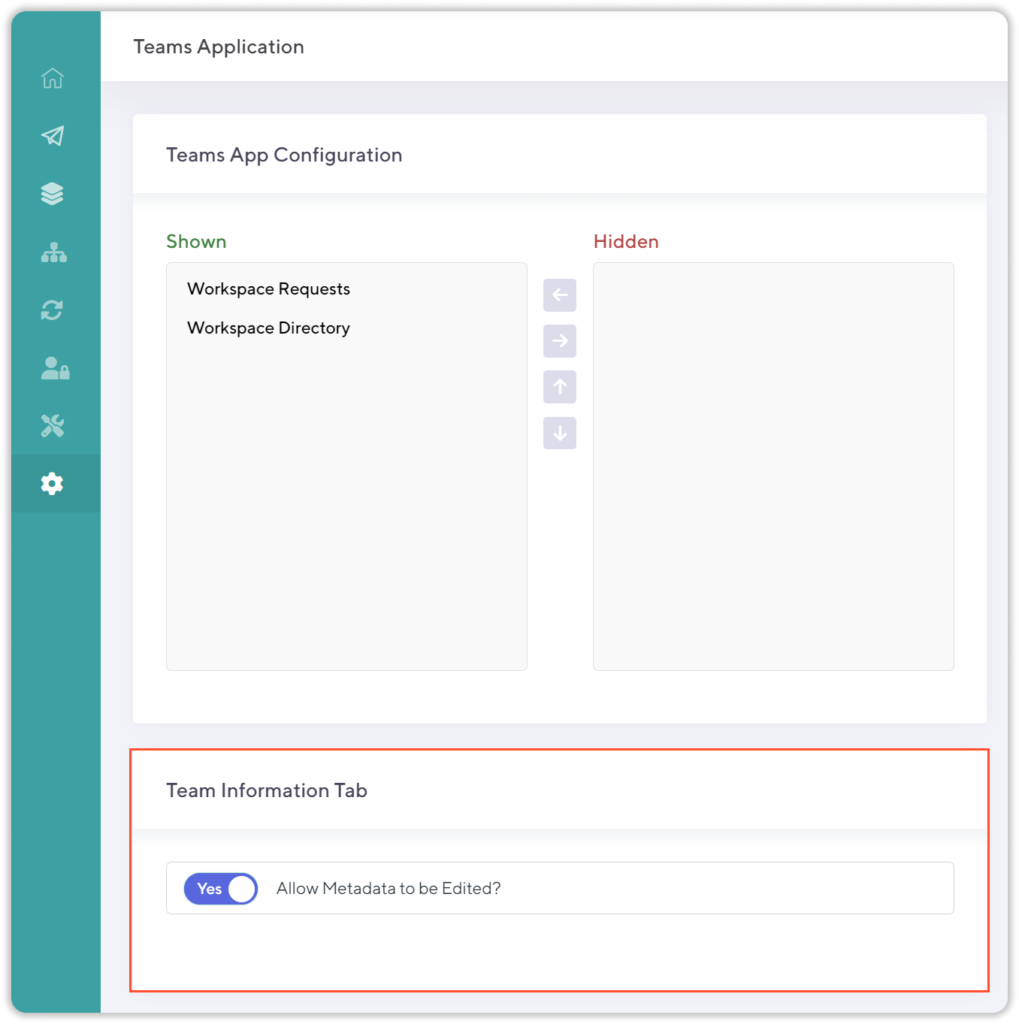
In one of our recent updates, we made the metadata about the Team editable by Owners of the Team, directly from the Team Information tab. Some Orchestry users (particularly those who are 100% committed to preserving their M365 governance standards and metadata integrity), suggested that they should have control of whether the editability of metadata is available in their tenant. Thanks to this incredibly valuable feedback from real-world usage of Orchestry, in the latest release, we have introduced a new global toggle that determines whether or not you wish to have this option available across your tenant.
The default setting for this in Orchestry is the editing of metadata is disabled, but if you wish to change that, you can easily do so through the Orchestry admin center.
Enhanced Guest user addition/request interface
As we’ve briefly mentioned above, Orchestry’s advanced Guest Management features allow Orchestry users to request the addition of new Guest users to a Team directly from the Team Information tab.
The process of adding new Guests to a Team using Orchestry is fully customizable and can require approval from the Team Owner, or another member(s), or require the collection of additional information about the Guest (apart from the email).
We have made improvements to the user interface associated with the addition of new Guests to support the addition of multiple Guests at a time. Previously it was not obvious in the UI if you’ve requested several Guests but have yet to click the “Done” button. As part of this release, we have added a new section that displays the Guest users that are part of the current request so that whoever is adding Guests has better visibility into what is going to happen next.
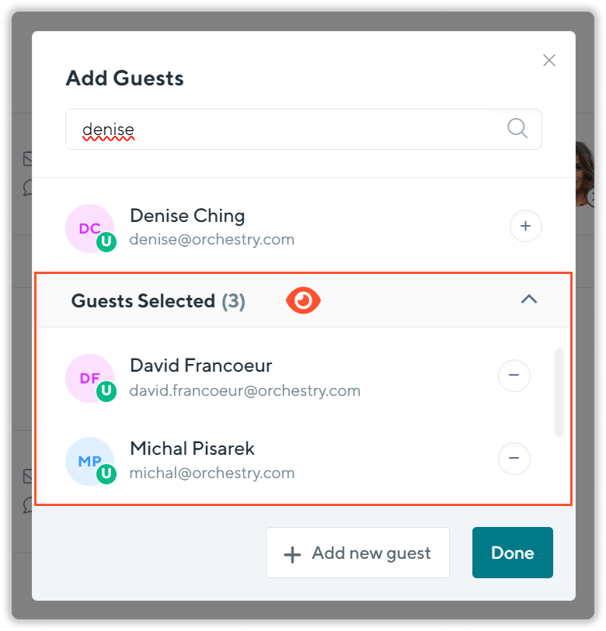
A simple, yet elegant solution, which makes adding new Guests to a Team, even more user-friendly.
Orchestry does a deep dive into Lifecycle Management in M365

In February, we focused on putting together and sharing with you many useful resources that will help you better manage the full Microsoft 365 lifecycle – from creation to archival and deletion of documents, SharePoint sites, and Teams. Here is a summary of all the great articles we shared with you this month:
- Lost and found: The Ultimate guide to recovering deleted files in Microsoft Teams – this ultimate guide shines a light on how to recover content that has been deleted from Microsoft Teams.

- Bringing Order to Chaos: A Blueprint for Dealing with Orphaned Microsoft Teams and Groups – in this blog, we take you through the steps for finding, assessing, and dealing with orphaned and ownerless Microsoft Teams and Groups, what makes them occur, and how to avoid them in the future.

- How to create Microsoft Teams, Groups & SharePoint archiving policies using Orchestry – this blog will show you how with the help of Orchestry you can create and enforce as many different archiving, renewal, and deletion policies to clean up your tenant, increase satisfaction with and adoption of the platform, and save time and money in the process.

- M365 Lifecycle Management Made Easy with Orchestry – this blog demonstrates how Orchestry can help you automate every part of full Microsoft 365 lifecycle management, from the creation of new Teams, SharePoint sites, and Groups to sunsetting. Follow along to see how Orchestry can help you automate day-to-day tasks and save tens of thousands of dollars.

Orchestry team comes together in person for our first Orchestration
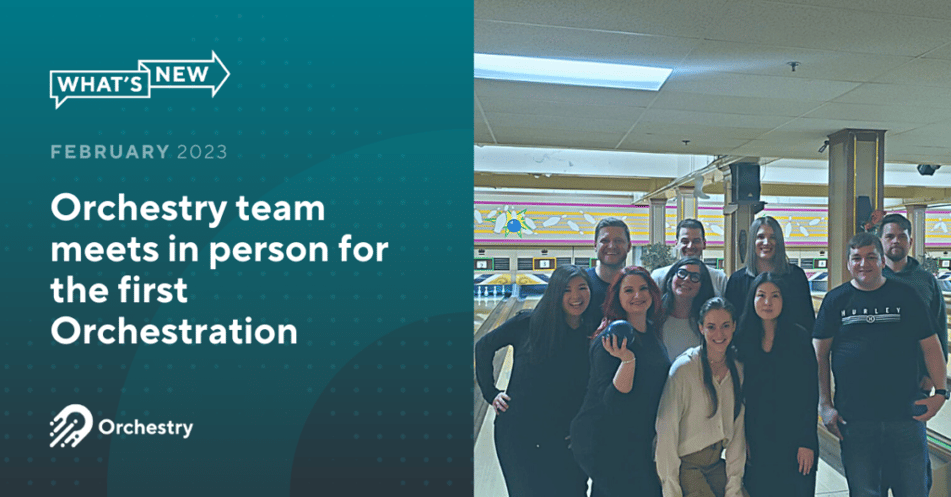
Orchestry is a remote organization, which means our team members work from every part of the US and Canada and we get to see each other primarily on the screen of our computers (which actually makes us THAT much better at mastering the ins and outs of collaboration tools like Microsoft Teams, hence makes us better at what we do!). This February we spent 3 coffee-fueled days together in Vancouver, Canada, bonding over great food, bowling, and our deep passion for our work. We planned what 2023 will look like for Orchestry, brainstormed incredible features we will be presenting to all of you throughout this year and into the next one, and came up with ways to support our ever-growing numbers of Customers & Partners even better than before.
It was incredible to meet Orchestry team members in person, validate our hypotheses on our heights (you REALLY can’t tell how tall someone is by seeing them on Teams calls!), and come to love the many great personalities and hidden talents our Team members possess. Did you know that our CTO Sarah Wilson is a VERY accomplished bowler?!
Want more insights delivered straight to your inbox?
For more Microsoft 365, SharePoint Online, and Teams insights, tips and tricks, best practices, and exclusive events delivered straight to your inbox, join our mailing list today and level up your Microsoft 365 game!
Tag(s):
Orchestry