/HubSpot%20-%20eBook%20-%20Proof%20Card%20Mockup%20001.jpg?length=1000&name=HubSpot%20-%20eBook%20-%20Proof%20Card%20Mockup%20001.jpg)
/HubSpot%20-%20eBook%20-%20Proof%20Card%20Mockup%20001.jpg?length=1000&name=HubSpot%20-%20eBook%20-%20Proof%20Card%20Mockup%20001.jpg)
/HubSpot%20-%20eBook%20-%20Proof%20Card%20Mockup%20001.jpg?length=1000&name=HubSpot%20-%20eBook%20-%20Proof%20Card%20Mockup%20001.jpg)
/HubSpot%20-%20eBook%20-%20Proof%20Card%20Mockup%20001.jpg?length=1000&name=HubSpot%20-%20eBook%20-%20Proof%20Card%20Mockup%20001.jpg)


/HubSpot%20-%20eBook%20-%20Proof%20Card%20Mockup%20001.jpg?length=1000&name=HubSpot%20-%20eBook%20-%20Proof%20Card%20Mockup%20001.jpg)

/HubSpot%20-%20eBook%20-%20Proof%20Card%20Mockup%20001-min.jpg?length=1000&name=HubSpot%20-%20eBook%20-%20Proof%20Card%20Mockup%20001-min.jpg)
/HubSpot%20-%20eBook%20-%20Proof%20Card%20Mockup%20001-min.jpg?length=1000&name=HubSpot%20-%20eBook%20-%20Proof%20Card%20Mockup%20001-min.jpg)

You don’t need a storage report to know whether you’re heading for trouble. You need two numbers and one list.
First: How much SharePoint tenant storage headroom you have left.
Second: Whether SharePoint or OneDrive storage is growing faster.
Then: Which SharePoint sites or OneDrive accounts are responsible for most of the growth.
Most admins only look when the bar is already red. By then, you’re trying to reverse a number that’s still climbing. The better move is to make storage boring again: check the headroom, check the trend, then identify the biggest containers before deciding what to do next.
This check takes 10-15 minutes and gives you a baseline you can track monthly or quarterly.
Step 1: Check your SharePoint tenant storage headroom
Start with the SharePoint tenant pool. This is the storage that’s shared across SharePoint sites and Teams and the one that creates cost and availability risk when it runs tight.
“Headroom” is the gap between your current storage usage and your total tenant storage quota. In other words, it's how much room you have before hitting limits that trigger read-only mode or overage charges.
In the Microsoft 365 admin center, go to Reports → Usage → SharePoint, then select the Storage tab. This view shows your total storage capacity, how much is used, and the percentage of your tenant pool consumed.
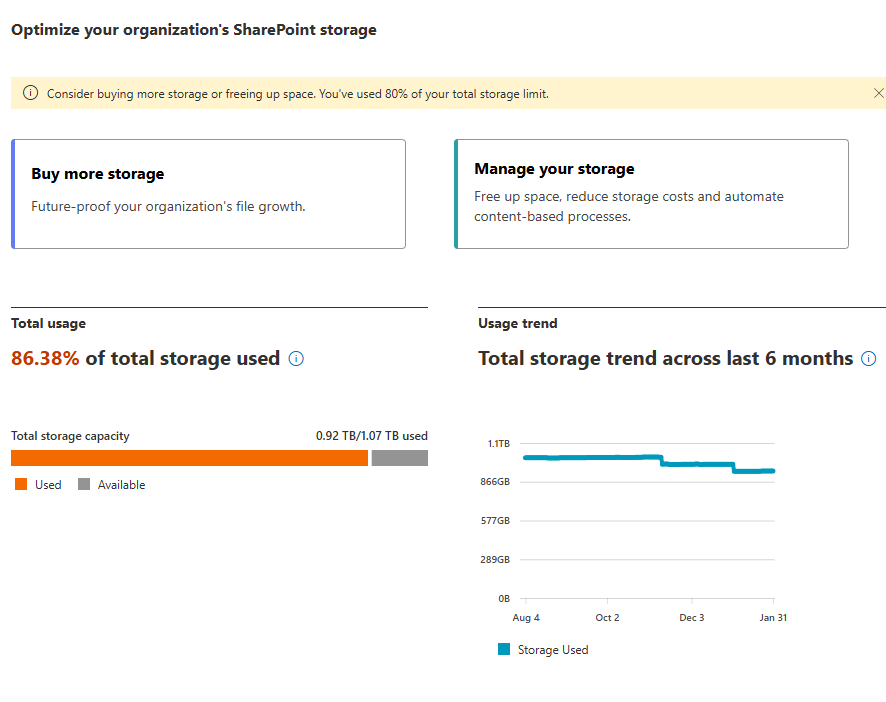
You’ll see a storage capacity bar showing used versus available storage, plus the actual numbers (e.g., “0.92 TB/1.07 TB used”). Calculate your headroom by looking at the available portion.
A simple way to classify what you’re seeing:
- Green: More than 20% headroom. Monitor monthly.
- Yellow: 5-20% headroom. Start identifying what's driving growth now.
- Red: Under 5% headroom. You're close enough that read-only mode becomes a real concern if growth continues.
Note: These are practical thresholds based on how quickly storage can grow and how long procurement or cleanup typically takes, not official Microsoft limits.
Capture two things before moving on: total versus used storage, and the remaining headroom. That snapshot gives you a baseline you can compare against later.
One important caveat: this data isn’t live. Microsoft’s storage reporting typically lags by 24–48 hours, so recent deletions or changes won’t show up immediately. Treat this as a directional check, not a real-time gauge.
This view tells you how much room you actually have left and whether growth puts you on a timeline, which determines how urgent the next steps are.
For more details on SharePoint storage limits: SharePoint limits and boundaries
Step 2: Check OneDrive storage growth
OneDrive storage works differently than SharePoint. Instead of a shared tenant pool, each user has their own storage quota (typically 1 TB). This means there’s no single “headroom” number to check for OneDrive.
What you’re looking for with OneDrive is growth patterns: Is total OneDrive storage increasing? How quickly? Are a few users consuming excessive storage?
In the Microsoft 365 admin center, go to Reports → Usage → OneDrive, then select the Usage tab. Look at the Storage chart on the right, which shows “Amount of storage used” over time.
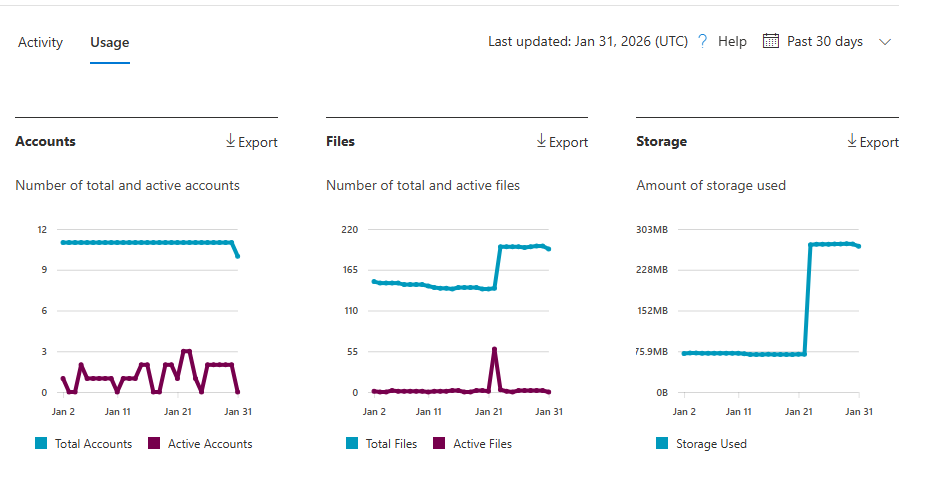
Important: The OneDrive usage report shows only storage consumed, not total quota or available capacity. This is by design, since OneDrive uses per-user quotas rather than a shared pool.
What you’re evaluating:
- Is the storage trend line climbing steeply?
- Has there been a sudden spike in usage?
- Is growth steady but consistent over time?
This view helps you understand if OneDrive is a growth driver, even though you won’t see capacity limits here.
Step 3: Compare SharePoint vs. OneDrive growth patterns
Now that you’ve checked both services, compare what you found:
SharePoint shows urgency: If your SharePoint tenant pool is in the yellow or red zone (under 20% headroom), or if the trend shows steep growth, SharePoint is your priority. This is where overage costs and read-only risk live. Head to Step 4.
OneDrive shows growth: If OneDrive storage is climbing rapidly, or if you see a sudden spike, you need to understand what’s driving it. This usually points to user behavior issues or offboarding gaps. Skip to Step 5.
Both are growing: Address SharePoint first (it has the more immediate financial and availability risk), then tackle OneDrive.
Step 4: If SharePoint is driving growth, find the biggest containers
If SharePoint is responsible for most of the growth, the next step is to see where that space is actually concentrated.
In the SharePoint admin center, go to Sites → Active sites. Switch to a view that includes the Storage used column, then sort by that column to surface the largest sites at the top.
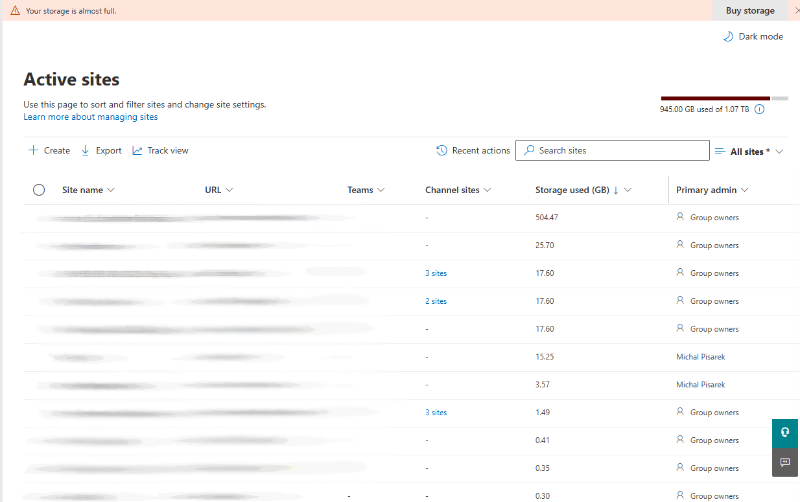
Record the top five to ten sites by storage and make a note about each one:
- Does it look largely static, such as an archive or legacy project?
- Or does it appear active, with recent changes and ongoing growth?
Once you have this list, you can decide whether deeper investigation is needed at the site level. Skip to Step 5.
For more details on managing site storage: Manage site storage limits.
Step 5: If OneDrive is driving it, look for concentration vs. spread
If OneDrive is responsible for most of the growth, the question changes from where to how. You’re looking to understand whether usage is concentrated in a small number of accounts or spread evenly across many.
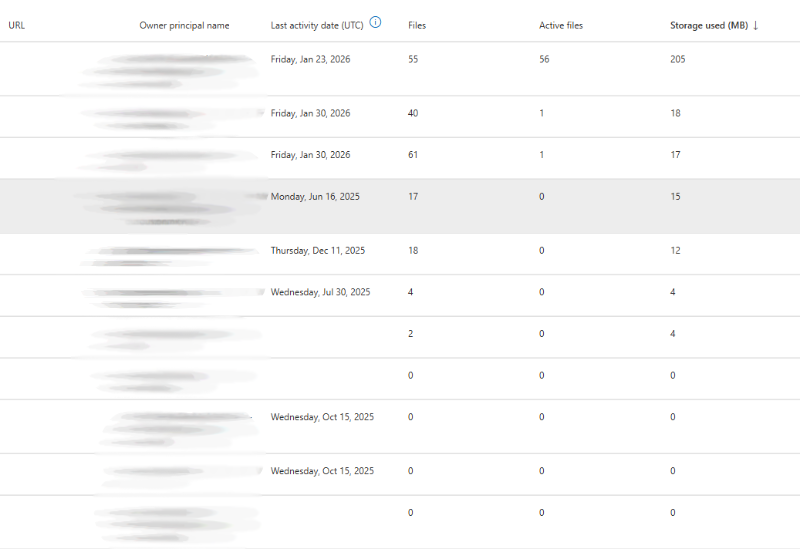
In the Microsoft 365 admin center, go to Reports → Usage → OneDrive. Scroll down to the user-level detail table, which shows how storage is distributed across individual OneDrive accounts and highlights the largest users.
Two patterns tend to show up:
Concentrated growth: A small number of OneDrive accounts account for a large share of total usage. This usually points to a handful of power users, shared workarounds, or atypical file activity.
What to do: Engage with the top 3-5 users to understand their workflows. They may be using OneDrive as a team repository or storing large media files that belong elsewhere.
Distributed growth: Usage increases slowly but consistently across many accounts. No single drive looks alarming, but the total adds up over time.
What to do: This usually indicates a broader policy issue. Check your default OneDrive storage quotas and review your offboarding processes to ensure departed users' OneDrive accounts aren't lingering indefinitely.
Record the largest accounts by storage and note which pattern you’re seeing.
For more on OneDrive storage management: OneDrive storage and retention
Step 6: Pause for a sanity check
Before drawing conclusions, account for a few common reporting quirks that can make storage numbers look misleading:
Reporting lag: Storage usage data typically lags by 24–48 hours. Recent deletions or changes won’t show up immediately.
Recycle bin timing: Deleted content moves through recycle bins and retention windows before storage is actually released, so usage can stay flat even after cleanup. The second-stage recycle bin holds items for 93 days after deletion from the first-stage bin, meaning cleanup efforts may not show results for months. More on recycle bins
Version history: Libraries that look reasonable at a glance can still be dominated by file versions, especially in PowerPoint-heavy areas with high version limits. SharePoint's default is 500 versions per file, and co-authoring behavior can generate versions rapidly. More on versioning
Inactive sites: Old or unused sites still consume active storage if their content hasn’t been archived or removed. Age alone doesn’t reduce their impact; a five-year-old site counts the same as one created yesterday.
Step 7: What to do next
Use the driver you identified to decide where to look next:
If SharePoint sites are driving growth: Move to site-level investigation and lifecycle decisions. Our upcoming post on sustainable storage strategies will cover this in detail.
If version history is dominating usage: Assess version debt before touching content. See our guide: How version history impacts your SharePoint and OneDrive storage.
If OneDrive usage dominates: Focus on account-level patterns and offboarding behavior. We'll cover OneDrive blind spots and what really happens to drives when employees leave later in this series.
If SharePoint headroom is already critical (<5%): Keep cost timing in view while you investigate. See Why SharePoint and OneDrive storage often turns into a cost surprise to understand how quickly overages can accumulate.
Storage doesn’t need to be a surprise
Storage only becomes a problem when you don’t keep an eye on it.
Saving the screenshots and notes from this check gives you a baseline. Re-running it on a regular cadence, monthly or quarterly, turns storage from a one-off scramble into a predictable signal you can track.
If you want this view consolidated and repeatable without manual digging across admin centers, Orchestry helps surface the same indicators and track them over time.
Reduce sprawl and oversharing across Microsoft 365
Orchestry helps IT and workspace owners apply lifecycle and governance standards across Teams and SharePoint, improving visibility, reducing manual work, and lowering risk as AI makes content easier to discover.
To see Orchestry in action, request a demo or download our Features Sheet to learn more.