/HubSpot%20-%20eBook%20-%20Proof%20Card%20Mockup%20001.jpg?length=1000&name=HubSpot%20-%20eBook%20-%20Proof%20Card%20Mockup%20001.jpg)
/HubSpot%20-%20eBook%20-%20Proof%20Card%20Mockup%20001.jpg?length=1000&name=HubSpot%20-%20eBook%20-%20Proof%20Card%20Mockup%20001.jpg)
/HubSpot%20-%20eBook%20-%20Proof%20Card%20Mockup%20001.jpg?length=1000&name=HubSpot%20-%20eBook%20-%20Proof%20Card%20Mockup%20001.jpg)
/HubSpot%20-%20eBook%20-%20Proof%20Card%20Mockup%20001.jpg?length=1000&name=HubSpot%20-%20eBook%20-%20Proof%20Card%20Mockup%20001.jpg)
/HubSpot%20-%20eBook%20-%20Proof%20Card%20Mockup%20001.jpg?length=1000&name=HubSpot%20-%20eBook%20-%20Proof%20Card%20Mockup%20001.jpg)
/HubSpot%20-%20eBook%20-%20Proof%20Card%20Mockup%20001.jpg?length=1000&name=HubSpot%20-%20eBook%20-%20Proof%20Card%20Mockup%20001.jpg)
/HubSpot%20-%20eBook%20-%20Proof%20Card%20Mockup%20001.jpg?length=1000&name=HubSpot%20-%20eBook%20-%20Proof%20Card%20Mockup%20001.jpg)

/HubSpot%20-%20eBook%20-%20Proof%20Card%20Mockup%20001-min.jpg?length=1000&name=HubSpot%20-%20eBook%20-%20Proof%20Card%20Mockup%20001-min.jpg)


At some point, every Microsoft 365 admin asks the same question: Why are we out of storage?
You can find the “total used” number easily enough. What’s harder is explaining it cleanly without bouncing between admin centers or half-translating SharePoint versus OneDrive. Microsoft 365 shows you a total, but it doesn’t make it obvious what’s actually driving that figure.
Once you have a simple, reusable mental map of how these two distinct systems work, storage stops feeling vague and starts feeling diagnosable.
How Microsoft 365 tenant storage actually works
The biggest hurdle to managing storage is the "one big pool" myth. In reality, Microsoft 365 storage is split into two distinct bank accounts that don't share funds.The tenant pool (SharePoint and Teams)
SharePoint storage is a shared organization-wide pool. Every file in a SharePoint site, every recording in a Teams channel, and every document in a Viva Engage community pulls from this same pot.
- The math: You get a base of 1 TB plus 10 GB per licensed user.
- The stakes: This is the pool that triggers additional storage costs on your Microsoft bill. When this fills up, your entire organization's ability to collaborate can grind to a halt.
If your organization exceeds this pooled limit, Microsoft doesn't just send a bill; it puts your environment at risk. Once you cross the line, your sites can be flipped into read-only mode, meaning users can no longer add files, edit documents, or even save their work until you buy additional storage add-ons.
Personal storage (OneDrive)
OneDrive storage lives in personal sites. While it uses SharePoint technology under the hood, it behaves like its own world.
- The math: Most users get 1 TB of their own personal space.
- The separation: Crucially, this 1 TB does not draw from the tenant pool. A user filling their OneDrive with 800 GB of video won't cost the company an extra cent in SharePoint overages.
Storage looks mysterious because the visible layer (the files you see in File Explorer) isn't the full story. The heavier contributors are usually behind that layer: version history, recycle bins, and "hot storage" sites that haven't been touched in years.
Where SharePoint storage lives
SharePoint storage lives inside sites. That’s the unit that matters for admins, governance, and reporting.
Users experience storage as libraries, folders, and files. But under the hood, those containers accumulate hidden weight. A site with only 10 GB of "live" files might actually be consuming 50 GB of your tenant pool once you factor in the version history and the items sitting in the site's recycle bin.
On the quota side, remember that old sites don’t get cheaper with age. A legacy project site from 2019 draws from the same expensive tenant pool as your most active current site. Until that content is deleted or moved to Microsoft 365 Archive, it remains fully billable.
Watch out for: The Preservation Hold Library (PHL). If you have a Retention Policy or Legal Hold active, you have a hidden storage consumer. When a user deletes or edits a file, Microsoft 365 moves the original version to a hidden Preservation Hold Library to ensure it remains discoverable for compliance.
Normally, you can cap versions to save space. However, a Retention Policy overrides these limits. It will ignore your caps and preserve every single version created during the retention period.
For admins, this can be the ultimate trap: you can delete terabytes of data, but if a multi-year retention policy is in place, your storage used number won’t budge. The data’s just moved from a visible folder to an invisible one.
Where OneDrive storage lives
Because OneDrive is managed separately, it often becomes a black hole for data. It’s one workspace per person, created by default, rarely curated, and almost never closed out the way a project site is.
While it doesn't eat your SharePoint tenant pool, it still requires governance. Beyond manual uploads, Microsoft automatically creates folders in a user’s OneDrive to store data from across the platform, including:
- Teams and Outlook. Stores your meeting recordings, chat files, and Loop components created in emails or private chats.
-
Notes and Forms. Holds your OneNote notebooks, Whiteboards, and data related to Microsoft Forms.
-
Media and Design: Contains video projects from Climpchamp and various media assets.
-
AI and Apps: Stores files you’ve uploaded to Microsoft Copilot and settings for tools like Edge Workspaces.
Watch out for: The offboarding trap. While OneDrive storage is “free” (included in the user license), SharePoint storage is pooled (and expensive). When an employee leaves, IT often moves their OneDrive files to a SharePoint site to preserve them. But this move instantly converts free storage to billable storage and can lead to a surprise overage charge.
Versions: why “one file” isn’t one file
Version history is the easiest thing to underestimate because it’s invisible in day-to-day work. When you open a document, you just see the file. But in the background, Microsoft 365 can be storing dozens or hundreds of full versions of that same file.
Every time you open and edit a document in Microsoft 365, another version is stamped. If you’re constantly opening and closing a PowerPoint presentation to add “just one more thing,” you’re creating a full version each time. Over time, these minor updates can consume tons of storage.
Add in co-authoring and autosave, and this adds up fast:
- Autosave + frequent edits mean versions accumulate continuously during normal work.
- Multiple people editing can trigger dozens of versions in a single afternoon.
- Large files (especially decks and working docs) turn version history into real storage weight. A 50 MB PowerPoint that’s been edited every week for a year can grow into gigabytes of storage weight. The current deck looks like one file, but the history behind it makes it the equivalent of many.
It’s a common misconception that every single edit creates a new version. Microsoft 365 actually uses a "heartbeat" to manage versioning during active collaboration:
- The 10-minute rule: When using Autosave, SharePoint typically captures a new version every 10 minutes of active editing.
- The "new person" trigger: A new version is instantly created the moment a different user joins the co-authoring session.
This means that if five people jump into a 100 MB PowerPoint deck for a 30-minute final review, that file could easily grow by 500 MB in a single afternoon.
| File Type | Live Size | Versions | Total Storage Impact |
|---|---|---|---|
| Standard PDF | 5 MB | 1 (rarely edited) | 5 MB |
| Active PPTX | 50 MB | 500 (autosaved) | 25,000 MB (25 GB) |
This is why storage cleanups often feel like they've failed. If you delete 1,000 small files but leave three PowerPoints with 500 versions each, your storage bar might not even move.
Deleted content: why “we cleaned up” doesn’t show up immediately
Deleting content doesn’t remove it from tenant storage right away. In SharePoint and OneDrive, deleted items move through stages before they’re actually gone.
First, they land in the site recycle bin. If that gets emptied, they move to the second-stage recycle bin (site collection recycle bin). Items stay in these bins for a total of 93 days. Until items fully age out or are manually purged from the second-stage bin, they still count toward used storage.
What that means in practice:
- Teams can do a real cleanup, then check the admin center and see almost no change.
- Storage can look “stuck” for weeks, even when people did what you asked.
- Meanwhile, new content and new versions keep accumulating, so the overall number may keep rising.
If you’re trying to reduce storage in a hurry, “delete a bunch of stuff” is a slow lever. It can be the right action, but it rarely produces immediate relief in the tenant storage number you’re watching.
How this shows up in the Microsoft 365 admin center
Microsoft shows you the numbers, but it’s up to you to connect the dots. You need to look in three specific places:
Pro tip: Don’t have admin access? You don’t need to be a global admin to see these numbers. If you’re in charge of managing storage but can’t get into the Admin Center, ask your IT team for the reports reader role. It’s a read-only role that allows you to see all the usage and storage trends without giving you the power to change settings or read private emails. (Note: To see the detailed Active Sites list in the SharePoint Admin Center, you’ll need the global reader role.)
1. The tenant pool view
Go to the SharePoint Admin Center → Active Sites. This is the fastest way to see your "Total storage" versus "Used."
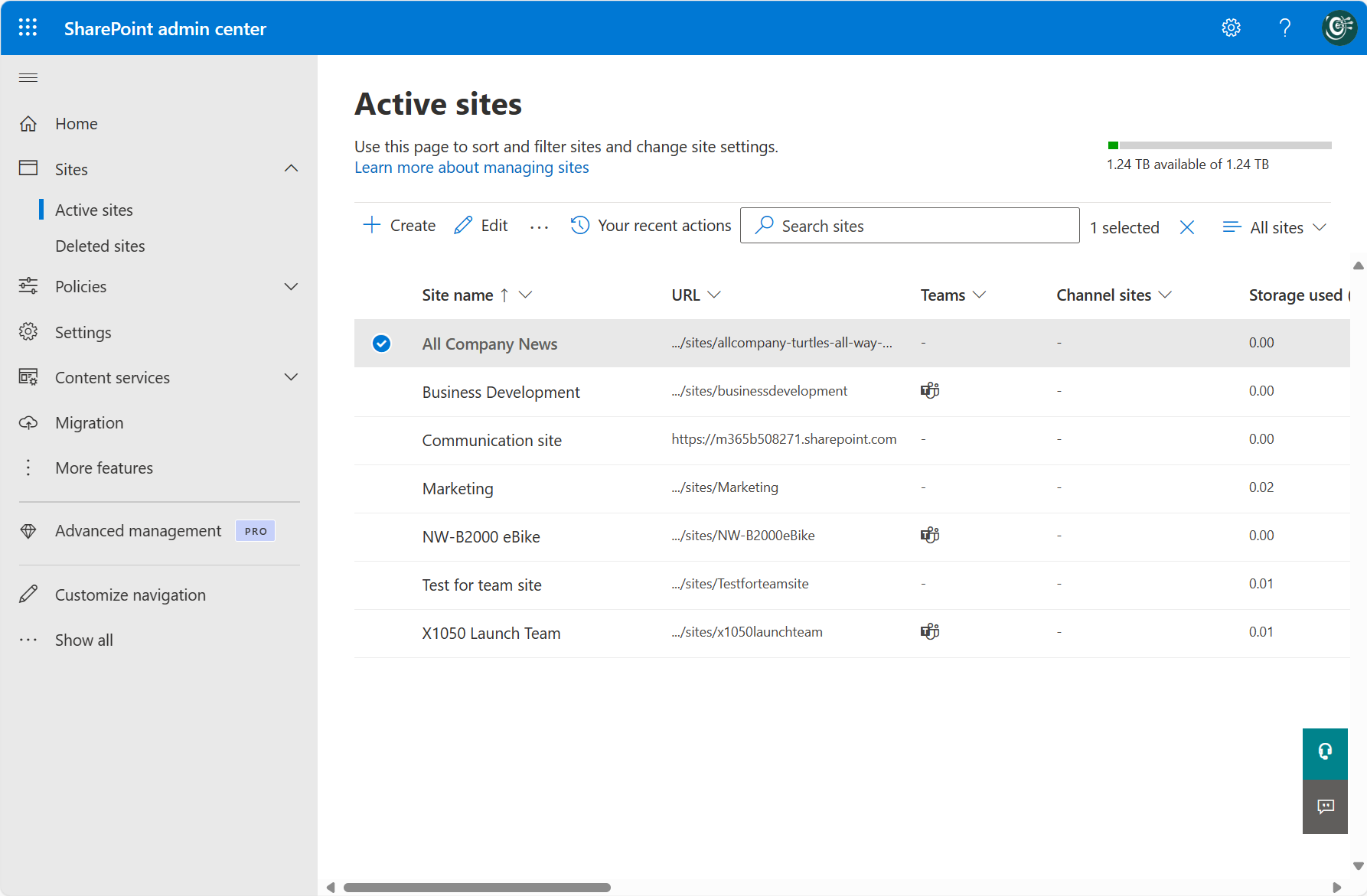
- What you can see: Which sites are the biggest containers and whether you are approaching your 1 TB + 10 GB limit.
- What you can't see: Whether a site is big because of live files or because it has 10 years of version history behind it.
2. SharePoint usage reports
In the Microsoft 365 Admin Center, navigate to Reports → Usage → SharePoint and select the Site usage or Storage tabs.
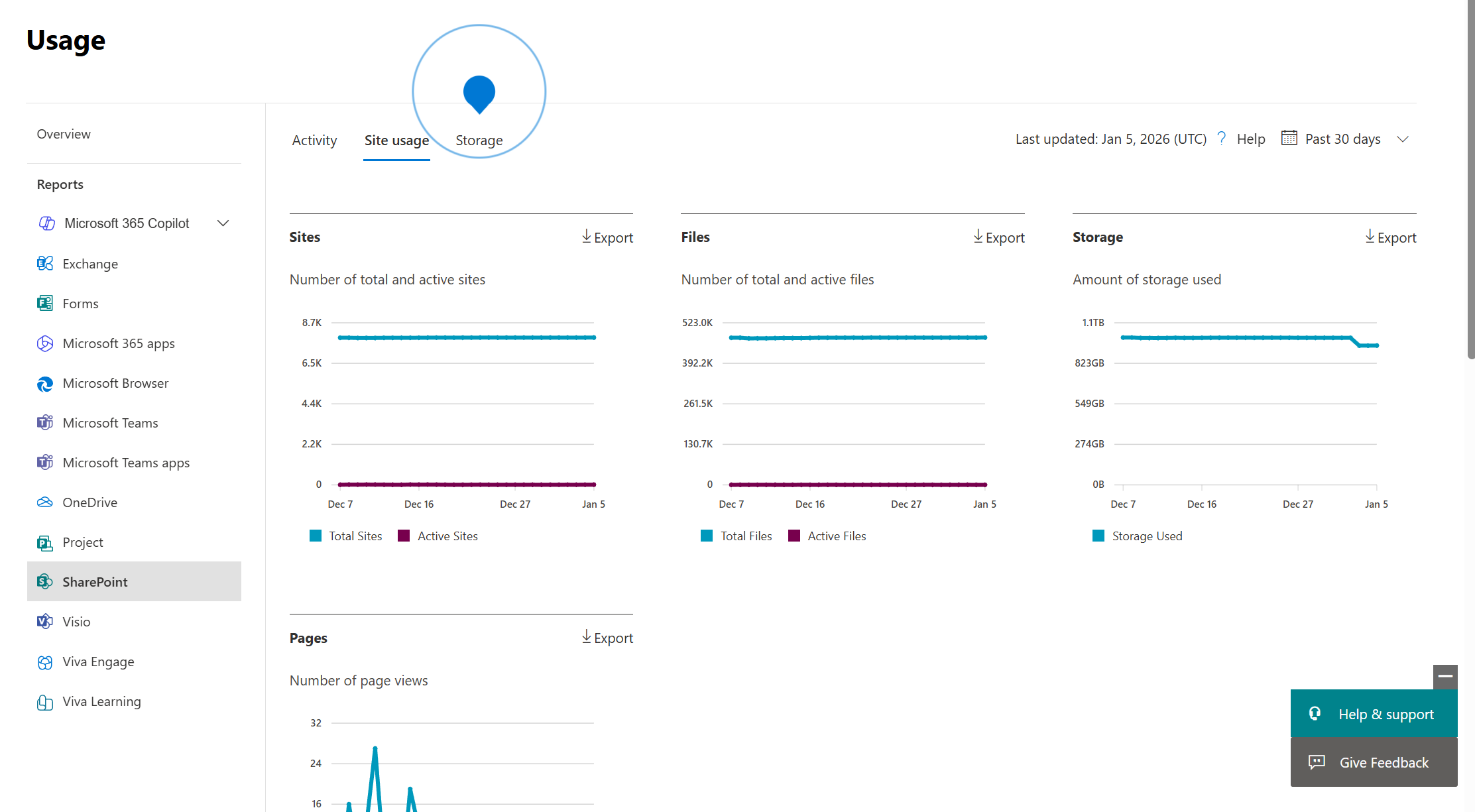
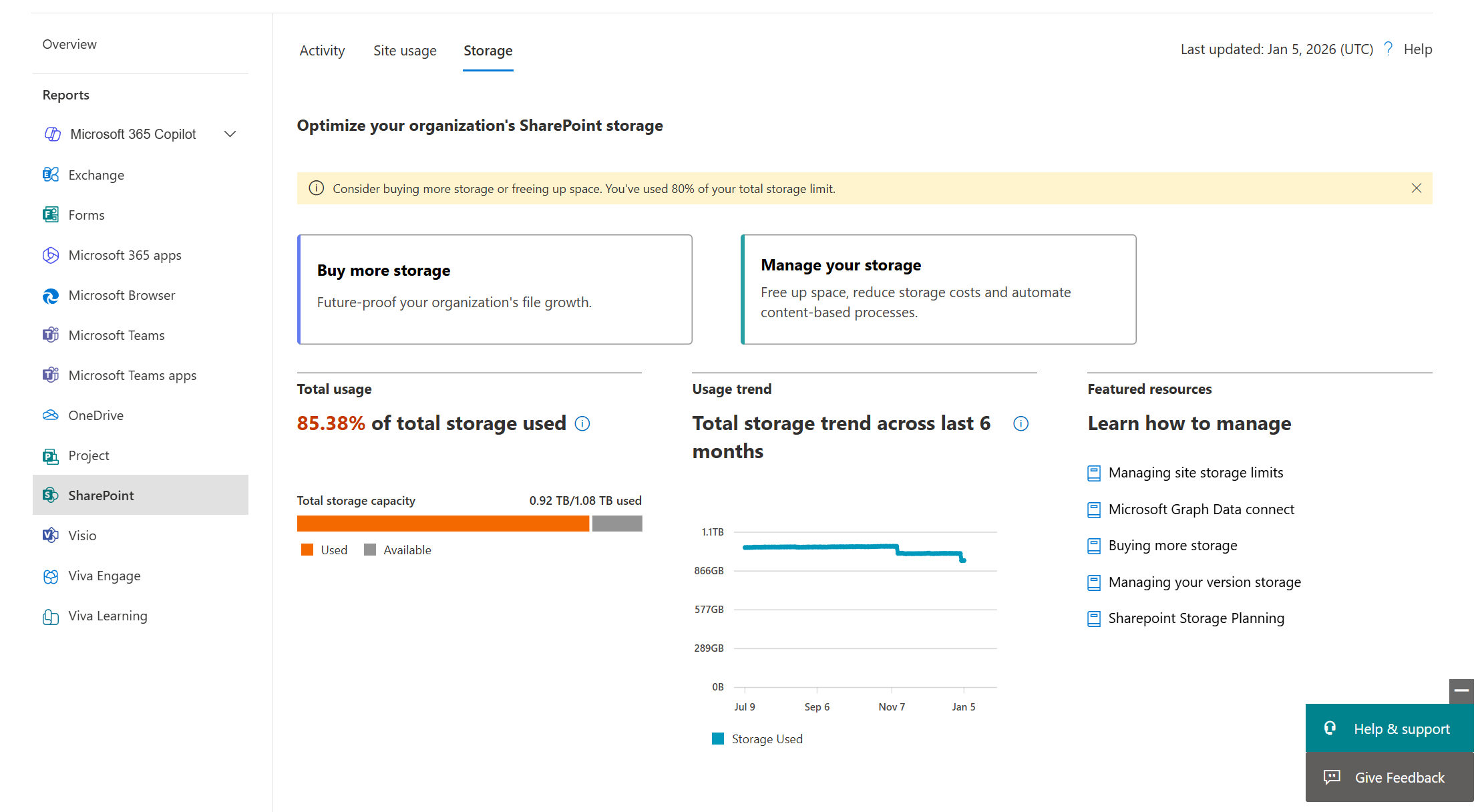
- The Storage tab: This shows your Total storage used as a percentage of your overall limit. It’s the best place to see longer trends and access tools for managing version storage or buying more capacity before you hit a critical ceiling.
- The Site usage tab: This gives you a storage trend over 7, 30, 90, or 180 days. It’s best for spotting short-term spikes caused by a massive migration or a specific project.
3. OneDrive usage reports
OneDrive is separate, so you check its health at Reports → Usage → OneDrive and select the Usage tab.
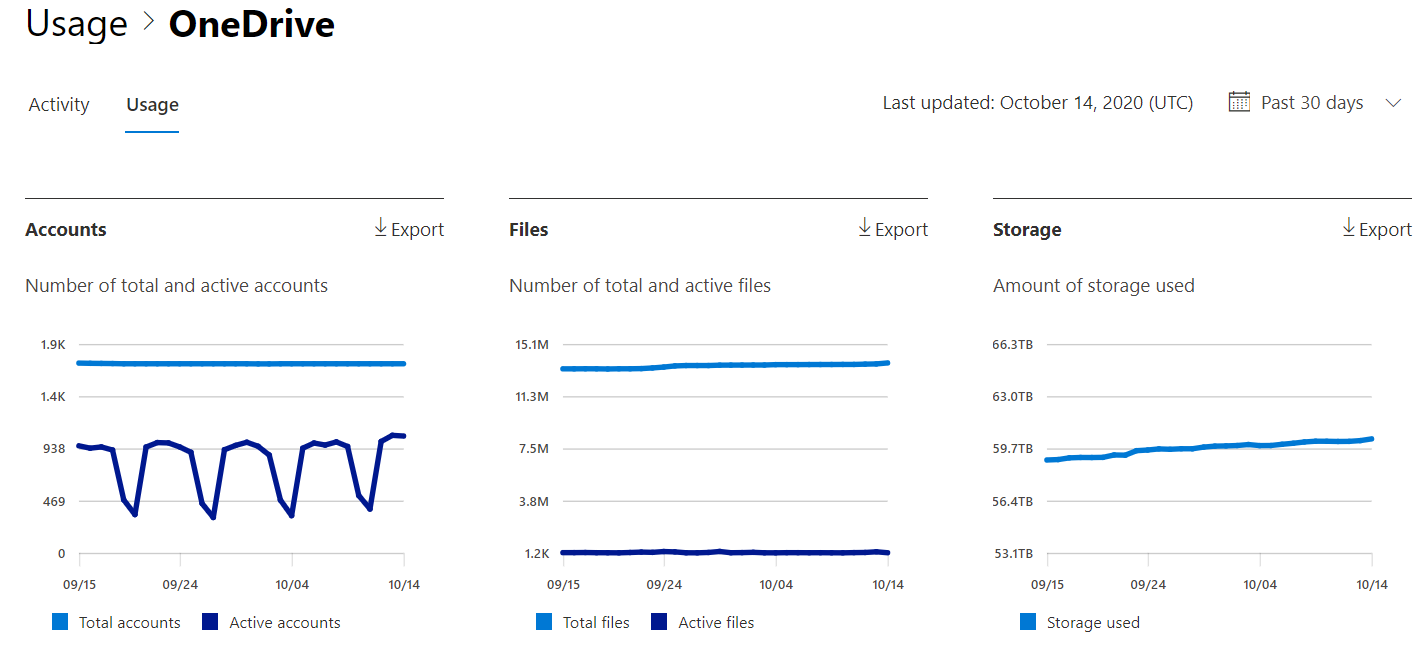
- The value: This helps you identify if storage growth is a company-wide culture issue (everyone keeping everything) or if a few specific users are using their 1 TB personal allowance as a dumping ground for large, non-work files.
Quick self-check: Five M365 storage questions you should be able to answer now
You don’t need perfect reporting yet. You just need to be able to answer these at a high level, using the admin center views from the last section.
1. Is our storage growth visible (live files) or invisible (versions + PHL)?
If your storage is climbing but your file count isn't, you likely have a versioning or retention issue. You need to identify if the hidden weight in the Preservation Hold Library is the primary driver.
2. Which 5-10 sites are responsible for most of our storage?
You should be able to name the specific sites hitting their limits. If the answer is "everything seems full," you’re likely facing a broad policy issue (like a tenant-wide retention policy) rather than a user behavior issue.
3. Is co-authoring taking a toll?
You should be able to name the specific sites hitting their limits. If the answer is "everything seems full," you’re likely facing a broad policy issue (like a tenant-wide retention policy) rather than a user behavior issue.
4. Are retention policies overriding our version caps?
This is the big one. If you've set a limit of 100 versions but have a 7-year retention policy, your limit is being ignored. You need to know if your compliance settings have effectively granted your users unlimited storage weight.
5. Where does data go when its owner leaves?
Do you have a process to offboard OneDrive content without dumping it into the billable SharePoint pool? If "Move to SharePoint" is your default, you have a looming cost spike.
Next steps for SharePoint + OneDrive storage management
You don’t need a perfect model of Microsoft 365 storage. You need a usable one.
If you can answer the five questions above, you’re in a position to do something concrete: identify where the weight is coming from, pick the right lever, and measure whether it worked.
Microsoft shows you totals and top containers. Orchestry helps you turn that into repeatable governance work: finding what’s driving the number, assigning ownership, and proving impact over time.
To see Orchestry in action, request a demo or download our Features Sheet to learn more.