/HubSpot%20-%20eBook%20-%20Proof%20Card%20Mockup%20001.jpg?length=1000&name=HubSpot%20-%20eBook%20-%20Proof%20Card%20Mockup%20001.jpg)
/HubSpot%20-%20eBook%20-%20Proof%20Card%20Mockup%20001.jpg?length=1000&name=HubSpot%20-%20eBook%20-%20Proof%20Card%20Mockup%20001.jpg)
/HubSpot%20-%20eBook%20-%20Proof%20Card%20Mockup%20001.jpg?length=1000&name=HubSpot%20-%20eBook%20-%20Proof%20Card%20Mockup%20001.jpg)
/HubSpot%20-%20eBook%20-%20Proof%20Card%20Mockup%20001.jpg?length=1000&name=HubSpot%20-%20eBook%20-%20Proof%20Card%20Mockup%20001.jpg)
/HubSpot%20-%20eBook%20-%20Proof%20Card%20Mockup%20001.jpg?length=1000&name=HubSpot%20-%20eBook%20-%20Proof%20Card%20Mockup%20001.jpg)
/HubSpot%20-%20eBook%20-%20Proof%20Card%20Mockup%20001.jpg?length=1000&name=HubSpot%20-%20eBook%20-%20Proof%20Card%20Mockup%20001.jpg)
/HubSpot%20-%20eBook%20-%20Proof%20Card%20Mockup%20001.jpg?length=1000&name=HubSpot%20-%20eBook%20-%20Proof%20Card%20Mockup%20001.jpg)
/HubSpot%20-%20eBook%20-%20Proof%20Card%20Mockup%20001-min.jpg?length=1000&name=HubSpot%20-%20eBook%20-%20Proof%20Card%20Mockup%20001-min.jpg)


Updated July 2026
Ask ten IT admins whether SharePoint is a real document management system and you'll get ten different answers. It has version history, metadata, permissions, and retention. It also has no dedicated "document control" button, and its defaults were built for collaboration, not compliance.
That gap is where most SharePoint document management goes wrong. Teams treat it like a file share with a search box, then wonder why nobody can find the current version of a contract or prove who approved it.
This guide covers what SharePoint genuinely does as a document management system, where its built-in features stop, and how to close the difference before it becomes an audit finding or an AI grounding problem.
Is SharePoint a document management system?
Yes. SharePoint is a document management system built into Microsoft 365, with version control, metadata, permissions, co-authoring, content approval, and retention available out of the box. What it lacks is a dedicated records-management interface and any enforcement of good practice: the features exist, but SharePoint won't make anyone use them consistently. For most organizations it's a capable DMS that needs deliberate configuration and governance to behave like one.
One thing worth knowing before you start: SharePoint turns version history on by default, and Microsoft now applies an automatic version limit that balances recovery against storage. So version control is already running on your content whether or not anyone configured it.
| Capability | SharePoint out of the box | What it takes to make it work |
|---|---|---|
| Version control | On by default, with an automatic version limit | Confirm the limit so version growth doesn't eat storage |
| Metadata & content types | Fully supported | Design columns and content types, then enforce their use |
| Document control / approvals | Content approval plus Power Automate | Decide where control is worth the friction |
| Permissions | Inherited from the site | Avoid item-level breaks; keep inheritance clean |
| Retention & records | Via Microsoft Purview labels | Labels depend on reliable metadata underneath |
| Enforcement / consistency | Not built in | Governance and provisioning standards close this |
How to manage documents in SharePoint day to day
Beyond the control features, three capabilities carry everyday document work:
- Co-authoring lets multiple people edit the same file at once, with each person's presence visible, so the old "file locked by another user" problem is largely gone.
- OneDrive sync gives users a Windows Explorer view of their libraries, which eases the move off legacy file shares.
- Views let you present one library many ways, filtering to outstanding invoices or grouping by status, without scattering content across folders.
Version control and check-in/check-out in SharePoint
SharePoint turns version control on by default. Every save creates a new version, and any editor can open version history, compare, and restore a prior version without IT involvement.
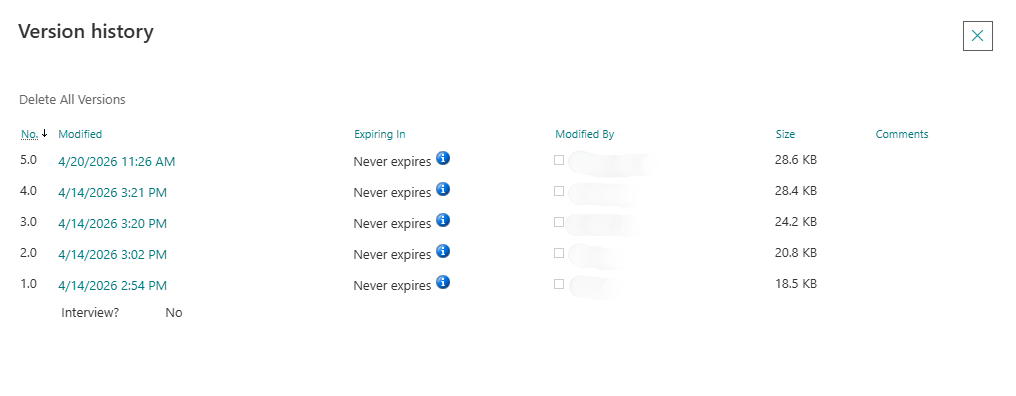
How many versions are kept has changed. Microsoft now manages version limits automatically to optimize storage, and admins can set a manual limit anywhere from 100 to 50,000 major versions at the organization, site, or library level.
Check-in/check-out is the stricter option. When you require check-out on a library, a file locks to one editor until they check it back in, which prevents the competing-edits problem on documents that can't tolerate simultaneous changes, like a signed policy or a controlled template.
The trade-off matters: required check-out disables real-time co-authoring for that library. Use it deliberately on controlled documents, not as a blanket setting, or you'll break the collaborative editing most teams rely on.
One caveat at scale: version growth quietly consumes storage even under automatic limits. A library with heavy editors can hold thousands of versions no one will ever restore, and those versions count against your SharePoint quota. More on taming that in managing versioning to reduce SharePoint storage.
Metadata and content types
Metadata is the single biggest lever in SharePoint document management, and the one most teams underuse. Instead of encoding meaning into file names and folder paths, you tag documents with columns like Document Type, Status, Owner, or Retention Category, then sort, filter, and group on them.
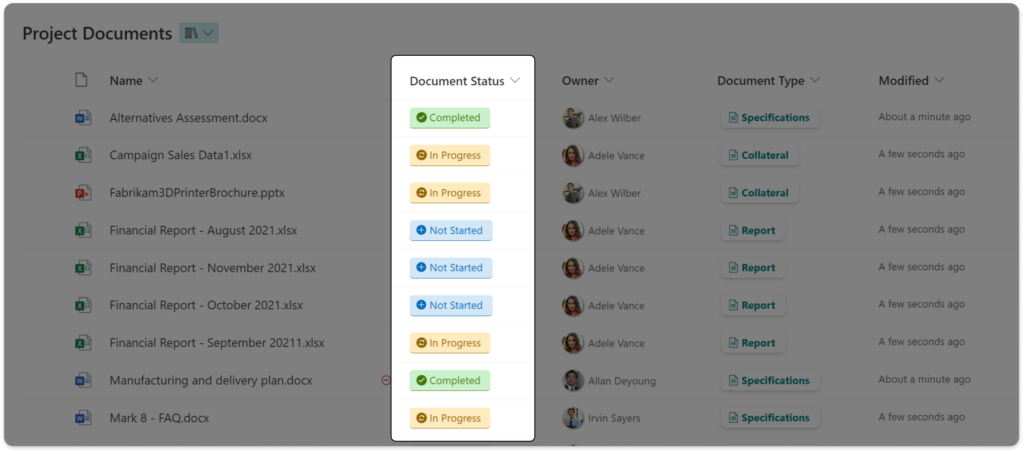
Start small. A library with one or two well-chosen columns beats one with ten that nobody fills in. Two that earn their keep almost everywhere:
- Document Type labels a file as an invoice, contract, policy, or SOP, so people can see what a document is without opening it.
- Document Status moves a file through Draft, Under review, Approved, and Retired with a single click, instead of renaming it or dragging it between folders.
A few rules keep metadata usable:
- Use choice fields, not free text, so you don't end up with "Approved", "approved", and "Final" as three different values.
- Keep choices short, obvious, and mutually exclusive.
- Default dates to today or a formula so they populate themselves.
Content types take this further by bundling a set of columns, a template, and a retention setting into a reusable definition. Publish a "Contract" content type once and every library that uses it inherits the same fields and rules, which is how you get consistency across a tenant instead of per-library improvisation.
Document control and approval workflows in SharePoint
"Document control" is the part people assume SharePoint can't do. It can, through two mechanisms that serve different needs.
Content approval is the built-in option. Turn it on and new or edited files sit in a Pending state, invisible to regular readers, until an approver publishes them. It's simple and requires no extra licensing, which makes it the right starting point for lightweight review.
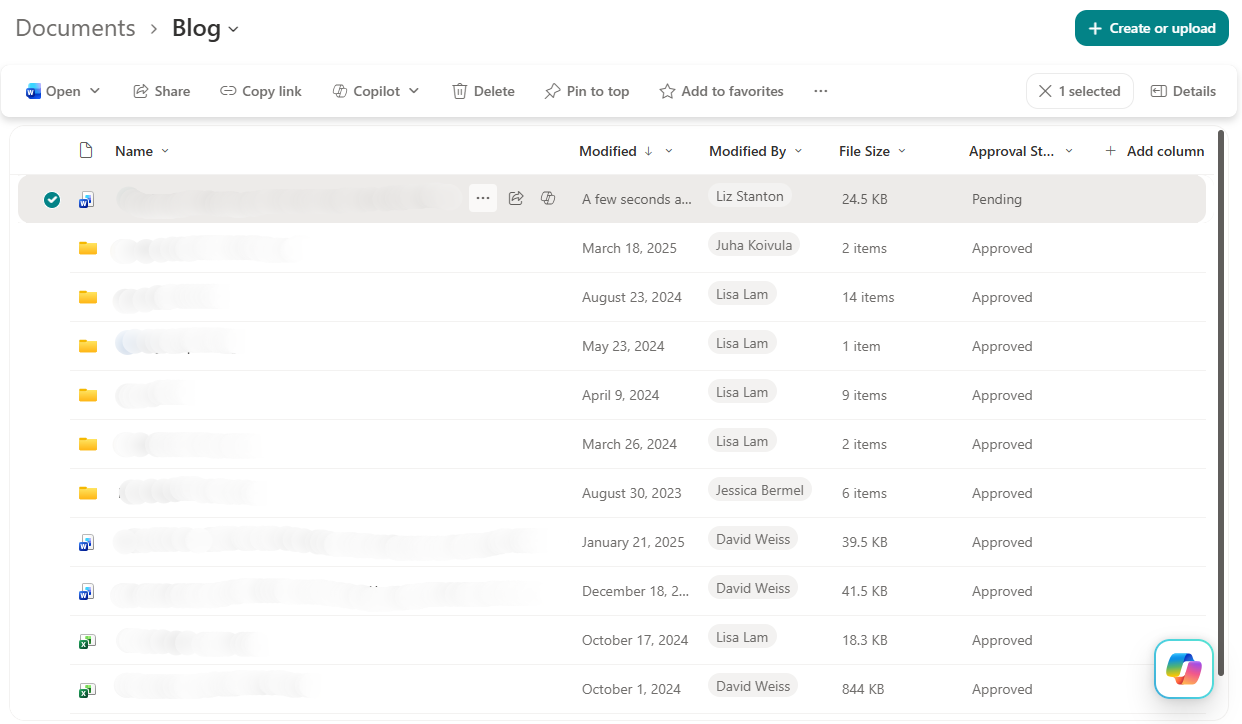
Power Automate is the option for real workflow. When approval needs routing, escalation, parallel sign-off, or a record of who approved what and when, a flow gives you that audit trail and conditional logic that content approval alone can't.
The common failure is overuse. Approvals on every library become a bottleneck, and documents sit Pending for weeks because the submit step wasn't obvious. Apply document control where a wrong version carries real consequence, and leave everything else to co-authoring.
Retention and records management
Keeping documents is easy. Defensibly disposing of them is where SharePoint's document management earns its place.
Retention labels, managed in Microsoft Purview and applied to SharePoint content, let you keep a document for a set period, then delete or review it automatically. Declare a file a record and it becomes locked against edits or deletion for its retention window, which is what turns a library into something that survives an audit.
The catch is that retention is only as good as the metadata and structure underneath it. If nobody knows a document's type or owner, no policy can decide how long to keep it, which is why the metadata discipline above is the foundation this section depends on. If quotas are already the pressure, start with SharePoint and OneDrive storage: quotas, versions, and sites.
SharePoint document management best practices
A few decisions separate a library that scales from one that becomes the next mess to migrate.
Choose metadata over folders. Folders impose one fixed structure designed by one person; metadata lets everyone slice the same content the way they need. The exception is the channel-based folders Teams creates automatically, which you should leave alone. For the full case, see why you should flatten your document libraries.
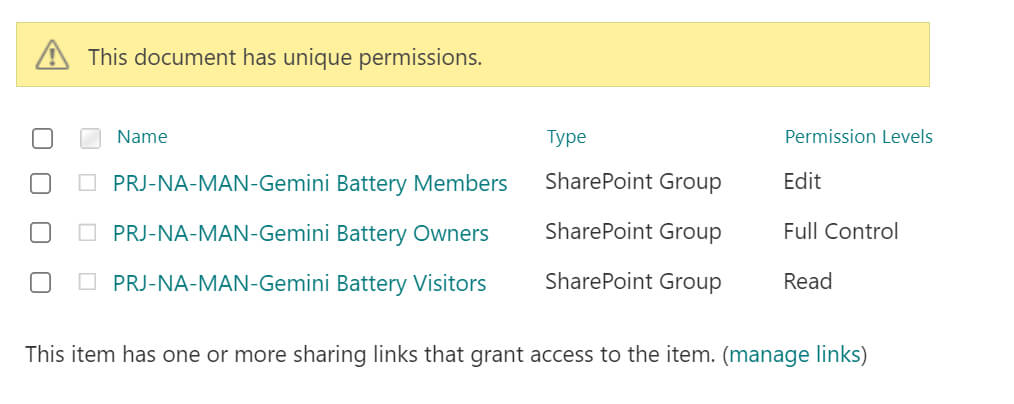
Keep permissions inherited. SharePoint libraries inherit access from the site by default, which is what keeps permissions manageable. Break inheritance only when an exception is genuinely required, and do it at the library level rather than on individual folders or files.
Why document management now decides what AI can do
Everything above used to be a tidiness argument. It's now an accuracy one.
When you point Microsoft 365 Copilot, or any AI agent, at your tenant, it reads the documents your libraries expose. Well-labelled, current, correctly-permissioned content produces grounded answers. Duplicate drafts, mystery versions, and over-shared libraries produce confident wrong ones, and the same conditions apply regardless of which AI you use.
That reframes metadata, version control, and permissions as the inputs to AI quality. The library nobody governed is the one that now surfaces a superseded contract in an AI answer to the whole company.
SharePoint document management system: frequently asked questions
Is SharePoint a document management system?
Yes. SharePoint provides version control, metadata, permissions, co-authoring, content approval, and retention as a document management system inside Microsoft 365. It doesn't enforce consistent use of those features, so it needs deliberate configuration to operate as a controlled DMS.
How do you do document control in SharePoint?
Use content approval to hold edited files in a Pending state until an approver publishes them, or build a Power Automate flow when you need routing, escalation, and an audit trail. Apply either only where a wrong version carries real consequence.
Does SharePoint have version control?
Yes. Version history is on by default. Microsoft manages the version limit automatically to optimize storage, and admins can set a manual cap from 100 to 50,000 major versions. Any editor can view, compare, and restore previous versions.
Folders or metadata in SharePoint: which is better?
Metadata, in almost every case. Folders lock content into one rigid hierarchy, while metadata lets the same documents be filtered, sorted, and grouped many ways. Reserve folders for the channel-based folders that Teams creates automatically.
Make good document management the default, not the exception
SharePoint gives every team the features. It doesn't make anyone use them the same way twice, which is why document management drifts the moment you're not watching.
Orchestry closes that gap at creation. Provisioning templates stand up libraries with the metadata, version limits, and permissions already set, so a governed library is the easy path instead of the exception. Workspace reviews then keep owners accountable for sharing, versioning, and retention over time, and mass version purging reclaims the storage runaway version history leaves behind.
See how Orchestry standardizes libraries, metadata, and permissions at provisioning time. Request a demo.