/HubSpot%20-%20eBook%20-%20Proof%20Card%20Mockup%20001.jpg?length=1000&name=HubSpot%20-%20eBook%20-%20Proof%20Card%20Mockup%20001.jpg)
/HubSpot%20-%20eBook%20-%20Proof%20Card%20Mockup%20001.jpg?length=1000&name=HubSpot%20-%20eBook%20-%20Proof%20Card%20Mockup%20001.jpg)
/HubSpot%20-%20eBook%20-%20Proof%20Card%20Mockup%20001.jpg?length=1000&name=HubSpot%20-%20eBook%20-%20Proof%20Card%20Mockup%20001.jpg)
/HubSpot%20-%20eBook%20-%20Proof%20Card%20Mockup%20001.jpg?length=1000&name=HubSpot%20-%20eBook%20-%20Proof%20Card%20Mockup%20001.jpg)


/HubSpot%20-%20eBook%20-%20Proof%20Card%20Mockup%20001.jpg?length=1000&name=HubSpot%20-%20eBook%20-%20Proof%20Card%20Mockup%20001.jpg)

/HubSpot%20-%20eBook%20-%20Proof%20Card%20Mockup%20001-min.jpg?length=1000&name=HubSpot%20-%20eBook%20-%20Proof%20Card%20Mockup%20001-min.jpg)
/HubSpot%20-%20eBook%20-%20Proof%20Card%20Mockup%20001-min.jpg?length=1000&name=HubSpot%20-%20eBook%20-%20Proof%20Card%20Mockup%20001-min.jpg)

If you’ve ever deleted a handful of files in Microsoft 365 and seen your storage number drop drastically (or deleted hundreds of folders without noticing any impact at all), version history is usually why.
In SharePoint and OneDrive, a “file” is rarely just the single item you see on your screen. It’s usually a vertical stack: the current copy plus hundreds of possible saved versions created by autosave and co-authoring. In PowerPoint-heavy libraries, that hidden history can outweigh the visible file by ten times or more.
Lowering version is a smart way to slow future growth, but it won’t remove the backlog you’ve already accumulated. If you need storage to drop, you have to identify the version-heavy files, trim older versions safely, and understand the math behind how a single deck turns into a storage monster.
What version history is and why it drives storage
Version history is a record of saved states for a file. Instead of overwriting the previous copy, Microsoft 365 keeps older versions so you can restore work, compare changes, or recover from mistakes.
That’s a feature, not a bug. In SharePoint and OneDrive, versioning supports modern autosave and co-authoring, where files change constantly in small increments. However, it’s a common misconception that Microsoft only saves those “small increments.” In reality, for the purpose of your storage quota, Microsoft treats every major version as a full, independent copy of your file.
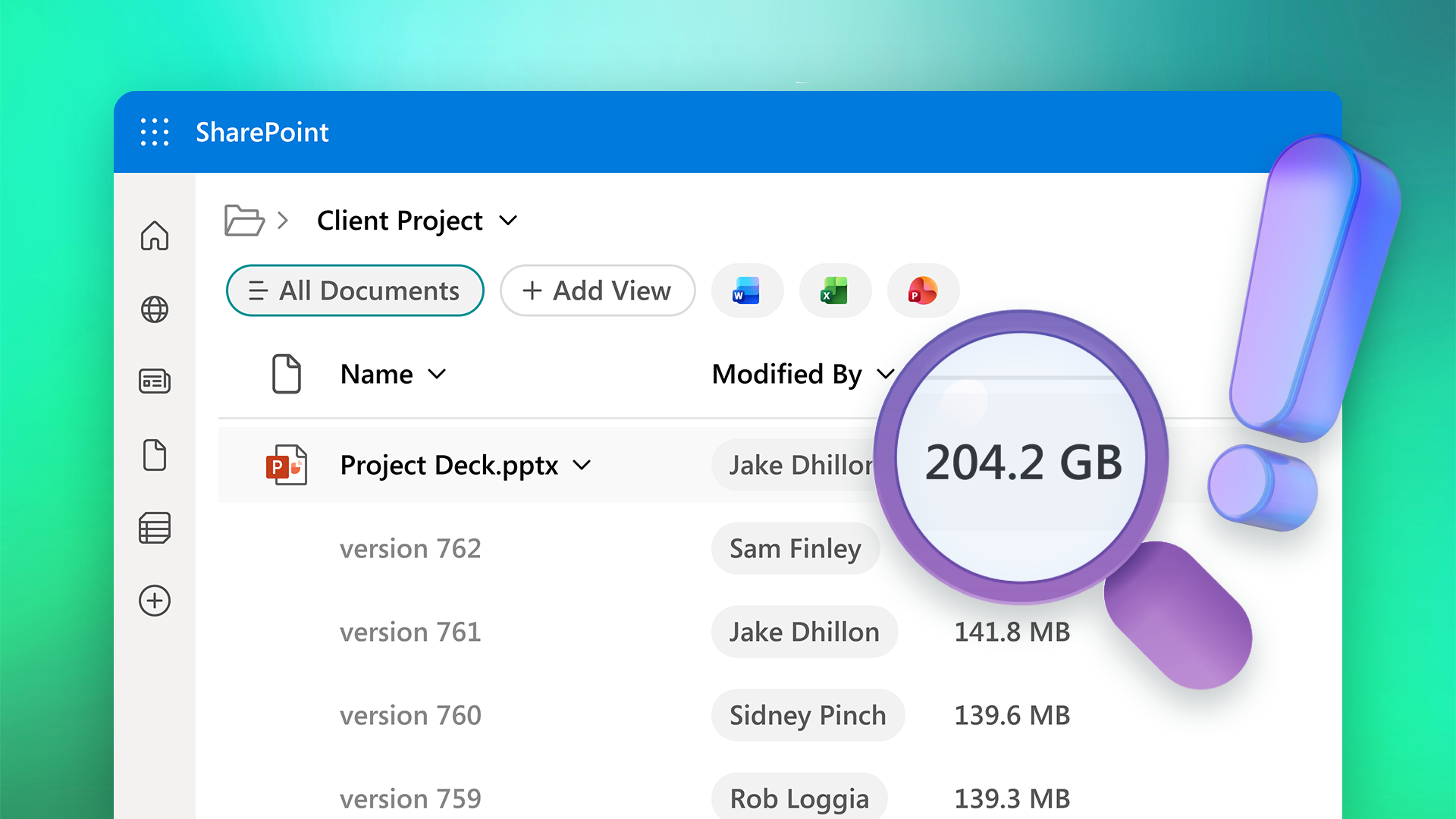
The storage catch is that “one file” is rarely just one file. It’s the current copy plus whatever version history is retained behind it. In libraries with frequent edits or long-lived working docs, that history can outweigh the visible file.
In practice, version sprawl comes from normal work patterns:
Autosave and co-authoring stack versions faster than people expect
In a co-authored file, you’re not looking at one person saving occasionally. You’ve got multiple people editing, autosave capturing changes, and a steady stream of updates over days or weeks.
Even if the file never “feels” big, the history behind it grows in the background.
Long-lived working documents don’t reset
The worst offenders aren’t finished artifacts. They’re living documents that stay in use for months or years:
- Weekly decks and recurring status updates
- Ongoing proposals and sales materials
- Trackers, planning docs, and requirements docs that everyone touches
These files don’t get archived when a project ends because the work doesn’t really end. They just keep accumulating versions.
PowerPoint is a perfect storm
PowerPoint tends to combine the conditions above with one more factor: file size.
Decks bloat fast with images, embedded media, and copied slides, and small edits trigger saves constantly over a long lifespan. The result is a deck that looks like a single file in a library but behaves like a storage magnet once you include hundreds of versions.
When you realize that a single 50 MB deck with 200 versions is actually consuming 10 GB of your quota, the math starts to look very different.
The mental math: how one “normal” file turns into gigabytes
Version history is hard to manage when it stays abstract, so here’s the simplest way to think about it:
Rule of thumb: file size × version count ≈ hidden footprint
In reality, versions vary in size and compression, so this won’t be exact, but it’s accurate enough to identify where version history is driving storage. And because Microsoft 365 counts each major version as a full copy against your quota, this is the most accurate way to find your storage drivers.
Consider a typical 25 MB marketing deck used for a weekly status update:
- Routine edits: Every week, team members open the deck to tweak a slide or update a few bullet points. They aren’t adding massive new images or reworking old content; they’re just making small, routine changes.
- The storage trigger: It doesn’t matter if a user only changes a single character. Every time a version is saved, SharePoint counts the entire 25 MB file size against your storage limit again.
- The accumulation: If the marketing team generates just four versions per week through co-authoring and quick updates, that file will have over 200 versions by December.
Suddenly, you aren’t dealing with a simple 25 MB file. You have 5 GB of storage tied up in one PowerPoint deck. Multiply that across a handful of similar decks, a long-running proposal, a tracker that’s been periodically updated for two years, and version history becomes a massive share of your total storage.
The point isn’t the exact number. It’s that the history behind the file can (and often does) outweigh the file you see.
Why lowering version limits doesn’t fix what you already pay for
Lowering version limits helps, but it can’t reduce what’s already there.
Limits slow new version growth
Version limits control how much history gets created going forward. If you reduce the number of versions retained, you reduce the rate at which version storage grows, especially in libraries where autosave and co-authoring are normal.
Limits don’t reduce existing version history
What limits don’t do is remove the backlog you already have. According to Microsoft’s guidance on versioning limits, even after you tighten settings, existing versions stay in place until they’re manually trimmed or naturally overwritten by new edits.
And even when you manually delete versions to free up space, they move to the site's recycle bin first, where they can remain for up to 93 days. That means your total "used storage" might not drop until those items officially age out of your environment.
If a file has accumulated hundreds of versions over months or years, changing the limit today changes what happens next, not what’s already stored.
Trimming is what makes used storage drop
If you need used storage to actually drop, you need a way to reduce existing version history in the places where it’s doing the most damage.
That’s version trimming. It’s a different lever than limits, and it’s the one that addresses what you’re already paying for.
How to find files with excessive version history in SharePoint and OneDrive
You don’t need to audit the whole tenant to get value here. The goal is to find one or two libraries where version history is clearly doing outsized damage, then start trimming there.
Start where version bloat is most likely
Version sprawl tends to concentrate in the same few places:
- PPT-heavy libraries: Marketing, sales, exec comms, and PMO.
- “Working” libraries: Where the same files get edited for months, like proposals, trackers, plans, and requirements docs.
- High-collaboration sites: Where autosave and many editors are normal.
Do a quick first pass without guessing
To identify the specific culprits, you need to see the data SharePoint hides by default. There are two specific ways to do this:
1. Quick glance: Add a “Version” column
The fastest way for a site owner to see the “depth” of a file’s history is to add a Version column to the standard library view.
- In your document library, select + Add column
- Scroll down and select Show/hide columns
- Find Version in the list, check the box, and click Apply
Now, you can sort the library by file size and check the version count side-by-side. If you see a large PowerPoint with a version number like 450.0, you’ve found your storage driver.
2. Deep dive: Use the Storage Metrics page
If you want to see the total footprint of a library, including all hidden versions, use the Storage Metrics menu.
- Go to Site Settings > Site Usage.
- Scroll to the bottom of the page and click on Storage Metrics.
This page shows a Total Size column that includes the live file plus all of its version history. Navigating through this menu often reveals the hidden storage hog: a library that looks like it has 10 GB of files but is actually consuming 100 GB of your tenant’s quota.
Why this often turns into PowerShell
Native views can help you find large files. What they don’t reliably show is how much of that size is version history versus the current file.
That gap is why teams either take a blunt approach (trim broadly, hope nothing breaks) or build one-off reporting with PowerShell to identify the true offenders.
The practical move
Pick one library where the “small number of files, huge footprint” pattern is obvious. Use it as your first trimming candidate. Once you can show impact in one place, you can scale the same approach elsewhere without turning it into tenant-wide guesswork.
A safe, repeatable way to reduce version debt
Version trimming works best as a controlled maintenance task, not a one-time purge. Run one tight pilot, prove impact, then turn it into a cadence.
Step 1: Pick a single high-impact target
Start with one library, not the whole tenant.
- Choose a PPT-heavy or high-churn “working” library (marketing, sales, exec comms, PMO, proposals, trackers)
- Look for the pattern: a few long-lived files with high edit activity
Step 2: Stop new version debt in the same place
Tighten limits in that library so you’re not recreating the problem as you clean it up.
- Update Library settings → Versioning settings for the selected library
- Start with a sane limit that matches real rollback needs (recent versions, not years of history)
- Avoid tenant-wide changes until you’ve validated impact in one place
Step 3: Define a trimming rule
Keep it simple enough to explain to security, compliance, and the business.
- Keep recent versions for active collaboration: Ensure that recent work is never at risk during the cleanup process.
- Trim older versions beyond a threshold: Use a threshold based on age, count, or both, anchored to how the library is actually used.
- Follow the technical framework: For a deep dive into the specific commands and logic behind this process, refer to Microsoft’s official guidance on version trimming.
Step 4: Confirm guardrails before deleting anything
Don’t trim until you’ve checked constraints that will create risk or pushback.
At minimum, confirm:
- Retention policies, holds, and any legal or compliance requirements that affect whether versions can actually be removed
- Business rollback expectations, meaning what teams actually rely on, not what they say they might rely on
If you can’t get a clear answer, pick a different library for the first run.
Step 5: Trim, then measure impact
Treat this like a change you’ll need to prove was worth it.
- Capture a baseline (library/site storage, top offenders, version counts)
- Start small (a subset of files) before scaling within the library
- Validate outcomes:
- Storage impact at the library/site level first
- User impact (did anyone lose rollback they genuinely needed?)
Also, expect timing lag: “used storage” doesn’t always reflect cleanup immediately, especially when deleted content remains retained. Deleted versions will sit in the site’s recycle bin for 93 days before the quota is actually credited back.
Step 6: Operationalize
If trimming works once, the win is making it repeatable.
- Set a cadence (monthly or quarterly)
- Assign ownership
- Run a simple loop: identify targets → confirm guardrails → trim → measure → report
- Define success as both:
- a visible drop in version-heavy areas, and
- a slower growth rate over time
Tackling version history with Orchestry
Microsoft gives you the levers: version limits, storage reporting, and the ability to manage versions at the file level. The hard part is doing anything with those levers in a real tenant.
While the process outline above works for a single high-impact library, attempting to repeat that process manually across hundreds or thousands of sites is literally impossible for a central IT team. Without a dedicated solution, you can’t scale the research, guardrail checks, and trimming commands across an entire organization.
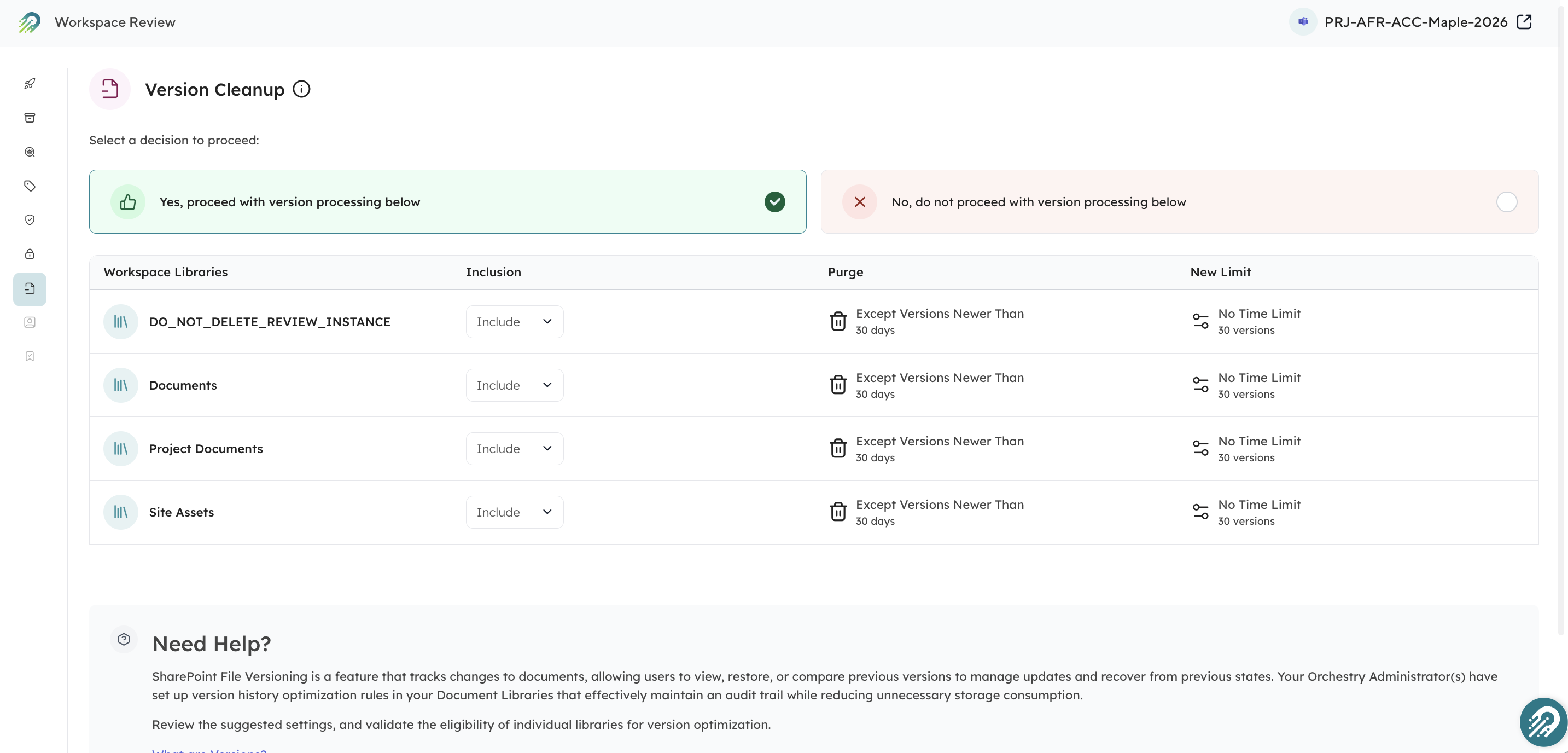
Version Cleanup in Orchestry's Workspace Review.
Here’s how Orchestry turns an impossible manual task into a repeatable workflow:
- Automate at scale: Orchestry allow you to automate the entire trimming process across your whole environment, rather than treating it as a one-off scripting project.
- Involve content owners: Instead of IT guessing which versions are safe to delete, Orchestry gets content owners involved in the process. It identifies the biggest offenders and asks the people who actually know the files to validate the cleanup.
- Identify hidden drivers: Orchestry helps you surface exactly where version history is driving storage growth across sites and libraries before you take action.
- Prevent storage creep: By turning cleanup into a repeatable workflow with clear reporting, you can keep storage from quietly creeping back after your initial win.
How to cut version history storage without breaking collaboration
If storage is creeping up even after you’ve tightened version limits, assume you’re still paying for historic version history.
Pick one high-usage library where a small number of files account for most of the footprint. Confirm guardrails, trim older versions, and measure what changed. Once you can do it safely in one place, you’ve got a playbook you can reuse.
Reduce sprawl and oversharing across Microsoft 365
Orchestry helps IT and workspace owners apply lifecycle and governance standards across Teams and SharePoint, improving visibility, reducing manual work, and lowering risk as AI makes content easier to discover.
To see Orchestry in action, request a demo or download our Features Sheet to learn more.