/HubSpot%20-%20eBook%20-%20Proof%20Card%20Mockup%20001.jpg?length=1000&name=HubSpot%20-%20eBook%20-%20Proof%20Card%20Mockup%20001.jpg)
/HubSpot%20-%20eBook%20-%20Proof%20Card%20Mockup%20001.jpg?length=1000&name=HubSpot%20-%20eBook%20-%20Proof%20Card%20Mockup%20001.jpg)
/HubSpot%20-%20eBook%20-%20Proof%20Card%20Mockup%20001.jpg?length=1000&name=HubSpot%20-%20eBook%20-%20Proof%20Card%20Mockup%20001.jpg)
/HubSpot%20-%20eBook%20-%20Proof%20Card%20Mockup%20001.jpg?length=1000&name=HubSpot%20-%20eBook%20-%20Proof%20Card%20Mockup%20001.jpg)
/HubSpot%20-%20eBook%20-%20Proof%20Card%20Mockup%20001.jpg?length=1000&name=HubSpot%20-%20eBook%20-%20Proof%20Card%20Mockup%20001.jpg)
/HubSpot%20-%20eBook%20-%20Proof%20Card%20Mockup%20001.jpg?length=1000&name=HubSpot%20-%20eBook%20-%20Proof%20Card%20Mockup%20001.jpg)
/HubSpot%20-%20eBook%20-%20Proof%20Card%20Mockup%20001.jpg?length=1000&name=HubSpot%20-%20eBook%20-%20Proof%20Card%20Mockup%20001.jpg)
/HubSpot%20-%20eBook%20-%20Proof%20Card%20Mockup%20001-min.jpg?length=1000&name=HubSpot%20-%20eBook%20-%20Proof%20Card%20Mockup%20001-min.jpg)


A quarter of a million people use Microsoft Teams, making it one of the most popular business communication services in the world. But only a small percentage of those use the full functionality of Teams to manage their organization’s people and processes. While it isn’t obvious to a casual user, Teams delivers handy features that make it a fantastic tool for managing projects and people.
That’s right—you can use Teams to manage projects with internal and external stakeholders alike. Yet our research shows 56% percent of Teams instances have no customization, and 78% have only a single ‘General’ channel. That means many organizations don’t unlock Teams’ true business management capabilities. Like so many Microsoft applications, it’s not immediately obvious how to get started adapting Microsoft Teams to your unique business processes. That’s where our best practices for using Teams across the core five aspects of project management come in.
What Does Every Well-managed Project Need?
While every project is unique, there are five key building blocks that make up the foundation of every successfully managed project.
With each of these requirements, there are many ways to manage tasks and events —and no one answer fits all. But the software gives us best practices for completing work, and Microsoft has put a lot of thought into how Teams supports you as you move projects from concept to completion.
1. Task Management in Microsoft Teams
Every project involves breaking work tasks down to smaller units that require completion. Managing, assigning, and tracking each task defines a successful project workspace. The problem with task management is that there are simply too many tools to choose from, both inside and outside O365/M365. In fact, if you’ve been trying to get away from third-party task management apps, you may be surprised to know exactly how many project management applications there are within M365:
- Planner
- To Do
- Office
- OneNote
- Outlook
- Azure DevOps
- Microsoft Project
- Dynamics365
- Loop
- Microsoft Lists
- Microsoft Teams
The reality is there is no single “best way” to manage tasks without a coherent strategy to weave your options together. We expect many of these Microsoft applications to stick around for some time, so your decision is which subset to use, in what scenarios, and how to tie them together. Because the truth is, there will likely always be a few concurrent task platforms in rotation by different groups, for slightly different things. It’s important to be realistic about this and focus on two goals: keep the number of systems across your organization as close to “1” as possible, and reduce friction when more than one application must be used.
What to use when
If you can reduce the number of project management applications, which ones are best? This choice is highly dependent on the type of work you do, and our on-demand webinar Using Microsoft Teams for Project Management covers your options in detail.
A lot of it comes down to whether you need something very rigid and all-encompassing, or if you can choose a more lightweight application. In the former, we suggest exploring Microsoft Project Online, but in the latter, we favor something like To Do, a stand-alone app, or Tasks, a module within Teams. In either case (or indeed, with most of the options listed above), you can integrate these task management systems right into Teams. Then even if you are working with a few different systems, they can still be accessed and managed in one centralized place.
Main Takeaways
- Select a task management tool that is integration-friendly with other applications. Don’t assume new trendy options like Lists or Loop will do this!
- Reduce the number of concurrent task platforms to as few as possible
- Make task management platforms accessible within Teams
2. Document Management in Microsoft Teams
Often the primary focus of a Project Workspace is the central storage and collection of project artifacts and deliverables (i.e., a shared folder). When most people think of document management, they picture traditional (or old-school) SharePoint file management sites. If they consider Teams at all, it’s often merely to drop SharePoint links in channels to team members. Yet document management can occur wholly within Teams, making document management much more accessible and streamlined.

All documents in Teams reside in its attached SharePoint site(s) and include great features:
- Version history: creates a historical record of all changes, with the date/time and the user who made the change.
- Metadata: reveal information like document status, category, and date modified, to name a few.
- Approvals: Define status criteria and use built-in features or even automation to track revisions and approvals.
- Permissions: Keep content limited to a ‘need-to-know’ basis with customized permissions.
- Local syncing: Sync the files in your SharePoint site libraries so they’re always available on your computer, even when you’re offline.
- Real-Time co-authoring: allow multiple people to work on a document at a single time. In contrast, you can enable the “Require to check out” option or explicitly check out a document to avoid concurrent changes.
- Views: create customized views and use filters, styles, and groupings to arrange data in ways that suit your organization.
We’ve written more extensively about how to use Teams for document management in our blog —it takes a bit of thoughtful consideration but can pay off.
Main Takeaways
- Leverage some basic Metadata (e.g., Document Type, Status, or Related Topics) to reveal more about your documents
- Leverage Views to personalize, group, or filter information (e.g., show files Created By Me)
- Apply some formatting (i.e., Column, View, or Form) to help with navigation and legibility
3. Track Project Health in Microsoft Teams
As a Project Manager, one of your main responsibilities is to communicate and share information about your projects, which may include:
- Timeline
- Scope
- Decisions
- Risks
- Issues
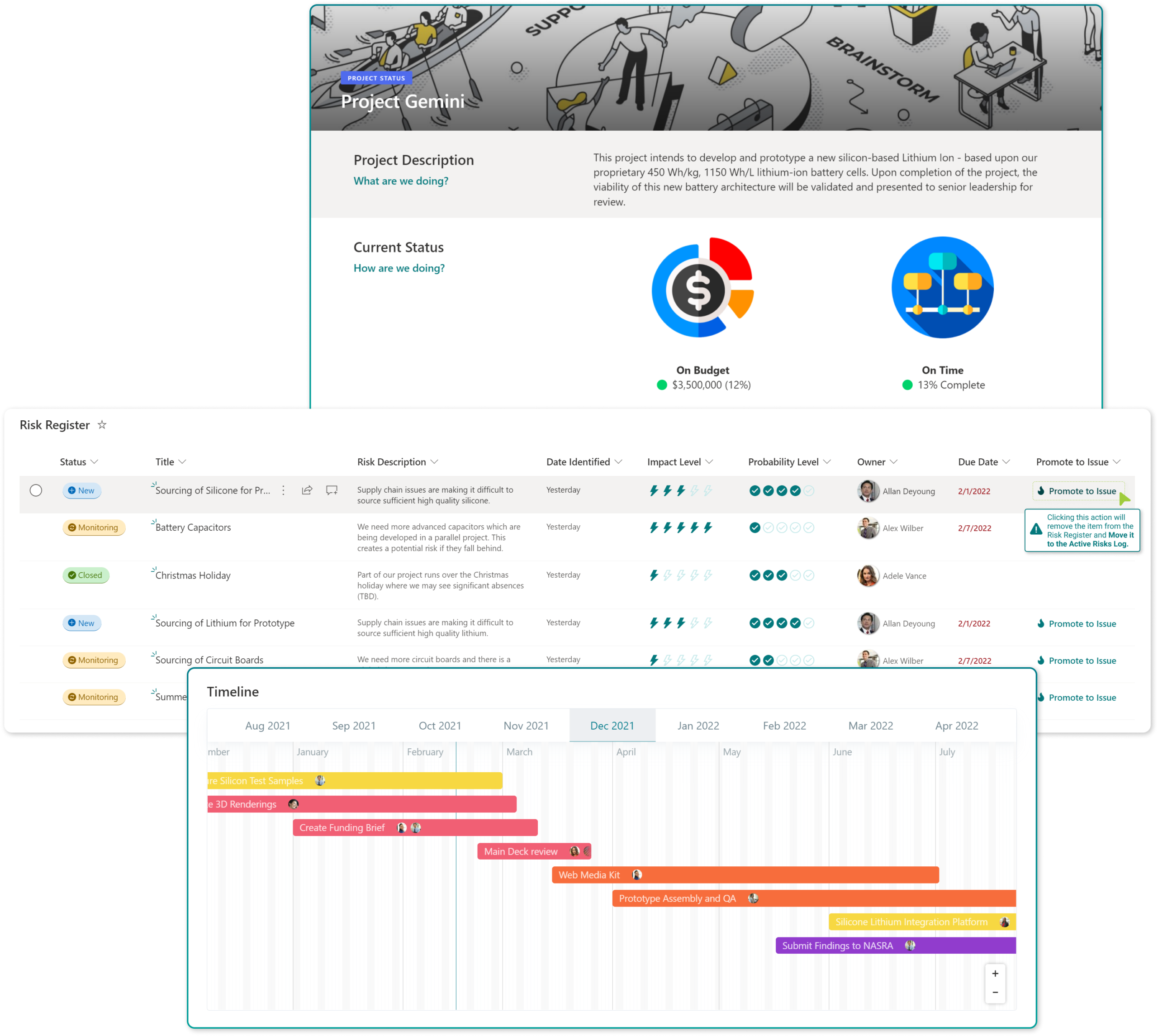
A Project Manager often needs to take the temperature of a project at-a-glance, then share updates with others. This often takes place in scrums or other standup meetings, but it’s not the only time people might need this information. Through templating, you can create a customized view with timelines, front page, and risk registers, then use it for every project going forward.
For example, you can create a timeline view that is always up to date because it pulls automatically from your Planner. Or you can create a shared space with SharePoint Lists where team members register the risks they’re encountering, so that they can be monitored centrally.
Main Takeaways
When creating your project health templates, consider these best practices:
- Consider leveraging SharePoint Lists to log important information (e.g., Risk Register, Issue Log, Decision Record, Project Assets, Lessons Learned, Vendor Feedback, etc.)
- No matter what tool you use, ensure the project schedule/timeline can be clearly displayed to members, and integrate this information into Teams
- Create SharePoint Pages to communicate easily to external stakeholders (e.g., Project Status, Project Team)
4. Using Microsoft Teams for Meeting Management
A core function of any workspace in Microsoft Teams is to facilitate team meetings.
The key is in making it simple to schedule and attend meetings. By implementing best practices, you can create transparent visibility into your meetings, allowing members to catch up on missed meetings, and make past meeting information easily findable.
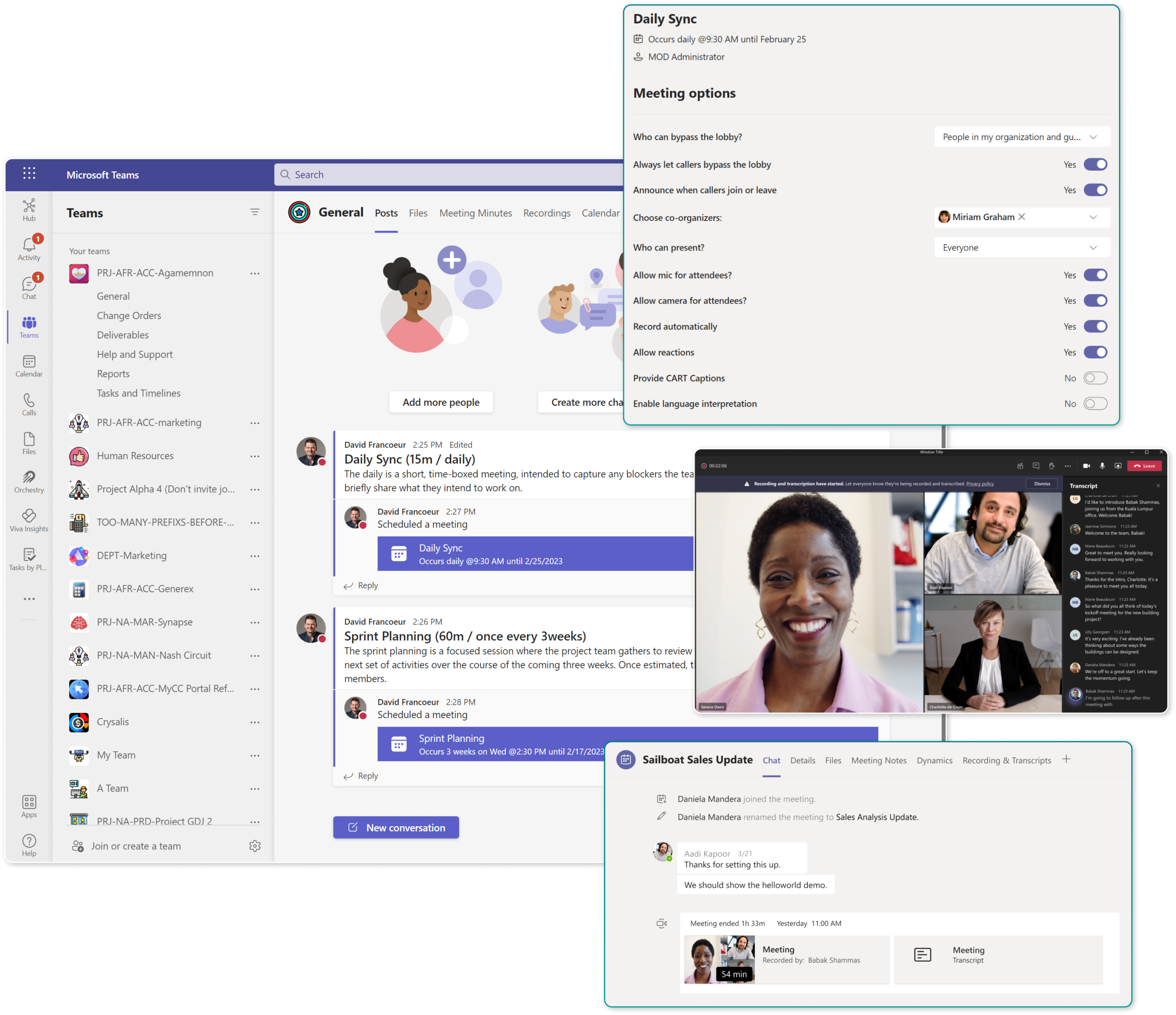
One of our top tips for neat and tidy meeting management is to schedule meetings inside of the most appropriate Teams channel. Anyone in the project channel can find and access meetings rather than relying on individual invitations. It also gives members a dedicated space to add information in OneNote, ask questions in chat, and participate in task management.
There are also a plethora of extra options, though they can be a little hard to access: like the ‘automatically record’ function. No more realizing 30 minutes in that you’ve forgotten to hit record!
Main Takeaways
- Book meetings in the Team Channel rather than sending emails to individual people and pin the Channel Calendar for easy access.
- Set meetings to auto-record to avoid forgetting midway through the meeting. Teams will automatically make everyone aware of the location of meeting recordings.
- Centralize meeting notes into a Team Notebook (like OneNote)
5. Effective Communication tools inside Microsoft Teams
Effective communication is a delicate balance in every project. You must ensure your project team is informed without a barrage of irrelevant information. Here are the main methods of conversation available to you in Microsoft 365:
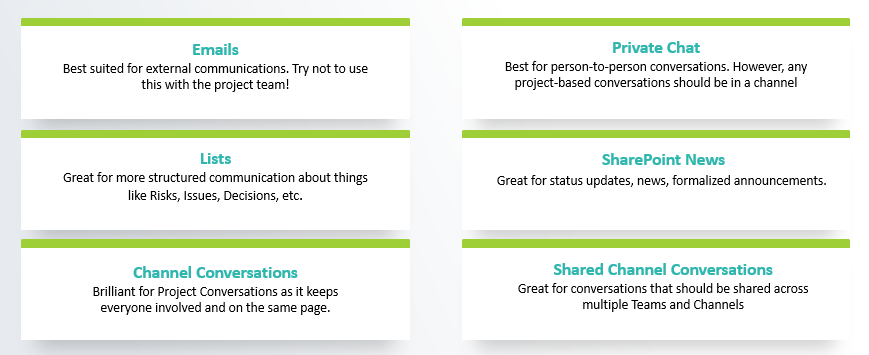
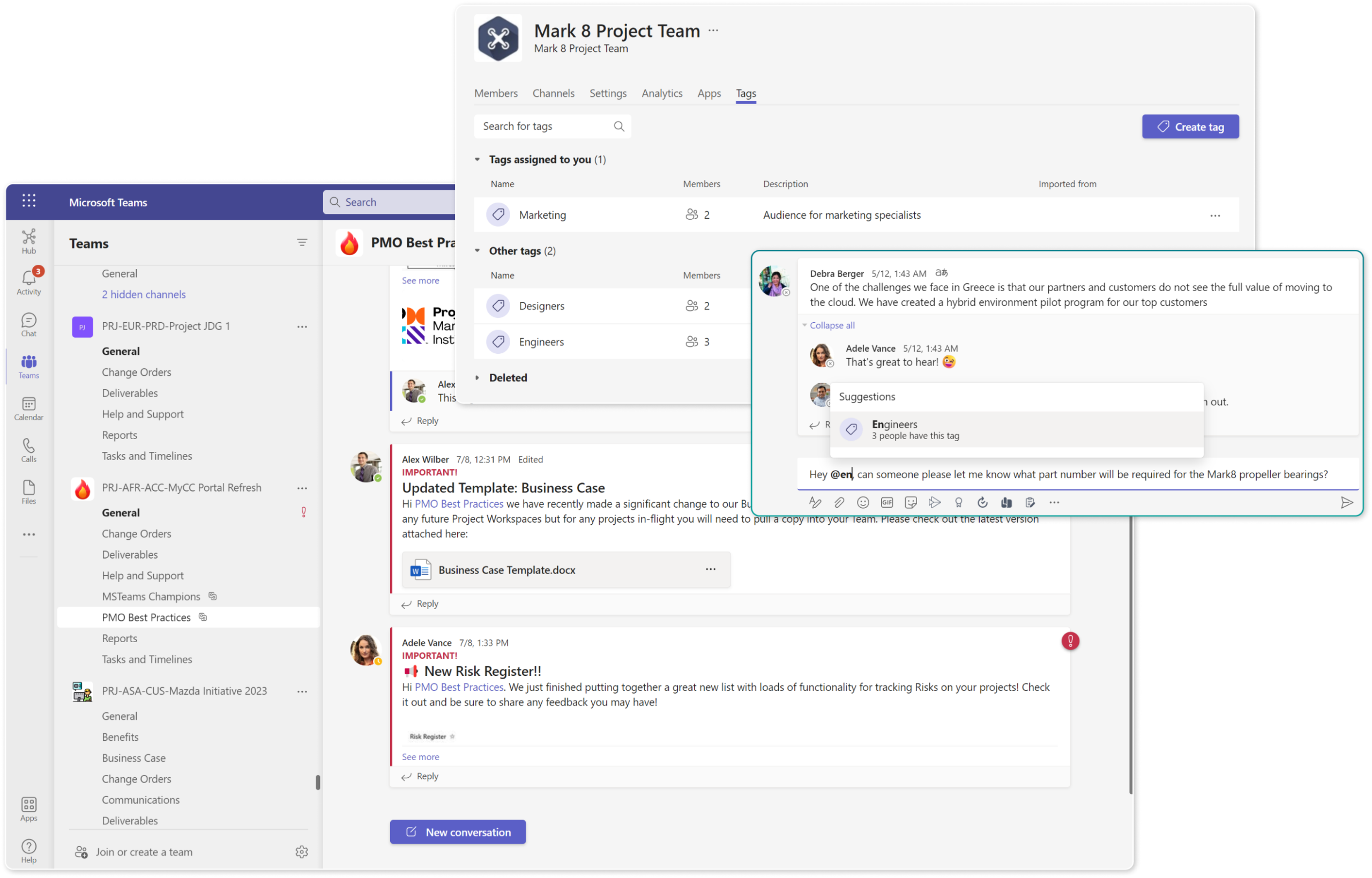
Teams as a method of communication are obvious, but there are many features that make communication easier. For instance, you probably already use @mention to call attention to a specific person in the channel, but there’s a secret gem not enough people use: custom tags.
You can create a ‘tag’ that applies to a customized group of people (say, the marketing team) and use this shorthand to mention several people at once.
But of course, communication during a project isn’t just internal—you should also consider communication with external stakeholders. It might mean finding something that works for both sets of stakeholders.
Main Takeaways
- Use channels to organize conversation and documentation
- Use Tags, @Mentions, and Threading to streamline communication
- Leverage Loop components for information that is constantly evolving (where it makes sense)
- Keep project communication open and transparent within the Team (versus private).
- Create self-service options to avoid constant requests (e.g., Project Status, or Projects Team)
- Consider Shared Channels for information that should be available across Teams
Getting Beyond Basics with Microsoft Teams
These best practices are just the tip of the iceberg when it comes to architecting Teams to serve as a project management tool.
The truth is it’s hard to unlock all the best Microsoft features. Microsoft 365 offers a lot of options for managing projects, and simply knowing which tool to use isn’t the same as implementing it. There are many ways to manage tasks, documents, communication, and content, which means YOU need to choose what is best for your organization.
We’ve gathered the best tips, tricks, and practices from Microsoft 365 MVPs who’ve managed projects at scale using Microsoft Teams and packed them into a free 30-page eBook, so you could elevate your project management game and further your investment in Microsoft Office 365.
Download my free eBook now!
Before your projects suffer from content and collaboration sprawl, see what Orchestry can do for you.
Check out the guided tour of Orchestry's Microsoft Teams and SharePoint project management template.
Become every department and team’s IT superhero without the super effort or extra hours with the help of Orchestry.
- Meet the unique needs of different departments and teams by leveraging a comprehensive library of Orchestry’s business scenario templates for Teams, SharePoint, and Communication sites created by M365 MVPs and validated by 1000s of real users.
- Standardize common business processes including employee onboarding and offboarding, inter-departmental communication & collaboration, project management, and more with the help of Orchestry’s Workspace templates.
- Save hours and even days of coding and configuration of templates with Orchestry’s custom web parts that fill common M365 gaps, including advanced tasks and the People web part.
Orchestry users save on average 2 hours setting up each Team or SharePoint site by leveraging pre-built business-first scenario templates.