/HubSpot%20-%20eBook%20-%20Proof%20Card%20Mockup%20001.jpg?length=1000&name=HubSpot%20-%20eBook%20-%20Proof%20Card%20Mockup%20001.jpg)
/HubSpot%20-%20eBook%20-%20Proof%20Card%20Mockup%20001.jpg?length=1000&name=HubSpot%20-%20eBook%20-%20Proof%20Card%20Mockup%20001.jpg)
/HubSpot%20-%20eBook%20-%20Proof%20Card%20Mockup%20001.jpg?length=1000&name=HubSpot%20-%20eBook%20-%20Proof%20Card%20Mockup%20001.jpg)
/HubSpot%20-%20eBook%20-%20Proof%20Card%20Mockup%20001.jpg?length=1000&name=HubSpot%20-%20eBook%20-%20Proof%20Card%20Mockup%20001.jpg)
/HubSpot%20-%20eBook%20-%20Proof%20Card%20Mockup%20001.jpg?length=1000&name=HubSpot%20-%20eBook%20-%20Proof%20Card%20Mockup%20001.jpg)
/HubSpot%20-%20eBook%20-%20Proof%20Card%20Mockup%20001.jpg?length=1000&name=HubSpot%20-%20eBook%20-%20Proof%20Card%20Mockup%20001.jpg)
/HubSpot%20-%20eBook%20-%20Proof%20Card%20Mockup%20001.jpg?length=1000&name=HubSpot%20-%20eBook%20-%20Proof%20Card%20Mockup%20001.jpg)

/HubSpot%20-%20eBook%20-%20Proof%20Card%20Mockup%20001-min.jpg?length=1000&name=HubSpot%20-%20eBook%20-%20Proof%20Card%20Mockup%20001-min.jpg)


If you manage Microsoft 365 for your organization and you’re reading this, there’s a good chance you’ve seen the storage bar turn red. Not because of a big migration or a sudden influx of data; just a number that crept up, then crept up some more, until it became someone’s problem to fix.
This post is for IT admins and Microsoft 365 owners managing storage at the tenant level, not personal OneDrive users looking to free up space on their laptop. We’re talking about the org-wide challenge of keeping OneDrive storage costs under control, understanding where the OneDrive storage limit actually comes from, and figuring out what to do when you’ve hit it.
The first instinct is usually the same: empty the recycle bin, ask the team to delete old files, maybe remove a few things that look obviously stale. Those moves make sense. But if you’ve tried them and found yourself back in the same conversation six months later, the problem isn’t that you didn’t delete enough. It’s that cleanup isn’t a storage strategy.
Most organizations move through a predictable progression when it comes to managing OneDrive storage. In this post, we’ll name the stages, help you figure out where you are, and show what it actually takes to make progress.
| Stage | What it looks like | What breaks | What moves you forward |
|---|---|---|---|
| Stage one: Reactive deletion | Cleanup sprints triggered by alerts | Storage comes back; wrong things get deleted | Understanding the real drivers |
| Stage two: Deliberate levers | Manual version trimming, site triage, offboarding reviews | Doesn’t scale; depends on one person | Automation and tenant-wide visibility |
| Stage three: Policy-driven and ongoing | Governance runs on a cadence; orphaned drives get detected and surfaced for review | Nothing !This is the goal | Orchestry OneDrive Management |
Stage one: Reactive deletion
Stage one is the storage alert fire drill. Someone empties the recycle bin. A mass email goes out asking the team to delete old files without any real sense of who actually needs to act or what’s worth removing. The number moves a little, or sometimes not at all. The issue gets closed, but three to six months later, it’s back.
Stage one feels like action. It’s visible, it’s immediate, and occasionally it does move the dial. But it doesn’t hold, for three reasons.
First, deleted content doesn’t clear storage immediately. Items sit in the recycle bin for up to 93 days before they’re fully purged from your tenant. If you deleted a lot of files this week, the storage bar may barely move for months. (We cover why this happens in more detail in SharePoint and OneDrive storage 101.)
Second, without visibility into what’s actually driving storage, deletion is guesswork. There’s no easy way to know which accounts are consuming the most space, which files are still actively used, or what’s genuinely safe to remove. The result is that people are either scared to delete anything or delete the wrong things and create problems that are harder to fix than the original storage issue.
Third, and most importantly: the underlying patterns don’t change. If version history has been accumulating unchecked for years, or if departed employees’ drives are sitting untouched, or if no one has ever set a retention policy, deleting a few folders doesn’t fix any of that. Storage comes back on the same schedule because nothing structural changed.
Most organizations spend longer at stage one than they should. The pain is periodic rather than constant, which makes it easy to treat each cleanup as a one-off rather than a sign that something needs to change.
Stage two: Deliberate levers
Stage two is where things start to improve. An admin, usually someone who’s done some reading, understands that version history is often a bigger storage driver than the files users can actually see. They know the archive tier exists and have started thinking about which sites are genuinely inactive. They’ve identified which OneDrive accounts are consuming the most storage and started targeting those users directly.
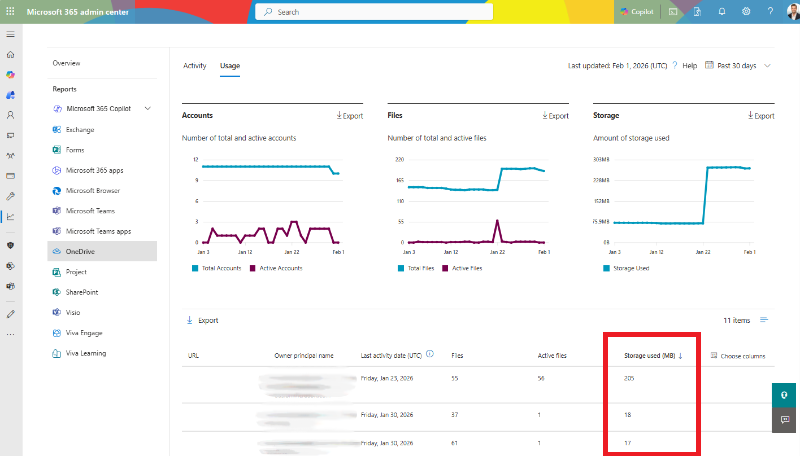
To see this report yourself, go to the Microsoft 365 Admin Center → Reports → Usage → OneDrive. The Storage used field will show you exactly how much each account is consuming.
This is real progress. Version limits get tightened. High-storage user accounts get flagged and followed up with. Inactive sites get reviewed. The offboarding gaps covered in the OneDrive blind spot and our OneDrive offboarding guide become visible and start to get addressed.
But stage two has a ceiling, and most organizations hit it faster than they expect.
The work is still largely manual. Every lever requires someone to go looking: to run a report, review a list, make a decision, and follow up. That’s fine when you have one person who understands the problem and has the bandwidth to stay on it. It stops working when that person leaves, when the organization grows, or when the sheer number of OneDrive accounts makes manual triage impractical.
Nothing in stage two runs on its own. Version trimming happens when someone schedules it. Inactive sites get reviewed when IT has time. Orphaned drives from departed employees get cleaned up when someone remembers to check. The moment attention shifts elsewhere, the backlog starts rebuilding.
Stage two is also where OneDrive tends to stay a blind spot. SharePoint has sites, owners, and structures that make it easier to reason about. OneDrive is personal storage: one drive per user, spread across your entire tenant, with no native tenant-wide reporting that tells you who’s consuming what, which accounts belong to people who’ve already left, or where the real storage risk is concentrated. Without dedicated tooling, you're working from incomplete information.
The gap between stage two and stage three isn’t about effort. It’s about the difference between knowing what to do and being able to do it continuously, at scale, without depending on someone manually pulling every lever.
Stage three: Policy-driven and ongoing
Stage three looks different from the outside. Version trimming runs on a cadence rather than when someone remembers to schedule it. Orphaned drives from departed users get detected and surfaced for action, with managers given a defined window to review and claim files before policy kicks in. Governance cycles run on a schedule, so OneDrive hygiene doesn’t depend on IT being proactive at exactly the right moment.
The key shift is conceptual as much as technical: managing OneDrive storage stops being a project that IT runs and starts being something the organization runs on a defined cadence, with owners accountable for their own drives.
What this requires is three things that are genuinely hard to get from Microsoft’s native tooling alone.
- Tenant-wide visibility: not just total storage used, but who’s using it, what’s driving it, which accounts are orphaned, and where the biggest risks are concentrated.
- The ability to act at scale without manual exports and one-off PowerShell scripts.
- Automation that runs on a schedule or triggers when storage thresholds are crossed, rather than requiring someone to initiate each action.
When those three things are in place, the outcomes are different. No fire drills when storage hits a threshold. No surprise overages because version history quietly compounded for two years. No orphaned OneDrive accounts from employees who left six months ago still consuming storage and carrying active sharing links.
Where Orchestry OneDrive Management fits
Microsoft gives you the controls. What it doesn’t give you is a unified view across your entire tenant, or a way to act on what you find without significant manual effort. That’s the gap Orchestry OneDrive Management closes.
Tenant-wide OneDrive visibility out of the box. Every drive, every owner, storage used, sharing configuration, activity status is visible in one place without manual exports or PowerShell reports. In Microsoft 365, the storage quota is set as a single tenant-wide control in, and there's no native way to see which users are approaching it. With Orchestry, quota consumption is visible across every drive in the tenant.
-1.png?width=2080&height=547&name=image%20(3)-1.png)
Orphaned drive detection. Orchestry surfaces inactive or unassigned drives from departed users so nothing sits unactioned indefinitely. When an account is deleted or marked inactive, managers can see how access is being handled, review files within a defined window, and the drive is archived or deleted according to your policy if no action is taken. An audit trail captures everything.
OneDrive Review Automation. Recurring governance cycles prompt owners to review search visibility, trim version history, and clean up sharing links. Reviews run on a set schedule or trigger automatically when a drive's quota consumption crosses a defined threshold, which means action happens where it’s actually needed, rather than clustering on a fixed date when everyone gets a notification at once.
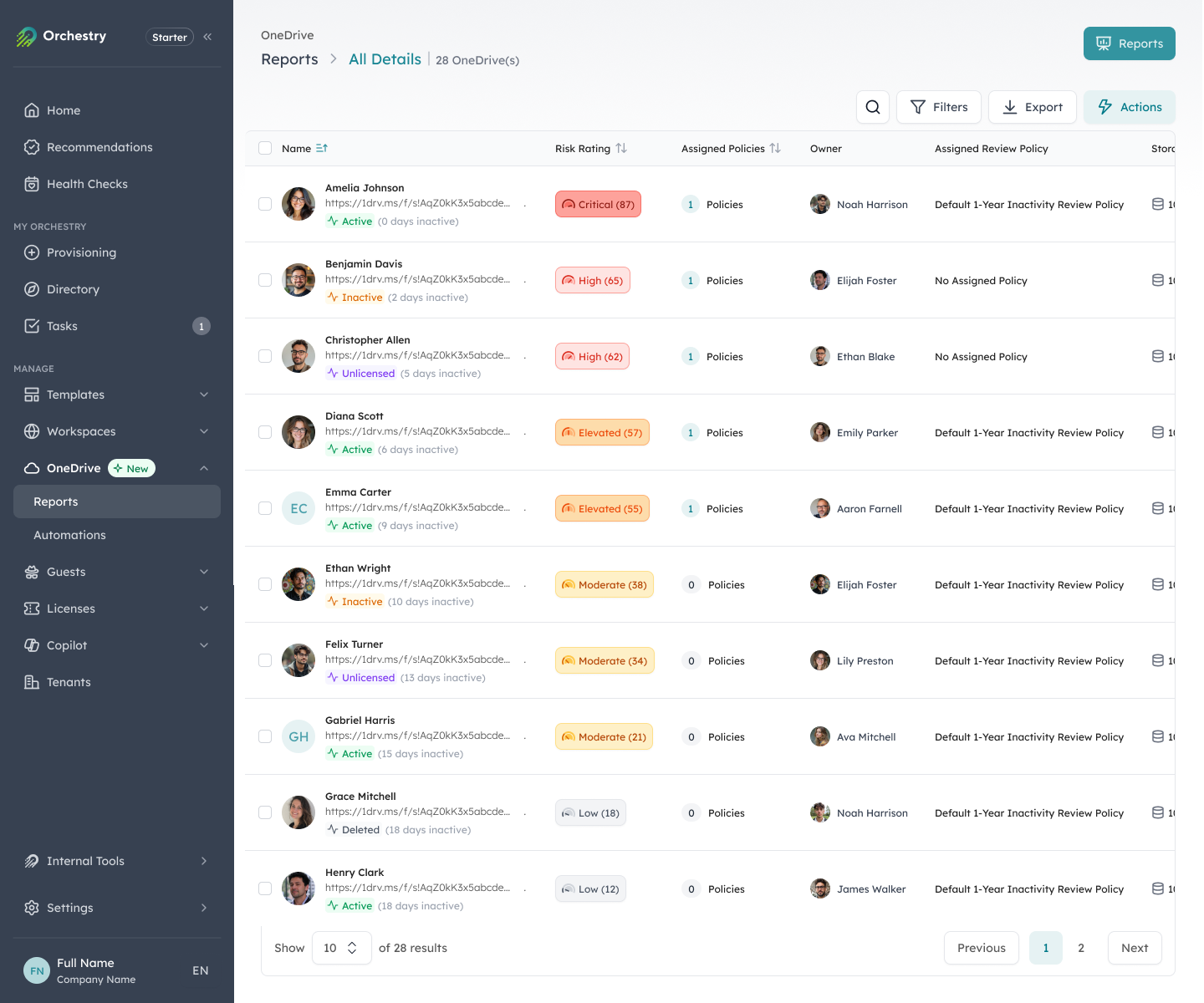
Microsoft gives you the controls; Orchestry makes sure someone is accountable for pulling them and automates the follow-through.
Find your stage, take the next step
Most organizations reading this are somewhere between stage one and stage two. That’s not a failure: it’s where most Microsoft 365 environments land when storage management has been reactive rather than intentional. It’s a starting point.
The move from stage two to stage three isn’t about more effort or more cleanup sprints. It’s about shifting from manual and periodic to automated and continuous. The levers don’t change. What changes is whether someone has to remember to pull them.
If you haven’t run a storage audit yet, our blog on how to spot SharePoint and OneDrive storage trouble is the right place to start. It walks through exactly where to look and what to look for. If you’ve already done that work and you’re ready to stop running the same cleanup conversation every six months, that’s what Orchestry is built for.
Govern personal storage with Orchestry
Orchestry's OneDrive management tools make it easy to close one of Microsoft 365's biggest governance blind spots and gain visibility into OneDrive across your tenant.
To see Orchestry in action, request a demo or download our OneDrive feature sheet to learn more.