/HubSpot%20-%20eBook%20-%20Proof%20Card%20Mockup%20001.jpg?length=1000&name=HubSpot%20-%20eBook%20-%20Proof%20Card%20Mockup%20001.jpg)
/HubSpot%20-%20eBook%20-%20Proof%20Card%20Mockup%20001.jpg?length=1000&name=HubSpot%20-%20eBook%20-%20Proof%20Card%20Mockup%20001.jpg)
/HubSpot%20-%20eBook%20-%20Proof%20Card%20Mockup%20001.jpg?length=1000&name=HubSpot%20-%20eBook%20-%20Proof%20Card%20Mockup%20001.jpg)
/HubSpot%20-%20eBook%20-%20Proof%20Card%20Mockup%20001.jpg?length=1000&name=HubSpot%20-%20eBook%20-%20Proof%20Card%20Mockup%20001.jpg)
/HubSpot%20-%20eBook%20-%20Proof%20Card%20Mockup%20001.jpg?length=1000&name=HubSpot%20-%20eBook%20-%20Proof%20Card%20Mockup%20001.jpg)
/HubSpot%20-%20eBook%20-%20Proof%20Card%20Mockup%20001.jpg?length=1000&name=HubSpot%20-%20eBook%20-%20Proof%20Card%20Mockup%20001.jpg)
/HubSpot%20-%20eBook%20-%20Proof%20Card%20Mockup%20001.jpg?length=1000&name=HubSpot%20-%20eBook%20-%20Proof%20Card%20Mockup%20001.jpg)

/HubSpot%20-%20eBook%20-%20Proof%20Card%20Mockup%20001-min.jpg?length=1000&name=HubSpot%20-%20eBook%20-%20Proof%20Card%20Mockup%20001-min.jpg)


Microsoft 365 Archive has been available for roughly two years, and many organizations have used it to great effect, moving entire inactive SharePoint sites into cold storage to reclaim tenant storage quota and reduce costs.
But site-level archive is a blunt instrument. It works well for project-based sites that end all at once, but large, long-lived sites, like Human Resources, Finance, departmental hubs, or team collaboration spaces that have been running for years, will never be archived as whole sites. A handful of active files prevents the decision, even though the vast majority of content hasn't been touched in years.
As Trent Green, Product Manager at Microsoft, put it on the OneDrive Sync Up podcast:
"Site archive is a feature for customers who have a lot of data... but they don't want to keep it in this hot collaborative storage. When you need the scalpel just to archive a small subset of content on an otherwise active site, that's where file archive comes in. And that has been the biggest ask since we launched site archive over two years ago."
File-level archive is that scalpel.
What is file-level archive?
File-level archive extends Microsoft 365 Archive from the site level down to individual files. It allows files within an active SharePoint site to be moved into cold storage independently, without affecting the site itself or any other content on it.
Key characteristics:
- Files remain visible. Archived files stay in their original document library location. They appear with a distinct archive icon overlay but are not hidden or moved.
- Files are not readable while archived. Attempting to open an archived file requires reactivation first.
- Metadata, permissions, and version history are fully preserved. Nothing is lost during the archive or reactivation cycle.
- Files can be renamed, moved, copied, or deleted while archived. These operations all preserve the archived state. If you move an archived file to a different library or site, it stays archived and reactivates in the new location.
- Non-destructive and reversible. This is not deletion. Content remains governed, searchable (for compliance), and recoverable.
The end-user experience
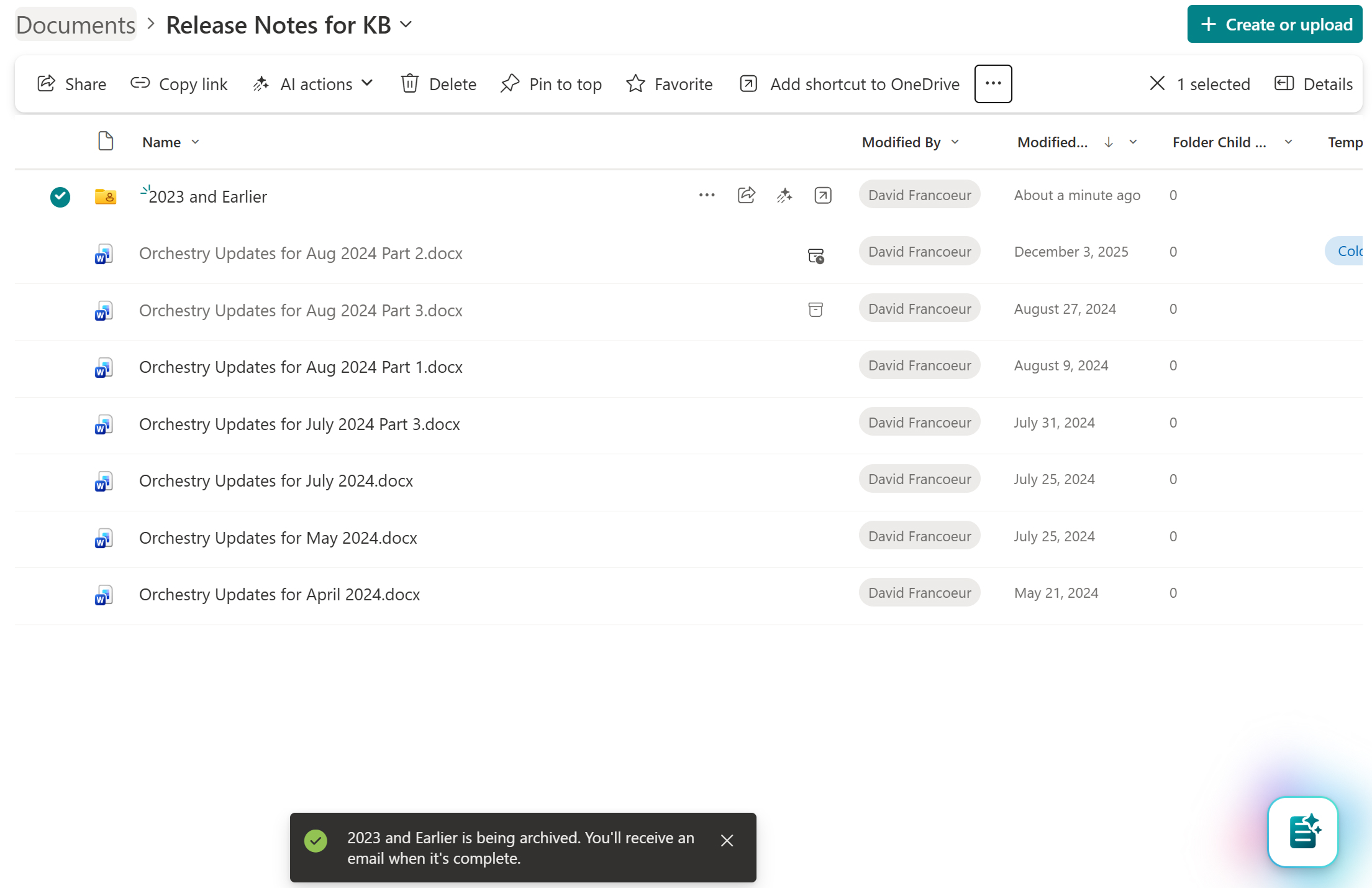
When file-level archive is enabled on a site, any user with Edit permissions can select one or more files (or folders) and choose the Archive action from the toolbar. A confirmation dialog explains that the files will require reactivation to be read again.
Once archived:
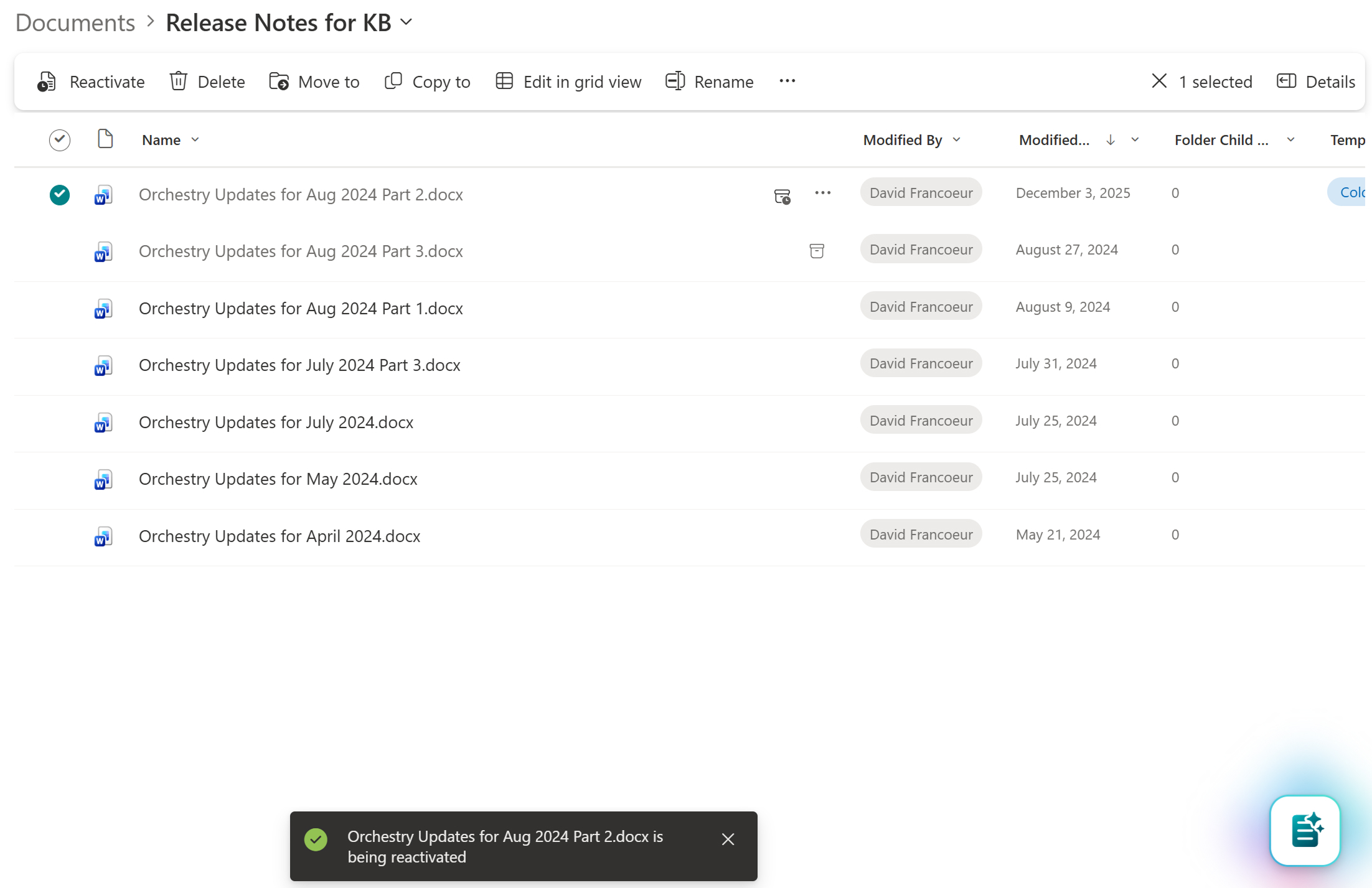
- A small archive icon appears on the file, indicating its status
- The right-click context menu is reduced, limiting available actions to Reactivate, Delete, Rename, Move to, and Copy to
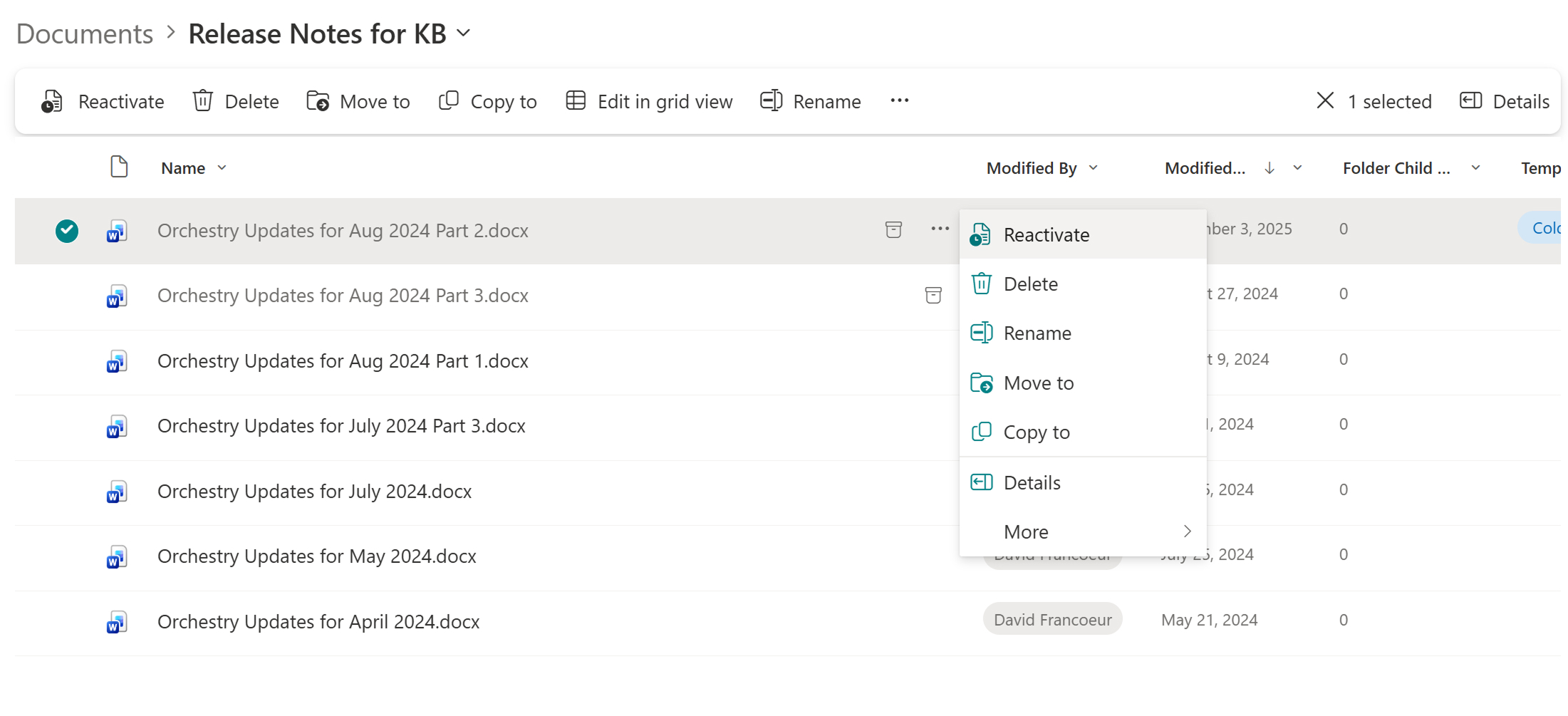
- Attempting to open the file (in browser, desktop app, or mobile) shows a message that the file is archived and must be reactivated
Any user with Read access to an archived file can trigger reactivation. There is no fee for reactivation.
Archived files appear greyed out with archive icons in the document library. The toolbar updates to show Reactivate as the primary action.
Permissions model
| Action | Required Permission |
|---|---|
| Archive a file | Edit / Contribute |
| Reactivate a file | Read |
This means any user who can edit a file can send it to archive, but any user who can view a file can bring it back. Reactivation is intentionally low-friction: Microsoft designed it so end users can recover content without needing admin intervention.
These permission levels are not configurable at the tenant or site level. There is no option to restrict archival to Full Control users or to prevent Read-level users from reactivating.
Reactivation: The 7-day grace period
Reactivation timing depends on how long the file has been archived:
| Archive Age | Reactivation Time |
|---|---|
| Within 7 days of archival | Instant |
| After 7 days | Up to 24 hours |
This 7-day instant reactivation window is a fixed grace period and is not configurable. It exists specifically to handle accidental archival. If someone archives the wrong file, they can undo it immediately.
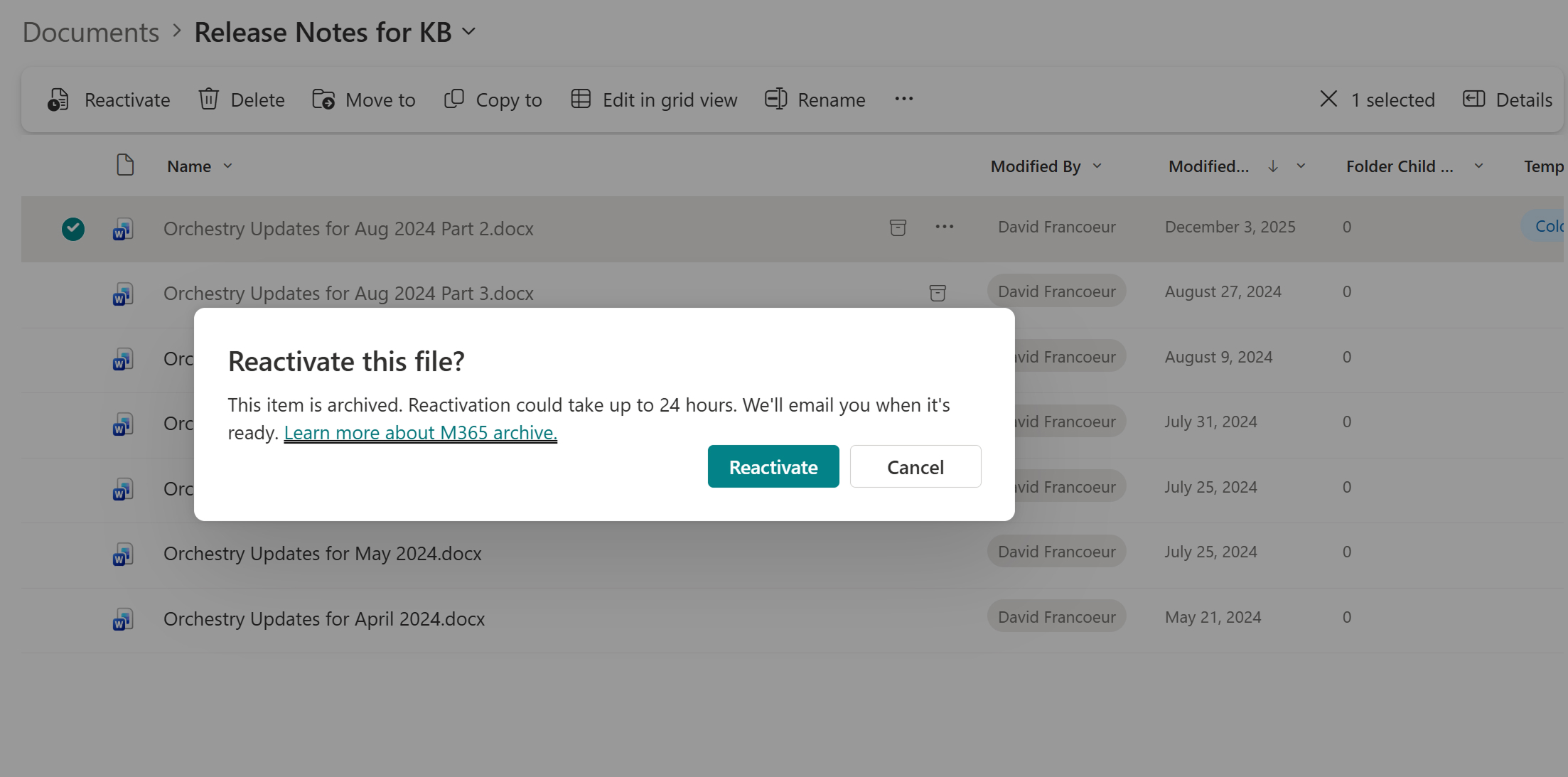
Once a file is reactivated, it cannot be re-archived for 30 days. This cooldown prevents excessive movement between storage tiers.
Version history
One of the most common questions: does archiving a file preserve its version history?
Yes. From the Microsoft FAQ:
"Archived files retain all versions. When an archived file is reactivated, all existing versions are restored. Versions can't be archived independently of the file they belong to."
This means the full version chain travels with the file through the archive/reactivate cycle. If you archive a file with 50 versions, all 50 come back when reactivated.
Search and Copilot
This is where file-level archive gets strategically interesting beyond just storage savings.
Search
Archived files remain in the Microsoft 365 search index. Admin-level search (Purview Content Search, eDiscovery) and end-user search all continue to work against archived content. End-user search results will indicate the archived state of files.
Microsoft 365 Copilot
Archived files are excluded from Copilot grounding. This is confirmed in both the Microsoft Learn documentation and directly by Trent Green on the podcast:
"Archive actually helps enhance Copilot by hiding these less relevant and inactive files from the Copilot grounding. Copilot will not be grounded upon that data nor can Copilot search for archived content. This goes for site and file archive."
This means file-level archive is simultaneously a storage optimization and a Copilot quality improvement. By moving stale, inactive content out of Copilot's data surface, organizations improve the relevance of AI-generated responses.
Archiving isn't just about cost. It's about signal-to-noise ratio for your AI deployment.
Compliance: Retention, eDiscovery, and legal hold
Microsoft 365 Archive is designed to preserve compliance posture. From the FAQ:
- Purview eDiscovery. Fully supported. Archived content can be searched and exported (may take longer).
- Retention policies. Continue to apply normally. Content marked for deletion by retention policies will still be deleted on schedule.
- Content Search. Fully supported.
- Legal hold. Content under legal hold can be archived. It cannot be deleted while the hold is in effect.
This is a critical differentiator from third-party archive solutions that move content out of Microsoft 365 entirely. With M365 Archive, content never leaves the compliance boundary.
What can't be archived?
Not everything is eligible for file-level archive:
- OneNote files. Cannot be archived
- SharePoint pages. Cannot be archived
- SharePoint agents. Cannot be archived
- Site Assets library. Does not support file-level archive
- OneDrive. File-level archive is currently available only for SharePoint sites. Archived files moved or copied to OneDrive retain their state, but OneDrive may not visually represent it.
Folder-level actions
File-level archive extends to folders. When you archive a folder, it recursively archives all eligible files within that folder. Similarly, reactivating a folder reactivates all archived files within it.
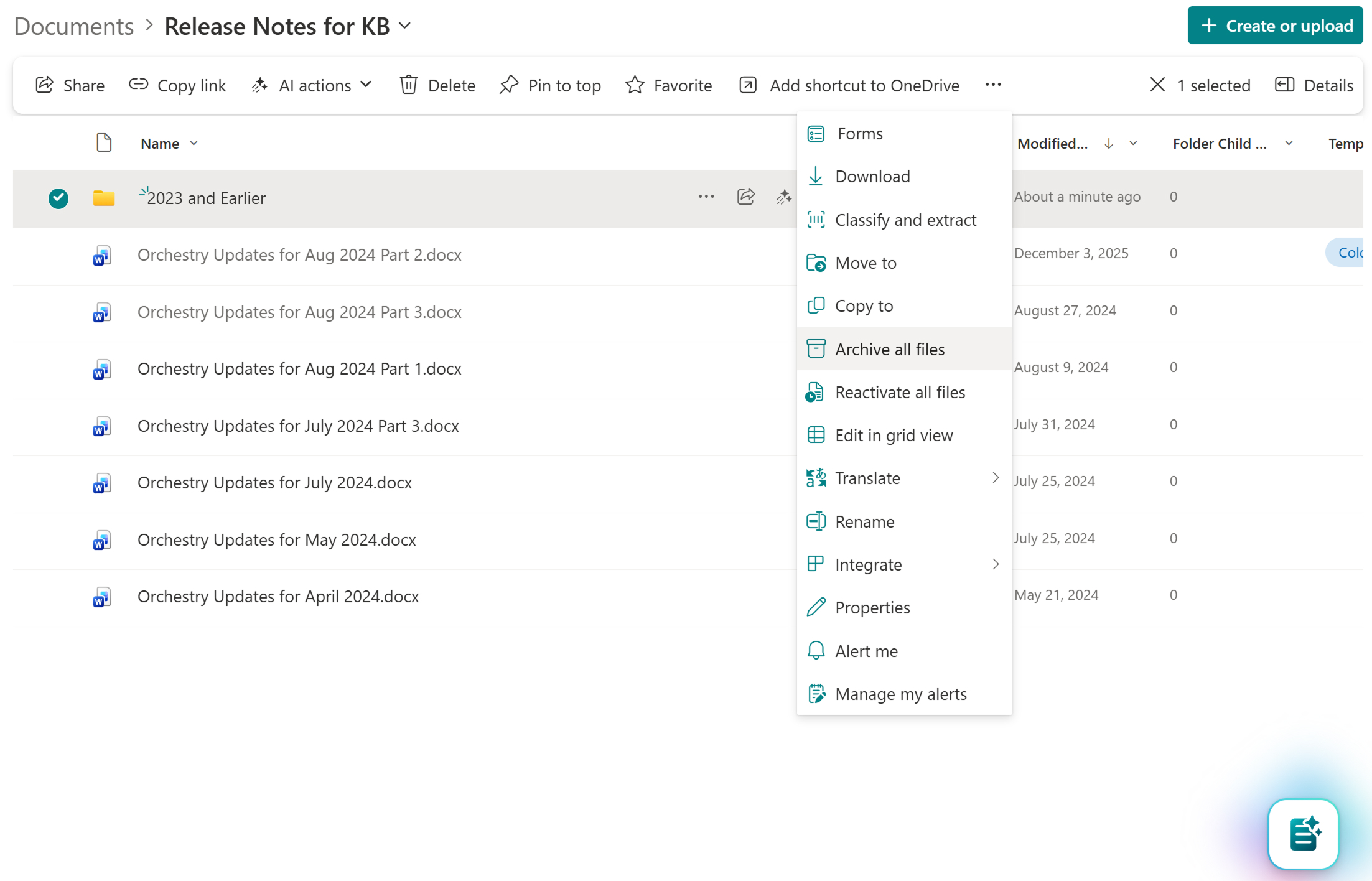
Important: the folder itself does not become an archived object; only the files inside it do.
Known preview limitations
During public preview, some applications and services don't yet fully support the archived file experience. Microsoft is actively working on client support.
Known limitations include:
- Word and PowerPoint Online may display incorrect error messages for archived files
- Teams, OneDrive, and SharePoint mobile applications
- macOS with the OneDrive sync client
- Older versions of Windows (Windows 10 and earlier) with the OneDrive sync client
- Windows devices not configured for frequent updates
- Older Office desktop apps that haven't been updated since March 1, 2026
- Apps like Clipchamp and Power BI fail to load archived content when importing
The HTTP 423 response: What developers need to know
For organizations building automations or integrations, any programmatic attempt to read an archived file's content returns an HTTP 423 (Locked) response:
{"statusCode":423,"x-SPO-ErrorCode":"581","x-SPO-ErrorMessage":"This file is currently inaccessible because it is archived. Please reactivate the file in SharePoint or OneDrive to regain access. Please visit aka.ms/M365FileArchiveOnError to learn more."}Applications should be updated to handle this response gracefully. When enumerating files via the Graph API, the Archive status field indicates whether a file is archived. Microsoft recommends:
- Check the "Archive status" field in Graph API responses when listing files
- Catch 423 error codes when attempting to read archived files
- If you need the content: reactivate first, then read
The 99% stat: Why this matters at scale
The business case for file-level archive is grounded in a simple data point. As Trent Green shared on the podcast:
"If a file is two years inactive, there's a 99% chance it will never be used again. Which is why file archive is going to be such an impactful change for IT admins."
For most enterprise tenants, the majority of stored content is inactive.
Site-level archive could only reach the portion of that content living in fully inactive sites. File-level archive unlocks the rest: the inactive content trapped inside active sites that will never be archived as a whole.
Site archive and file archive: Working in harmony
File-level archive does not replace site-level archive. Microsoft envisions both tools working together:
| Scenario | Right Tool |
|---|---|
| Project site completed 6 months ago, entire site inactive | Site archive |
| HR site with 10 years of policy documents, 95% untouched in 3+ years | File-level archive |
| Finance team site with quarterly reports from 2018-2022 alongside active 2026 documents | File-level archive |
| Departed employee's project site, no longer needed | Site archive |
| Training department site with outdated course materials mixed with current ones | File-level archive |
Timeline
| Milestone | Date |
|---|---|
| Public preview | March 30, 2026 |
| General availability | Targeting July 2026 |
Currently, archival is manual: users select files and click Archive. Microsoft has confirmed they are thinking about admin-driven policies as a future phase.
"We know that IT admins are the ones who need to deploy this at scale, and if they want to archive a million files, a million clicks is not going to be a lot of fun." — Trent Green, Microsoft
The scale gap: Where Orchestry comes in
Microsoft's file-level archive provides the platform capability. But the native tooling today is designed for end users: individual files, one click at a time.
There is no bulk execution, no targeting criteria, and no admin-driven workflow for archiving across hundreds of sites simultaneously.
Orchestry is building toward that gap.
As a participant in Microsoft's file-level archive private preview, Orchestry is building rule-based, admin-triggered file archival designed to operate at tenant scale:
- Rule-based targeting. Archival eligibility defined by inactivity threshold (days since last modification), file type, and file size range
- Bulk workspace selection. Select multiple workspaces from Orchestry's reporting and trigger archival across all of them in a single action
- First-party integration. Using Microsoft's Graph API to archive files natively within M365 Archive. No external storage, no broken links, no separate compliance domain.
- Owner notifications. Optional post-completion notifications via email and Teams that frame the action as a storage optimization, including files archived, storage recovered, and a link to view archived content
While Microsoft works toward admin-driven policies, Orchestry is building toward that capability, with the added context of workspace-level reporting, governance workflows, and bulk execution that native tooling does not provide.
Frequently asked questions
Does file-level archive work for OneDrive?
File-level archive is currently available only for SharePoint sites. If you move or copy an archived file into OneDrive, it retains its archived state, but OneDrive may not visually represent the archived status in the UI. Microsoft has not announced a timeline for native OneDrive file-level archive support.
Can I archive an entire folder?
Yes. When you archive a folder, it recursively archives all eligible files within that folder. The folder itself does not become an archived object; only the individual files inside it do. Similarly, reactivating a folder reactivates all archived files within it.
What happens to version history when a file is archived?
All versions are fully preserved. When the file is reactivated, every version is restored. You cannot archive individual versions. The entire file (with all its versions) is archived as a unit.
Does archiving a file reduce my site's storage usage?
No. At the site level, archived files still count toward storage the same as active files. The benefit is at the tenant level, where archived files are reclassified from active storage to archived storage, reducing your active storage consumption.
Can Copilot access archived files?
No. Archived files are excluded from Microsoft 365 Copilot grounding. Copilot will not use archived content to generate responses and cannot search archived files. This is confirmed by both Microsoft documentation and the product team.
What happens if I try to open an archived file?
You will see a message indicating the file is archived and must be reactivated. In programmatic scenarios (Graph API, CSOM), the response is an HTTP 423 (Locked) error. During public preview, some applications (Word Online, PowerPoint Online, mobile apps) may display generic error messages instead of the archive-specific message.
Is there a cost to reactivate archived files?
No. Microsoft eliminated the reactivation fee on March 31, 2025. Reactivation is free for both site-level and file-level archive. The only restriction is a 30-day cooldown before a reactivated file can be re-archived.
How long does reactivation take?
Within the first 7 days of archival, reactivation is instant. After 7 days, reactivation takes up to 24 hours regardless of file size.
Can I still find archived files in search?
Yes. Archived files remain in the Microsoft 365 search index. Admin-level search (Purview Content Search, eDiscovery) and end-user search both work on archived content. End-user search results will indicate the archived state.
Do retention policies and legal holds still apply to archived files?
Yes. Purview eDiscovery, retention policies, Content Search, and legal holds all continue to operate normally on archived content. Content under legal hold can be archived but cannot be deleted.
What file types cannot be archived?
OneNote files, SharePoint pages, and SharePoint agents cannot be archived. The Site Assets library also does not support file-level archive.
Can I archive files at scale without clicking one by one?
Not with native Microsoft tooling during public preview: archival is manual only. Microsoft plans admin-driven policies for fall 2026. Orchestry is building rule-based, bulk file archival across multiple workspaces using the same Microsoft Graph API.
What is the difference between site archive and file-level archive?
Site archive moves an entire SharePoint site into cold storage, and the site becomes inaccessible until reactivated. File-level archive moves individual files within an active site into cold storage while the site remains fully operational. Both use the same M365 Archive infrastructure and billing model.
Who can archive files? Who can reactivate them?
Users with Edit / Contribute permissions can archive files. Users with Read permissions can reactivate files. These permission levels are not configurable. Reactivation is intentionally low-friction so end users can recover content without admin intervention.
Do sharing links get removed when content is archived?
No, sharing links remain intact, but any users trying to use the link will see a message that the content has been archived. If that content is re-archived, the sharing links function as before.
How does Azure Blob compare to Microsoft 365 Archive?
Microsoft 365 Archive allows you to keep data in place in SharePoint, providing benefits that aren’t possible when data is migrated elsewhere:
-
Archiving happens quickly, usually within minutes, regardless of the amount or size of content being archived.
-
No need to manage data in a separate security and compliance domain, therefore allowing your security and compliance tooling to operate seamlessly, including eDiscovery, retention policies, and more.
-
Admin search indexes remain intact.
-
Sites are archived and rehydrated without loss of metadata, security versioning, and more.
Sources: Microsoft Learn: Overview of Microsoft 365 Archive | Microsoft Learn: FAQ | OneDrive Sync Up Ep. 22: File Archive with Trent Green