/HubSpot%20-%20eBook%20-%20Proof%20Card%20Mockup%20001.jpg?length=1000&name=HubSpot%20-%20eBook%20-%20Proof%20Card%20Mockup%20001.jpg)
/HubSpot%20-%20eBook%20-%20Proof%20Card%20Mockup%20001.jpg?length=1000&name=HubSpot%20-%20eBook%20-%20Proof%20Card%20Mockup%20001.jpg)
/HubSpot%20-%20eBook%20-%20Proof%20Card%20Mockup%20001.jpg?length=1000&name=HubSpot%20-%20eBook%20-%20Proof%20Card%20Mockup%20001.jpg)
/HubSpot%20-%20eBook%20-%20Proof%20Card%20Mockup%20001.jpg?length=1000&name=HubSpot%20-%20eBook%20-%20Proof%20Card%20Mockup%20001.jpg)
/HubSpot%20-%20eBook%20-%20Proof%20Card%20Mockup%20001.jpg?length=1000&name=HubSpot%20-%20eBook%20-%20Proof%20Card%20Mockup%20001.jpg)
/HubSpot%20-%20eBook%20-%20Proof%20Card%20Mockup%20001.jpg?length=1000&name=HubSpot%20-%20eBook%20-%20Proof%20Card%20Mockup%20001.jpg)
/HubSpot%20-%20eBook%20-%20Proof%20Card%20Mockup%20001.jpg?length=1000&name=HubSpot%20-%20eBook%20-%20Proof%20Card%20Mockup%20001.jpg)
/HubSpot%20-%20eBook%20-%20Proof%20Card%20Mockup%20001-min.jpg?length=1000&name=HubSpot%20-%20eBook%20-%20Proof%20Card%20Mockup%20001-min.jpg)


You can have Microsoft 365 Archive running, retention policies configured, M365 Backup licensed, and still have serious gaps. Not because the tools don’t work, but because each one covers a completely different job, and it’s easy to assume one handles what another actually doesn’t.
Archived sites aren’t protected against deletion. Retained content isn’t restorable the way a backup is. And none of that becomes obvious until something goes wrong.
When it comes to Microsoft 365 archive vs backup vs retention, each tool has a specific job. None of them replaces the others. Treating them as equivalent creates real gaps: storage costs that don’t come down even after a cleanup effort, compliance exposure that isn’t obvious until it matters, and content you can’t recover when you need to.
This post maps out exactly what each tool does, what it doesn’t do, and why applying all three consistently is harder than it looks.
What Microsoft 365 Archive does (and what it doesn’t)
What it does
M365 Archive moves inactive SharePoint sites to a cold storage tier that sits outside your tenant’s active quota pool. You’re billed at $0.05/GB/month instead of the standard $0.20/GB/month for active SharePoint storage. That’s a 75% cost reduction for content that’s genuinely inactive.
Archived content stays searchable and remains subject to any compliance or retention policies you have in place. It’s not deleted. It’s just moved to a cheaper tier and taken off your active quota, which is where the cost savings come from.
Archive works best for content you're confident is genuinely inactive. If a site gets reactivated regularly, the four-month re-archiving restriction means you're effectively stuck paying active storage rates anyway, which wipes out the savings.
Reactivation is available and has been free since March 2025. There’s one timing constraint worth knowing: after you reactivate a site, it stays in an active state for four months before it can be re-archived.
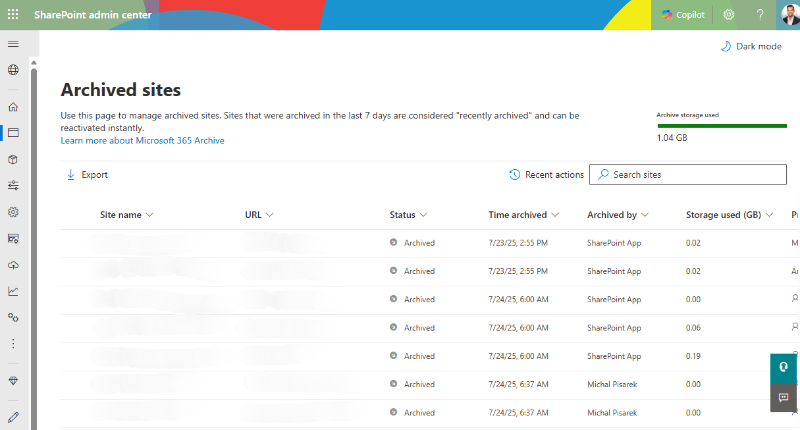
M365 Archive is managed through the SharePoint Admin Center. For the full overview, see Microsoft’s documentation on Microsoft 365 Archive.
A note on file-level archiving
Microsoft is rolling out file-level archiving (in preview as of March 2026). This lets you archive individual files to a lower-cost tier rather than entire sites. It’s a meaningful capability for mixed-activity sites where one active file would otherwise keep the whole space in hot storage.
One distinction matters here: File-level archiving doesn’t currently remove files from your tenant quota the way site-level archiving does. If your primary goal is reducing quota consumption and overage costs, site-level archiving is still the mechanism to use. File-level archiving is primarily useful for cost-tiering content within active sites. Confirm the latest behavior with Microsoft before making decisions based on quota reduction.
What it doesn't do
- Doesn’t protect against accidental deletion, ransomware, or data corruption. Archiving a site doesn’t mean you can recover it if someone deletes it.
- Doesn’t create recovery snapshots. There’s no point-in-time restore from an archived state.
- Doesn’t enforce or create retention rules. Archiving a site that has no retention policy applied doesn’t satisfy a legal hold or compliance requirement.
The key distinction: Archive is a storage cost tool. It moves content to cheaper storage. It’s not a compliance tool, and it’s not a recovery tool.
The difference between archiving and retention in Microsoft 365
What it does
Retention is a compliance tool. It controls whether content is preserved or deleted after a defined period, based on rules you configure in Microsoft Purview Data Lifecycle Management (Microsoft's data lifecycle management solution for M365). It’s the mechanism that lets you tell Microsoft 365: “this content must be kept for seven years” or “delete anything in this mailbox that’s older than 90 days.”
There are two tools inside Purview for this: retention policies and retention labels.
Retention policies apply at the container level: a SharePoint site, a mailbox, a Teams channel. They’re broad and automatic.
Retention labels apply at the item level, and they give you more granular control: you can trigger disposition review before deletion, declare a record, or set event-based retention that starts counting from a specific trigger rather than a fixed date.
Most organizations need both. Policies for broad, consistent coverage across workloads. Labels for specific content that needs stricter handling.
The storage sting
Retention is one of the most common sources of storage cost surprises, and it’s worth calling out explicitly.
When a retention policy or legal hold is active and a user deletes or edits a file, Microsoft 365 doesn’t actually remove the content. It moves the original to a hidden container called the Preservation Hold Library (PHL) to ensure it stays discoverable. Your version limits are overridden during a retention period too, so even if you’ve set a cap on version history, the PHL keeps accumulating copies.
The practical result: cleanup efforts don’t move the storage number, because the PHL is silently filling back up. This is the storage trap covered in detail in our post on how SharePoint and OneDrive storage actually works.
What it doesn't do
- Doesn’t create restorable copies. Retained content in the PHL is preserved for compliance discovery, not for user recovery. You can’t tell someone “go restore your file from the retention hold.”
- Doesn’t move content to cheaper storage. Retention keeps content in place, and as noted above, it can actively increase storage consumption.
- Doesn’t replace backup. The fact that content is retained doesn’t mean it’s recoverable in the way a backup restore is recoverable.
The key distinction: Retention is a compliance tool. It governs what gets kept or deleted according to policy. It’s not a storage cost tool, and it’s not a recovery tool.
What Microsoft 365 Backup does (and whether it replaces retention policies)
What it does
Microsoft 365 Backup is Microsoft’s native pay-as-you-go backup product for SharePoint, OneDrive, and Exchange. It creates point-in-time recovery snapshots that let you restore content to a prior state, with a recovery point objective (RPO) of around 10 minutes and restore points going back up to 52 weeks.
It’s designed for disaster recovery scenarios: ransomware attacks, accidental bulk deletion, data corruption, or a situation where you need to roll a site back to a known good state. This is the tool that answers “What do we do if someone deletes a SharePoint site or an Exchange mailbox gets wiped?”
Billing is pay-as-you-go at $0.15/GB/month, managed through the Microsoft 365 Admin Center.
A note on shared responsibility
Microsoft’s stance on this is clear and worth stating directly. As their own Backup FAQ confirms, the shared responsibility model hasn’t changed: Microsoft manages infrastructure reliability, but data protection is your responsibility. M365 Backup is Microsoft offering a tool to help you meet that responsibility. It’s not a guarantee that your data is covered by default.
For more on the shared responsibility model as it applies to SaaS, see Microsoft’s documentation on cloud responsibility.
Does Microsoft 365 Backup replace retention policies?
No. This is one of the most common conflations, and it’s worth being direct about it.
Backup is for recovery. Retention is for compliance. Both involve “keeping” data, but they serve entirely different purposes. A backup copy isn’t a compliance record. A retention hold isn’t a recoverable snapshot. You need both, and neither substitutes for the other.
What it doesn't do
- Doesn’t satisfy compliance or retention requirements. Backup copies exist for disaster recovery, not for eDiscovery or regulatory holds.
- Doesn’t make content accessible to end users. Restores are admin-driven, not self-service.
- Doesn’t reduce storage costs. Backup storage adds to your spend; it doesn’t replace or offset active storage costs.
The key distinction: Backup is a recovery tool. It protects against data loss events. It’s not a compliance tool, and it’s not a storage cost tool.
Archive vs. Retention vs. Backup: The three tools side by side
Here’s how the three tools break down:
| Tool | Primary job | What it doesN'T do | Storage cost | Native M365 product | Managed in |
|---|---|---|---|---|---|
| M365 Archive | Moves inactive SharePoint sites to cold storage outside the active quota pool | Doesn't protect against deletion or corruption. Doesn't enforce retention rules. | $0.05/GB/month (vs. $0.20/GB for active storage) | Microsoft 365 Archive | SharePoint Admin Center |
| Retention (Purview) | Controls whether content is preserved or deleted for compliance purposes | Doesn't create restorable copies. Doesn't reduce storage costs. Can increase them (PHL). | Included in applicable M365 licences; storage overhead adds cost | Microsoft Purview Data Lifecycle Management | Microsoft Purview compliance portal |
| M365 Backup | Creates point-in-time recovery snapshots for SharePoint, OneDrive, and Exchange | Doesn't satisfy compliance or retention requirements. Backup copies aren't user-accessible. | $0.15/GB/month (pay-as-you-go) | Microsoft 365 Backup | Microsoft 365 Admin Center |
All three tools are necessary. But knowing which content gets which treatment, and applying it consistently across a tenant that might have hundreds or thousands of sites, mailboxes, and OneDrives can get tricky.
That’s where most organizations get stuck.
Where M365 data lifecycle management breaks down at scale
The tools exist. The challenge is operational.
Consider what it takes to apply all three correctly without tooling. An admin trying to identify archive candidates runs storage reports, cross-references activity data, and makes judgment calls site by site. There’s no systematic way to know which sites have been inactive long enough to archive, which workspaces have no identified owner, or which content has never had a lifecycle decision made about it. Decisions get deferred. The same sites stay in hot storage for years. Governance debt accumulates quietly.
The same problem plays out for backup coverage and retention labeling: in a large tenant, manually auditing which content is covered and which isn’t practical without a way to surface and act on that information at scale.
How Orchestry fits into your M365 governance toolkit
Orchestry doesn’t replace archive, retention, or backup. It’s the layer that makes consistent application of all three possible at scale.
For archive specifically, Orchestry surfaces inactive SharePoint sites and workspaces based on activity signals, storage consumption, and ownership status. Rather than running manual reports, you get a prioritized view of what’s genuinely inactive and ready for a lifecycle decision, with the ability to act on those decisions in bulk without scripting.
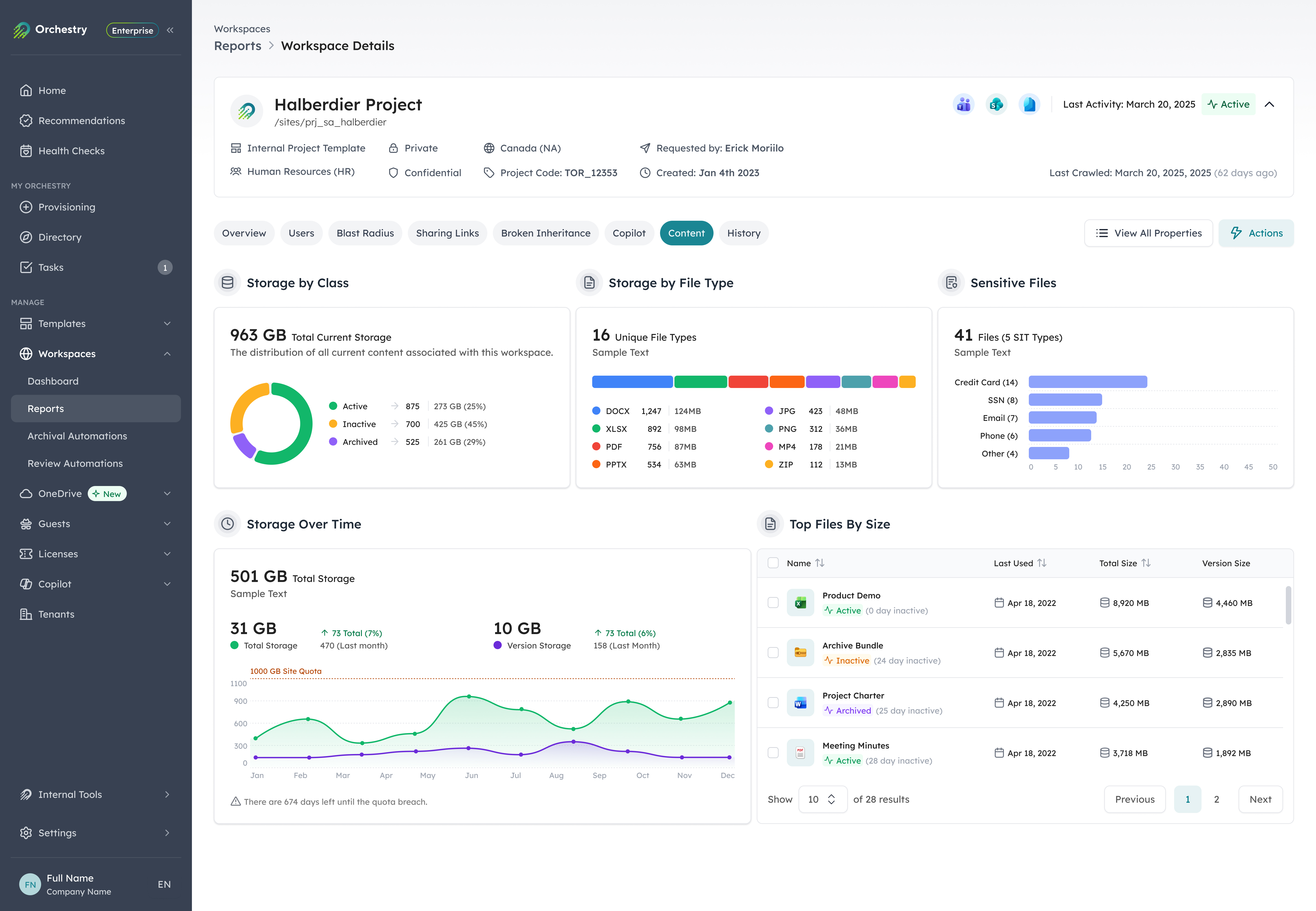
More broadly, Orchestry gives you tenant-wide visibility into workspace status, ownership, and storage behavior across SharePoint, Teams, and OneDrive. Orphaned workspaces with no active owner, sites that haven’t been touched in over a year, version history that’s grown unchecked: these are the signals that inform whether content should be archived, cleaned up, or flagged for review.
Microsoft gives you the levers. Orchestry tells you where to use them and keeps the work from falling through the cracks.
If you’re trying to build the business case for storage investment alongside this conversation, our post on explaining M365 storage costs to leadership walks through the numbers and the framing.
What happens when you mix up M365 archive, retention, and backup
You don’t need to choose between archive, retention, and backup. You need all three, and you need to understand what each one is actually for before you configure any of them.
Archive saves money. Retention satisfies compliance. Backup enables recovery. None of them substitutes for the others, and none of them works well in isolation.
The cost of getting it wrong isn’t theoretical. Treating archive as backup means you have no recovery option when something goes wrong. Treating retention as archive means your storage costs keep climbing because retention doesn’t move content to cheaper storage. Skipping a governance layer means all three get applied inconsistently, and the gaps stay invisible until they become problems.
If you want to see where your tenant has gaps across all three, start with a storage health review. And if you’re earlier in the process, our post on sustainable M365 storage strategy covers the broader framework.