/HubSpot%20-%20eBook%20-%20Proof%20Card%20Mockup%20001.jpg?length=1000&name=HubSpot%20-%20eBook%20-%20Proof%20Card%20Mockup%20001.jpg)
/HubSpot%20-%20eBook%20-%20Proof%20Card%20Mockup%20001.jpg?length=1000&name=HubSpot%20-%20eBook%20-%20Proof%20Card%20Mockup%20001.jpg)
/HubSpot%20-%20eBook%20-%20Proof%20Card%20Mockup%20001.jpg?length=1000&name=HubSpot%20-%20eBook%20-%20Proof%20Card%20Mockup%20001.jpg)
/HubSpot%20-%20eBook%20-%20Proof%20Card%20Mockup%20001.jpg?length=1000&name=HubSpot%20-%20eBook%20-%20Proof%20Card%20Mockup%20001.jpg)


/HubSpot%20-%20eBook%20-%20Proof%20Card%20Mockup%20001.jpg?length=1000&name=HubSpot%20-%20eBook%20-%20Proof%20Card%20Mockup%20001.jpg)
/HubSpot%20-%20eBook%20-%20Proof%20Card%20Mockup%20001-min.jpg?length=1000&name=HubSpot%20-%20eBook%20-%20Proof%20Card%20Mockup%20001-min.jpg)
/HubSpot%20-%20eBook%20-%20Proof%20Card%20Mockup%20001-min.jpg?length=1000&name=HubSpot%20-%20eBook%20-%20Proof%20Card%20Mockup%20001-min.jpg)

Microsoft launched file-level archiving in preview on March 30, 2026. It moves inactive files to a cold storage tier at $0.05 per GB per month instead of the standard $0.20 overage rate. The files stay in SharePoint, stay compliant, and stop polluting Copilot's grounding data. But archiving those files won't free up a single gigabyte of your storage quota.
That gap between expectation and reality matters because the problem most admins are trying to solve isn't the monthly bill. It's the quota ceiling blocking new site creation or Copilot rollout. If you're looking at file-level archive as the fix for that, you're going to be disappointed.
Your SharePoint storage quota doesn't change when files get archived
Microsoft states this plainly in its M365 Archive FAQ: "File-level archive doesn't change site storage usage or quota behavior. Archived files are accounted for in site storage the same way as active files."
Microsoft designed the feature this way on purpose, and the quota behavior isn't going to change in a future release.
When you archive a file, SharePoint moves it from the standard storage tier at $0.20 per GB per month to the cold storage tier at $0.05 per GB per month. Your monthly bill drops. Your quota consumption stays exactly where it was. A 10 TB tenant with 5 TB of archived files still shows 10 TB in use.
The feature name creates the confusion. The word "archive" implies freed space, but what you're actually getting is a lower billing rate on the same footprint. For admins who've hit quota ceilings, that's a critical distinction.
The cost savings are real, and a 75% reduction on inactive overage storage isn't trivial. But if your constraint is headroom rather than spend, you're solving the wrong problem. See how Microsoft 365 storage costs compound for context on what's actually driving that bill.
SharePoint cold storage limitations: what you get, and what you don't
Archived files move to the M365 Archive cold storage tier at roughly a quarter of the active storage cost. For 10 TB of inactive files, that's about $1,536 in monthly savings.
| Storage type | Cost per GB/month | 10 TB monthly cost | Annual savings |
|---|---|---|---|
| Active storage (overage) | $0.20 | $2,048 | N/A (baseline) |
| M365 Archive (cold tier) | $0.05 | $512 | $18,432 |
Archived files remain in SharePoint libraries, they're still discoverable through eDiscovery, and retention policies continue to apply. Nothing changes from a compliance perspective, which is the whole point of archiving rather than deleting.
Use the Microsoft 365 Archive Cost Calculator to estimate where savings apply to your specific overage situation.
Version history travels with the file: all historical versions move to the cold tier together. If a site has accumulated hundreds of versions of large PowerPoint files, that bloat doesn't disappear when you archive; it gets preserved at a lower rate.
Version trimming and file-level archiving are separate levers. See how version history affects SharePoint storage if you want to address both.
What file-level archive does and doesn't do for Copilot
Copilot grounding is one of the genuine wins. Archived files are excluded from Copilot's data set, which improves response quality when users ask questions about current work. If your tenant carries three years of stale project files, archiving them keeps the content available for compliance while stopping Copilot from surfacing it in responses.
The limitation is the other side of that coin: users can't retrieve archived files via Copilot. Ask Copilot for a document that's been archived and you won't get it. The file is still findable through SharePoint search when you look for it directly, and it's accessible via Purview and eDiscovery, but it won't surface in Copilot responses.
This is designed behavior, not a bug. The implication for rollout planning is that file-level archiving is a deliberate content governance decision, not a low-risk toggle. Files that users might still reference through Copilot shouldn't be archived without a communication plan. 'Where did that document go?' is a solvable problem when the answer is known. It becomes a trust problem when users don't know archiving happened.
For the full Copilot content readiness context, see Microsoft 365 Copilot governance and content readiness.
Apps that don't handle archived files correctly
Some of the apps your users rely on can't open archived files.
Per Microsoft's archive overview documentation, the following apps produce errors or degraded experiences with archived files:
- Word Online and PowerPoint Online: display an error when users try to open an archived file.
- Teams, OneDrive, and SharePoint mobile apps: can't open archived files on mobile.
- macOS with OneDrive sync client: archived files in synced locations produce errors.
- Windows 10 and earlier, or Windows devices not receiving frequent updates: sync client errors.
- Office desktop apps not updated since March 1, 2026: errors when opening archived files.
- Clipchamp: fails when trying to import an archived file.
- Power BI: fails when trying to load data from an archived file.
What works: SharePoint browser access. A user who navigates to an archived file can see it, see that it's archived, and initiate reactivation. The failure point is the opening and editing experience in the apps listed above.
For developers and third-party applications using the Microsoft Graph API: testers have reported an HTTP 423 (Locked) response when an application attempts to access an archived file. This behavior isn't documented in Microsoft Learn, but it's been consistently reported in preview testing. Applications that don't handle this response code explicitly will surface unhandled errors to users.
Before enabling file-level archiving for end users, audit which of these app configurations are common in your environment. A tenant where most knowledge workers open documents in Word Online or access SharePoint from mobile needs a communication plan and clear reactivation guidance before any bulk archiving runs.
SharePoint archive reactivation: the rules and the 30-day re-archive cooldown
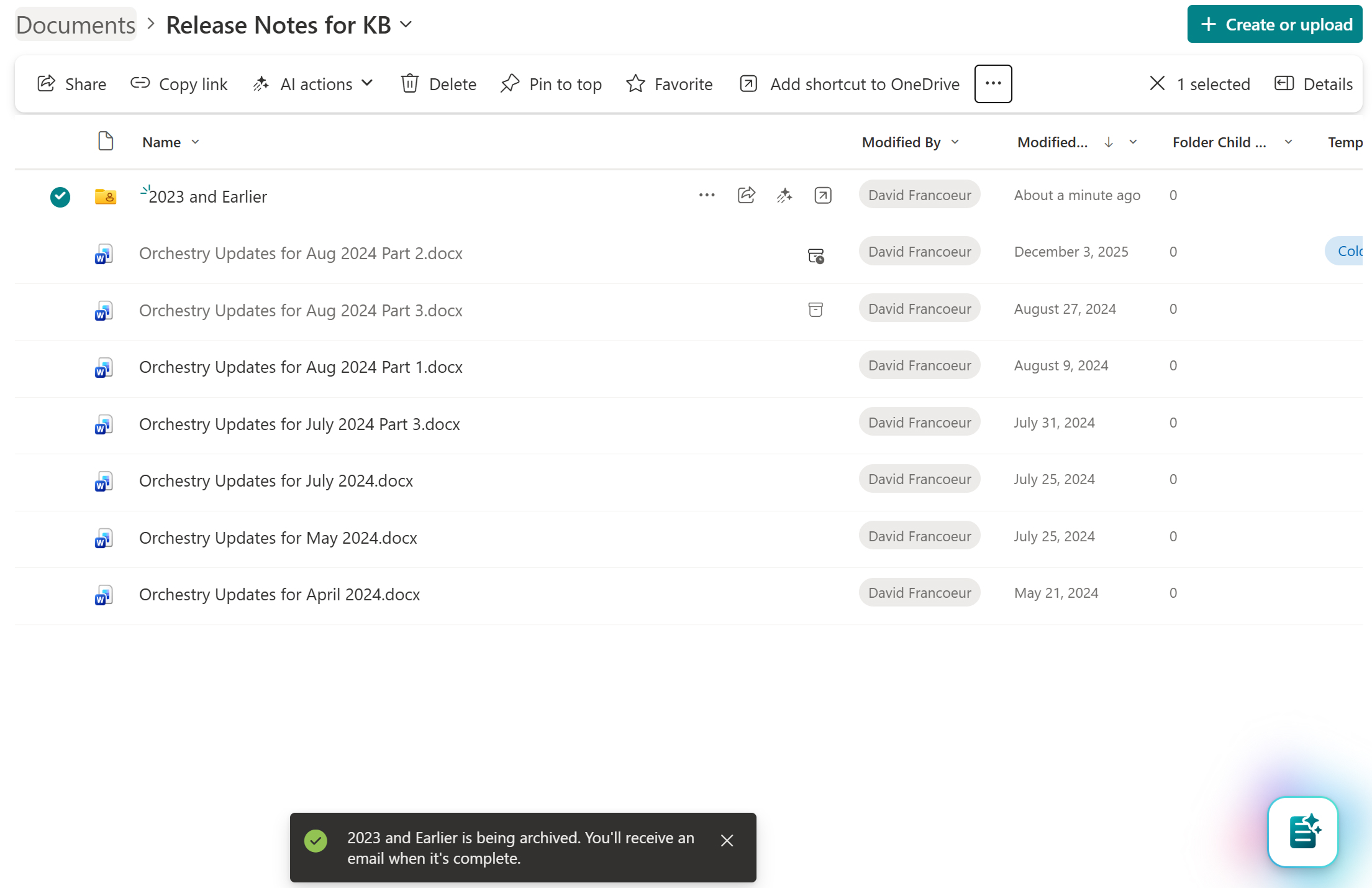
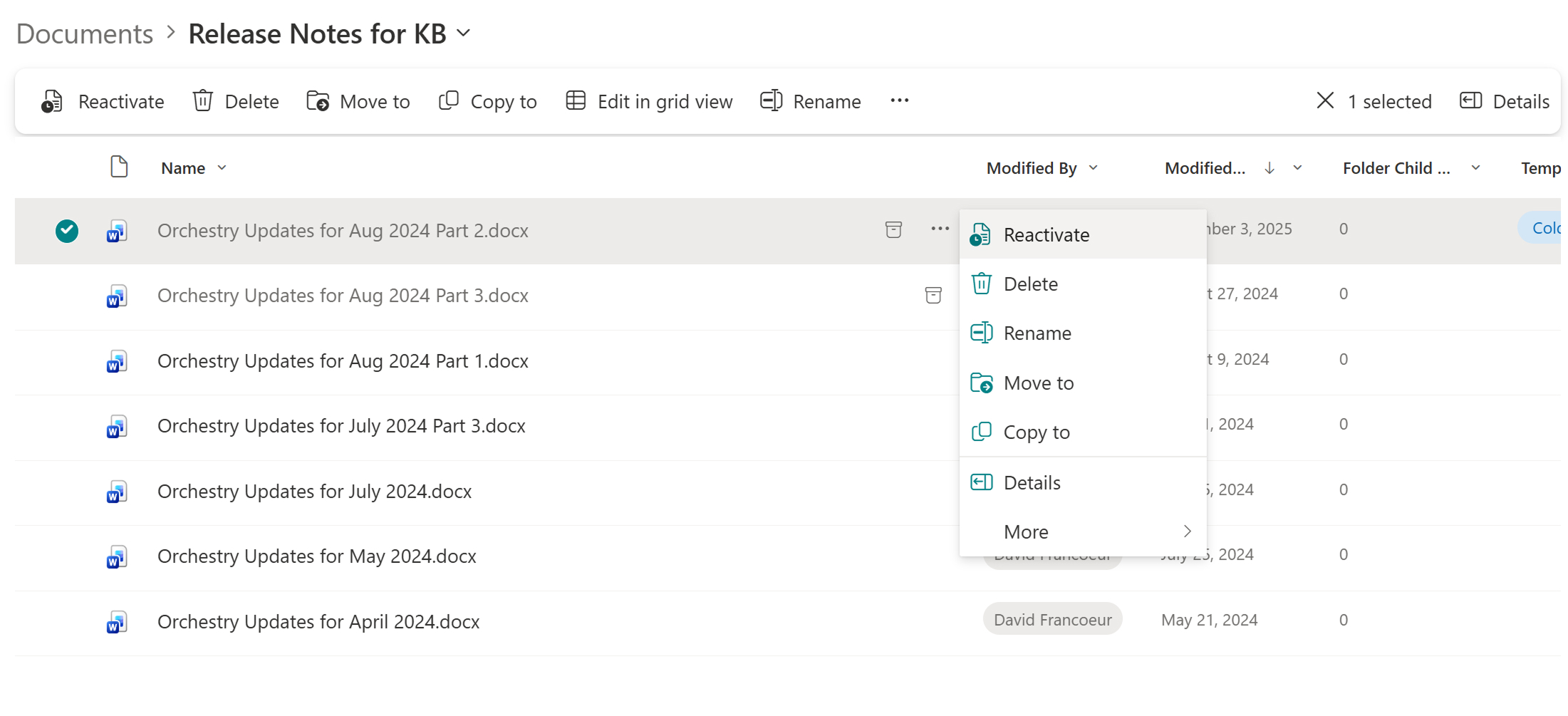
Reactivation timing depends on how long the file has been archived. Files in the “Recently archived” state (within the first 7 days) are restored immediately. After that window, reactivation takes up to 24 hours. A user who needs an archived file for a deadline-sensitive task tomorrow should initiate reactivation today, not in the morning.
The 30-day figure that often causes confusion is the re-archive cooldown, not the reactivation wait: once a file is reactivated, it can't be re-archived for 30 days. This is the file-level rule.
For context, the equivalent site-level rule is 120 days. Both exist to prevent storage thrashing, and both need to be part of your governance documentation so admins and automated processes don't attempt operations that aren’t allowed.
Any user with read access to an archived file can reactivate it themselves: no approval workflow, no site owner involvement, no queue. If someone needs a file for a meeting this week, they can reactivate it directly.
That said, file-level archiving decisions aren't trivially reversible. The 30-day re-archive cooldown means a file archived in error stays that way until someone reactivates it and waits out the window before archiving again. Treat archiving as a deliberate governance action, not a soft delete.
Microsoft 365 archive quota behavior: why this feature won't scale without tooling
File-level archiving is manual by default. An admin or site owner selects a file, picks "Archive" from the context menu, and the file moves to cold storage. One file (or folder) at a time.
The SharePoint admin center doesn't offer a bulk archiving workflow, rule-based targeting, or any automated lifecycle policy that runs on a schedule. Anything beyond a handful of files means writing PowerShell or calling the Microsoft Graph archive API directly. All of that means code you'll need to maintain, with throttling, permissions, logging, and edge-case handling on your plate.
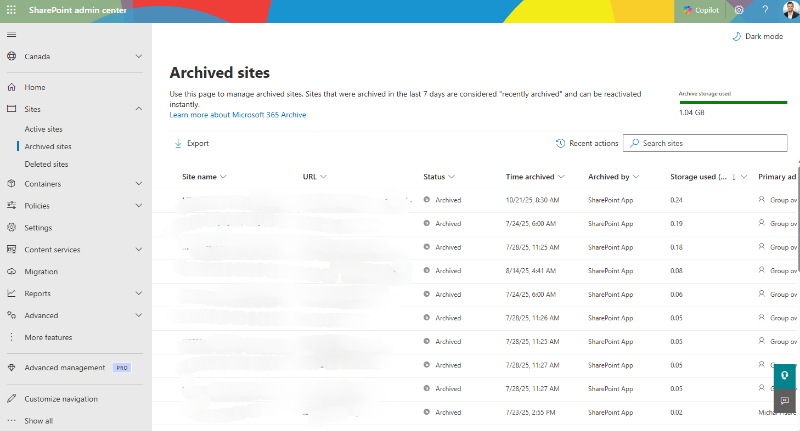
There's also no reporting UI for file-level archived content in the current preview. The SharePoint Admin Center has an “Archived sites” view for site-level archive. No equivalent exists for files. Admins who want a cross-tenant picture of what's been archived need PowerShell or Graph API.
Most admins who look at this feature honestly decide the juice isn't worth the squeeze. The savings are real, but the engineering effort to capture them at scale, plus the user support burden from the app compatibility gaps, tips the math. That's the gap between “feature exists” and “feature is practical.”
Microsoft has confirmed that policy-based automation is on the roadmap but hasn't published a firm timeline. Third-party sources speculate late 2026, but that's not Microsoft-confirmed.
Orchestry's Archival Policies close this gap today for sites: automated end-of-life policies that notify workspace owners, require approval before archive execution, and carry through a two-stage process without manual IT intervention. Orchestry is building file-level capabilities that extend the same model to individual files, coming soon on the Enterprise plan.
SharePoint file archive file types: what can't be archived
Not all content in a SharePoint document library is eligible for file-level archiving. The following are currently excluded:
- OneNote notebooks
- SharePoint pages and page components
- SharePoint agents
- Site Assets library
- Files in Teams private and shared channel sites
- Files in OneDrive
File-level archive vs. site-level archive: When each one fits
If you're trying to free up quota entirely, neither archiving approach will do it: only deletion gets there. What both approaches do is reclassify active storage as archived, which reduces your active storage usage and eliminates overage charges on that portion.
The real distinction between the two is granularity. Site-level archiving moves an entire site at once and only works when the workspace is genuinely inactive. File-level archiving lets you archive selectively within a site that's still in use. That's the decision this section is actually about.
Site-level archiving also supports lifecycle policies in the SharePoint admin center, so you can set it up once and have inactive workspaces archived automatically.
File-level archiving is the long-tail solution. It's for situations where a site itself is active but it's carrying old files you want to move to cold storage.
A 500 GB project site where 50 GB is current work and 450 GB is historical documentation is the classic example. You can't archive the whole site because people are using it, but you can archive the inactive files to reduce costs without touching the active workspace.
| Capability | Site-level archive | File-level archive |
|---|---|---|
| Reduces total storage quota | No | No |
| Reclassifies active storage as archived | Yes (entire site) | Yes (selected files) |
| Reduces storage cost | Yes (75% savings on overage) | Yes (75% savings on overage) |
| Bulk operations | Yes, via lifecycle policies | Manual or PowerShell only in preview |
| Excludes content from Copilot | Yes | Yes |
| Reactivation time | Instant within 7 days; up to 24h after | Instant within 7 days; up to 24h after |
| Re-archive cooldown | 120 days | 30 days |
| Admin complexity | Low (admin center) | High (PowerShell/API in preview) |
| Best for | Inactive workspaces | Inactive files inside active sites |
Use site-level archiving when the workspace itself is inactive. Use file-level archiving when the workspace is still active but you want to reduce storage costs for the old files inside it. Most organizations will find site-level archiving addresses the majority of their inactive storage problem on its own, because most inactive files live in inactive sites.
For a broader look at archiving approaches and how they compare to third-party offloading, see SharePoint archiving solutions vs. storage offloading.
Orchestry's Archival Policies are available now for site-level archiving: inactive sites are identified automatically based on configurable thresholds, owners receive notifications with a clear decision path, and IT-defined policies execute if owners don't respond.
Orchestry's file-level archiving capabilities, coming soon on the Enterprise plan, will extend that model to individual files within active sites.
What to do with this information
Site-level archiving should stay your primary strategy. Most inactive content lives in inactive sites and archiving the whole workspace reduces cost in one move.
File-level archiving fills the long tail: inactive files inside active sites where you can't archive the workspace itself. If you're still working out why those inactive files are costing you full price in the first place, start with why inactive SharePoint content still bills at full price.
What works today: site-level archiving via the SharePoint admin center, version history trimming, and workspace lifecycle policies that prevent inactive content from accumulating in the first place. See a more sustainable M365 storage strategy for how those levers fit together.
Orchestry's current Archival Policies automate the archiving decision for sites that qualify: policies notify workspace owners and require approval before archive execution, carrying through a two-stage process without manual IT intervention — and soon, Orchestry will have the same policy-driven model applied at the file level.