/HubSpot%20-%20eBook%20-%20Proof%20Card%20Mockup%20001.jpg?length=1000&name=HubSpot%20-%20eBook%20-%20Proof%20Card%20Mockup%20001.jpg)
/HubSpot%20-%20eBook%20-%20Proof%20Card%20Mockup%20001.jpg?length=1000&name=HubSpot%20-%20eBook%20-%20Proof%20Card%20Mockup%20001.jpg)
/HubSpot%20-%20eBook%20-%20Proof%20Card%20Mockup%20001.jpg?length=1000&name=HubSpot%20-%20eBook%20-%20Proof%20Card%20Mockup%20001.jpg)
/HubSpot%20-%20eBook%20-%20Proof%20Card%20Mockup%20001.jpg?length=1000&name=HubSpot%20-%20eBook%20-%20Proof%20Card%20Mockup%20001.jpg)
/HubSpot%20-%20eBook%20-%20Proof%20Card%20Mockup%20001.jpg?length=1000&name=HubSpot%20-%20eBook%20-%20Proof%20Card%20Mockup%20001.jpg)
/HubSpot%20-%20eBook%20-%20Proof%20Card%20Mockup%20001.jpg?length=1000&name=HubSpot%20-%20eBook%20-%20Proof%20Card%20Mockup%20001.jpg)
/HubSpot%20-%20eBook%20-%20Proof%20Card%20Mockup%20001.jpg?length=1000&name=HubSpot%20-%20eBook%20-%20Proof%20Card%20Mockup%20001.jpg)

/HubSpot%20-%20eBook%20-%20Proof%20Card%20Mockup%20001-min.jpg?length=1000&name=HubSpot%20-%20eBook%20-%20Proof%20Card%20Mockup%20001-min.jpg)


There are over a quarter billion active daily users of Microsoft Teams as of last year (which has likely increased even more since then, so we eagerly await the updated usage news from Microsoft).
Microsoft Teams is not exactly the most straightforward tool to use, especially for the more non-technical users, so with the widespread push towards digitization and hybrid work, many of the users were thrown into the deep end of the pool. It’s no surprise that while we were all learning to swim (and still are!) many organizations became victims of Microsoft Teams sprawl.
But what’s interesting, is that many organizations to date, don’t know whether they are indeed experiencing Microsoft Teams sprawl, or how to go about auditing their Microsoft 365 environment to identify the issues and spring into cleanup.
In this article, we will take you through a step-by-step process of performing a Microsoft Teams audit by accessing Microsoft Teams analytics and SharePoint analytics. But first, let’s see why you may want to perform an audit.
Why should we perform a Microsoft Teams sprawl audit?
- To optimize your use of the platform: An audit can help you identify any teams that may be abandoned, unused, or redundant, allowing you to decommission or consolidate these teams as needed. This can help you optimize your use of the platform and ensure that you are getting the most value out of your investment in Microsoft Teams.
- To improve collaboration and communication: By reviewing the names, owners, members, channels, and content of your Microsoft Teams, and SharePoint organization, you can identify any areas where collaboration and communication may be improved. This can help you make changes to your teams to support better teamwork and productivity.
- To ensure compliance and security: An audit can also help you identify any teams or content that may be in violation of your organization’s policies or regulations. By identifying and addressing these issues, you can ensure that your use of Microsoft Teams is compliant and secure and avoid security risks.
- To plan for future growth: An audit can also provide valuable insights into how your organization is using Microsoft Teams, which can help you plan for future growth and expansion of the platform.
Steps to performing a Microsoft Teams sprawl audit
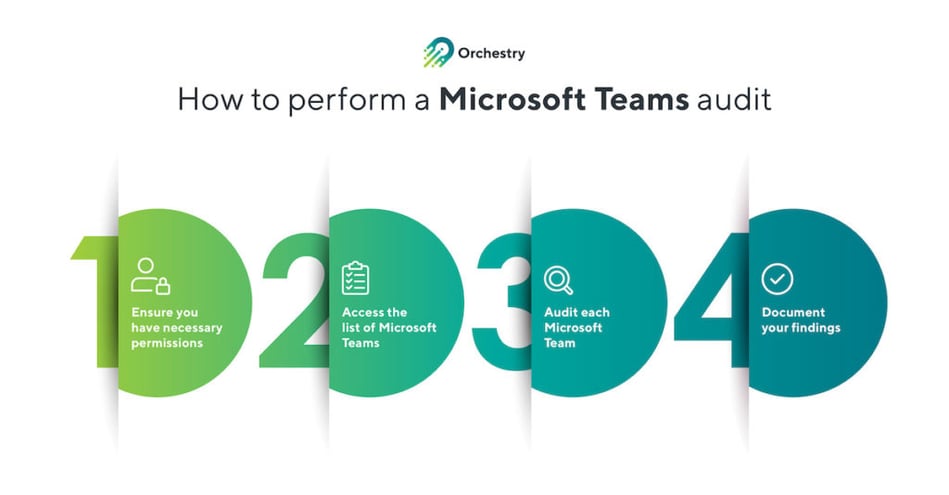
Make sure you have the necessary permissions
To perform an audit of Microsoft Teams, you will need to have the necessary permissions. As a minimum, you will need to be a global administrator or have the appropriate permissions in the Microsoft 365 admin center.
Access the list of Microsoft Teams
- Go to the Microsoft Teams Admin Center by logging in to the Microsoft 365 admin center and clicking on the Teams icon in the left-hand menu.
- View the list of Microsoft Teams: In the Microsoft Teams Admin Center, go to Teams > Manage Teams. This will display a list of all the Microsoft Teams in your tenant.
Audit each Microsoft Team
Go through the list of Microsoft Teams and audit each one by reviewing the following information:
- Team name: Verify that the team name is clear and descriptive.
- Team owner: Identify the owner or team leader of the team and verify that they have the appropriate permissions.
- Team members: Review the list of team members and ensure that they are all appropriate and necessary.
- Team channels: Review the list of channels within the team and verify that they are organized and named appropriately.
- Team Content: Review the content within the team, as well as user posts, and ensure that it is relevant and up to date.
Document your findings
As you go through the audit process, document your findings in a spreadsheet or other document. Microsoft Teams admin center usage analytics and reports, as well as SharePoint site usage reports, can be downloaded as an Excel or CSV file, so you can make This will help you track any issues or concerns that you identify and help you develop a plan for addressing them.
By following these steps, you should be able to perform a comprehensive audit of all the Microsoft Teams in your tenant. This will help you identify any issues or concerns and take steps to address them, ensuring that your organization is using Microsoft Teams effectively and efficiently.
Sounds easy enough, right? But what exactly are you looking for, when reviewing your findings, to identify if a Microsoft Team may be outdated, abandoned, or no longer needed?
Teams sprawl signal 1: Lack of activity
If a Microsoft Team has not been used in a long time, it may be abandoned or no longer needed. You can check the activity levels of a Microsoft Team by reviewing the usage data and user activity in the Microsoft Teams Admin Center or by reviewing the activity within the team itself.
As a Microsoft 365 administrator, you can use the following methods to find Microsoft Teams usage data:
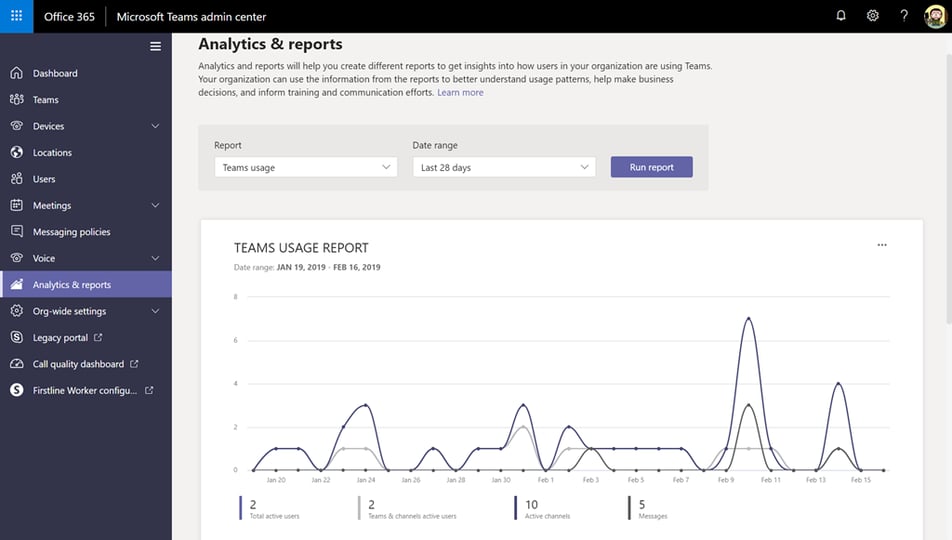
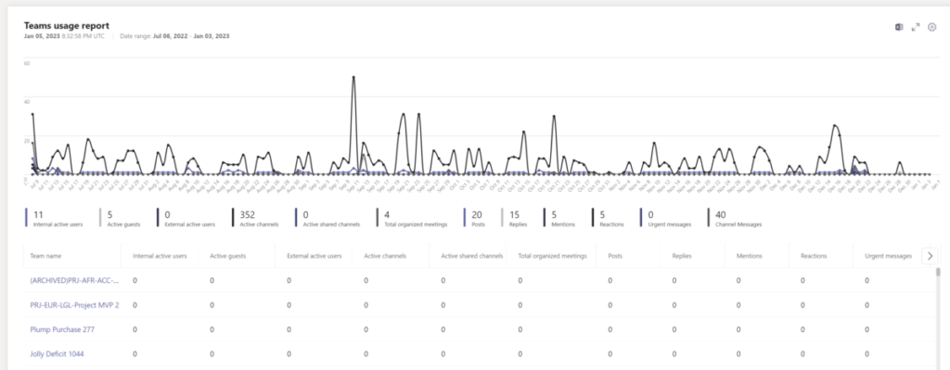
- Use the Microsoft Teams Admin Center: In the Microsoft Teams Admin Center, you can access usage data for Microsoft Teams by going to Analytics & Reports > Usage reports. From here, you can view a range of usage data, including the number of active users, site usage data, the number of channels and conversations, and the number of meetings and calls.
- Use the Microsoft Graph API: You can also use the Microsoft Graph API to access usage data for Microsoft Teams. The Microsoft Graph API allows you to programmatically access a range of data and insights about your organization’s use of Microsoft 365. To access Microsoft Teams usage data, you will need to make a GET request to the ‘/reportRoot/teamsUserActivityCounts’ endpoint.
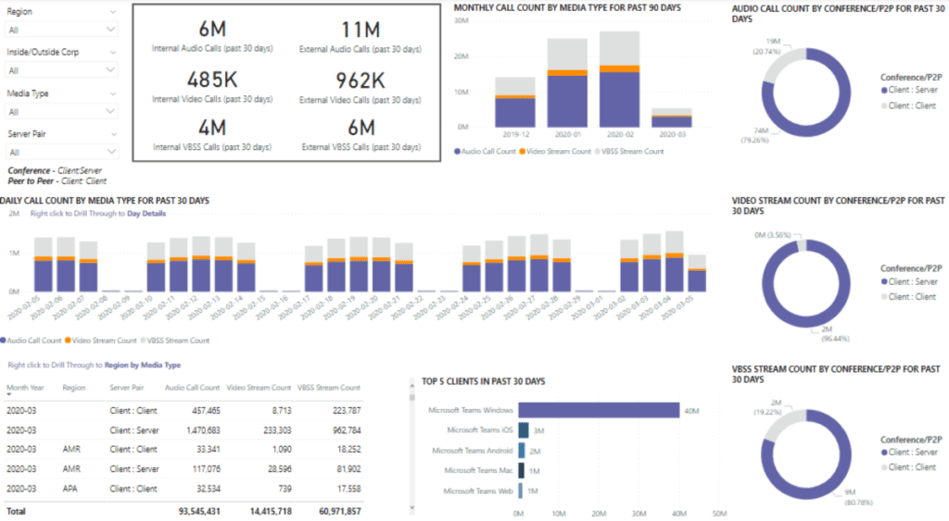
- Use Power BI: You can use Power BI to create custom dashboards and reports for Microsoft Teams usage data. To do this, you will need to connect to the Microsoft Teams usage data in the Microsoft 365 admin center and then create visualizations and reports based on the data.
Teams sprawl signal 2: Outdated content
If a Microsoft Team contains outdated or irrelevant content, it may be a sign that the team is no longer needed or that it is not being used effectively.
There are several ways that you can determine if content in Microsoft Teams is outdated:
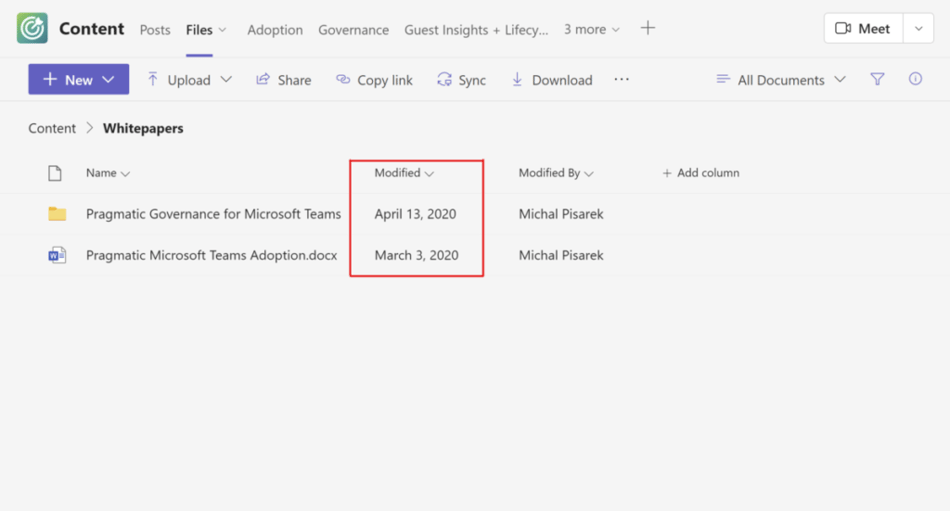
- You can check the timestamps on the content within a Microsoft Team or associated SharePoint site to get an idea of when it was last modified. If the content has not been modified in a long time, it may be outdated. Additionally, you can check the date of the last activity within the SharePoint Admin center, as well as the number of page views in the last 30 days, which should be a great indicator of whether the site is actively being used or not.
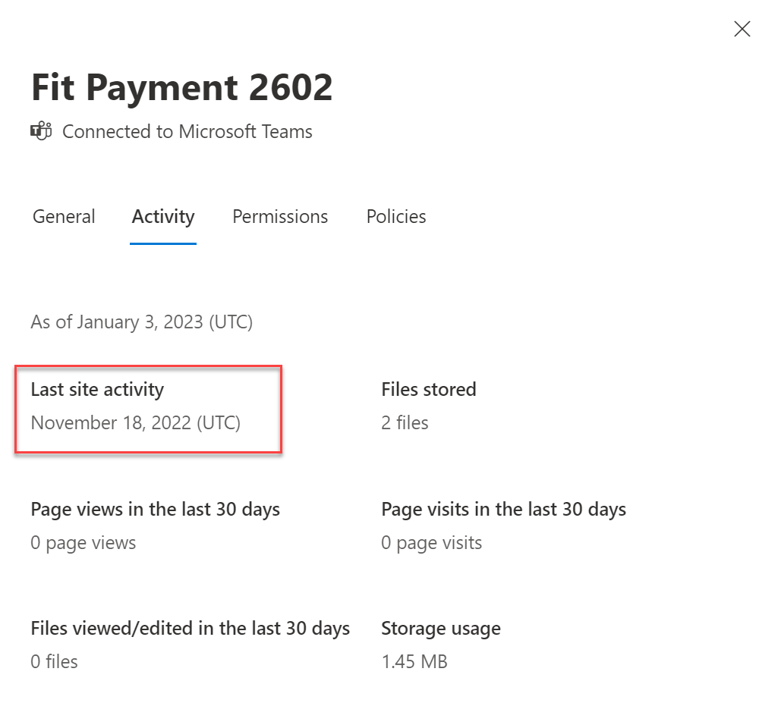
- Review the content within the team and consider whether it is still relevant and useful. If the content is no longer relevant or useful, it may be outdated.
- If the content within a Microsoft Team includes links to external resources, check to see if those links are still valid or if they are broken. If the links are broken, it may be a sign that the content is outdated.
- If you are not sure whether the content within a Microsoft Team is outdated, you can consult with the Team members to get their perspective on the popular content. They may be able to provide insight into the relevance and usefulness of the content.
Teams sprawl signal 3: Lack of ownership
Microsoft Teams has a failsafe in place to prevent ownerless Teams. When an Owner is trying to leave a Team, they will be prompted to assign a new Owner. But that of course doesn’t protect against “quiet quitting” where a member of the Team is listed as an owner but doesn’t actually manage the team any longer. Nor does it protect against Teams having owners who are no longer part of the organization.
If a Microsoft Team does not have a clear owner or if the owner is no longer active in the team, it may be a sign that the team is abandoned or no longer needed.
To see who the owner of a Microsoft Team is or to change the owner, you can follow these steps:
- Go to the Microsoft Teams Admin Center by logging in to the Microsoft 365 admin center and clicking on the Teams icon in the left-hand menu.
- In the Microsoft Teams Admin Center, go to Teams > Manage teams. This will display a list of all the Microsoft Teams in your tenant.
- Click on the name of the team that you want to view the owner of.
- On the team details page, you will see the name of the team owner listed under the “Team owner” section.
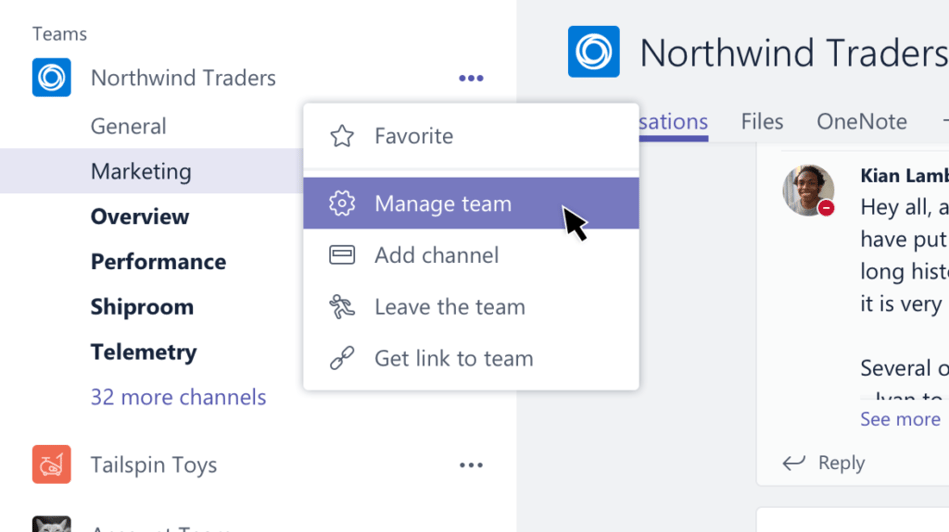
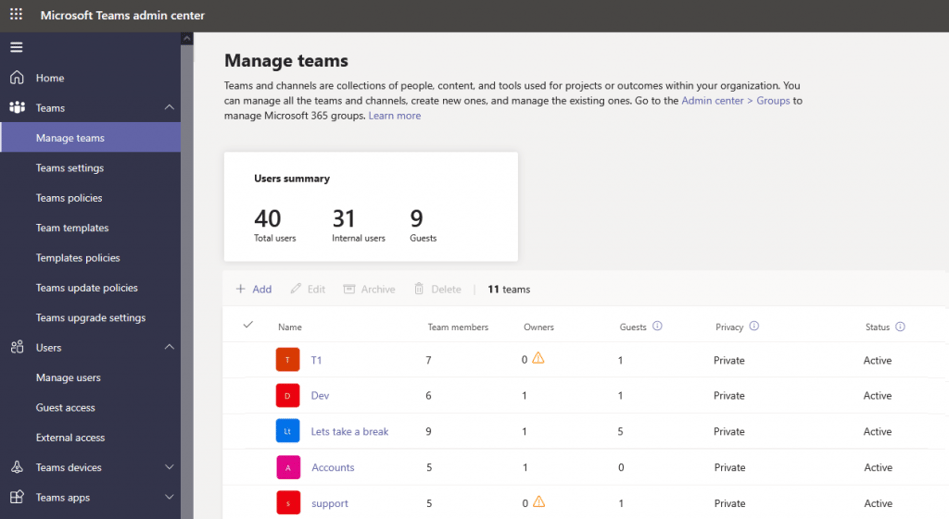
If you are looking to find all ownerless Teams in bulk, you can follow these steps:
- Go to the Microsoft Teams Admin Center by logging in to the Microsoft 365 admin center and clicking on the Teams icon in the left-hand menu.
- In the Microsoft Teams Admin Center, go to Teams > Manage Teams. This will display a list of all the Microsoft Teams in your tenant.
- Use the filters in the Microsoft Teams Admin Center to find teams that do not have an owner. To do this, click on the “Add a filter” button and select the “Team owner” filter. Then, select “Is empty” from the dropdown menu. This will show you a list of all the teams that do not have an owner.
- Go through the list of ownerless teams and determine whether any of these teams are still needed or if they should be decommissioned. If a team is still needed, you can assign an owner to it by clicking on the team name and updating the “Team owner” field on the team details page.
Teams sprawl signal 4: Duplication of services
If you find that multiple Microsoft Teams are providing similar services or serving similar purposes, it may be a sign that some of these teams are redundant or no longer needed.
To understand which Microsoft Teams may be redundant, you should look closely at the Team names and descriptions.
To do so, go to the Microsoft Teams Admin Center by logging in to the Microsoft 365 admin center and clicking on the Teams icon in the left-hand menu. View the list of Microsoft Teams by going to Teams > Manage Teams. This will display a list of all the Microsoft Teams in your tenant. Go through the list of Microsoft Teams and review the team names and descriptions.
You should also consult with the team owners and members to determine whether some Teams may be redundant by presenting them with the Team you’ve flagged as a potential duplicate.
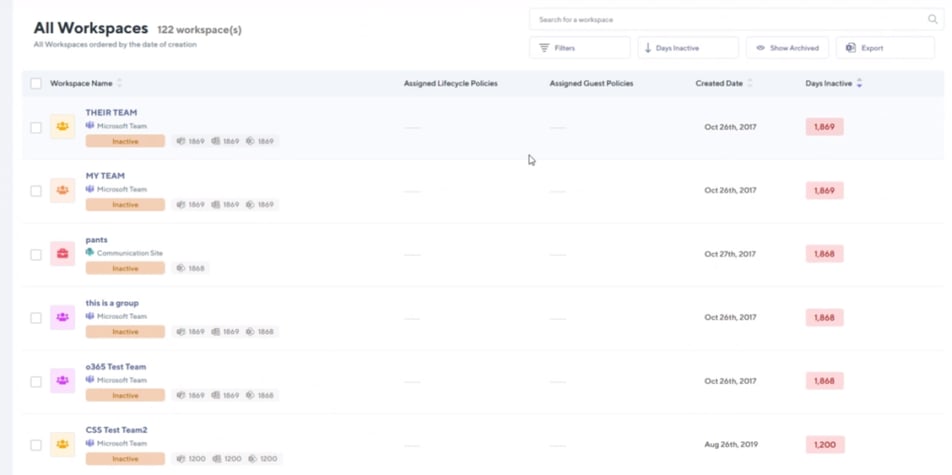
Teams sprawl signal 5: Conspicuous names
While reviewing your Microsoft Teams names, you may find that a lot of Teams have conspicuous names, like “Test”, “Pants”, or even “I’ve made a mistake” (believe us, we’ve actually seen tenants with Teams names like these!). With a name like “Test,” it is fairly safe to assume that the Team is no longer in use, or maybe ripe for archival or deletion. But how do you find these Teams in bulk without having to go through the entire list of Teams one by one?
- Access the Microsoft Teams Admin Center: Go to the Microsoft Teams Admin Center by logging in to the Microsoft 365 admin center and clicking on the Teams icon in the left-hand menu.
- View the list of Microsoft Teams: In the Microsoft Teams Admin Center, go to Teams > Manage Teams. This will display a list of all the Microsoft Teams in your tenant.
- Filter the list of teams: Use the filters in the Microsoft Teams Admin Center to find teams with specific names. To do this, click on the “Add a filter” button and select the “Team name” filter. Then, enter the name or names that you want to search for in the “Contains” field. For example, you could enter “test” or “pants” to find teams with those names.
Teams sprawl signal 6: Only have the General channel
If a Team only had the General channel, it is likely that it is either being underutilized, needs improvement, or does not support effective communication, so it could easily be consolidated with another Team or archived/deleted altogether.
Is there a way to find all Teams with only the General channel in bulk? There sure is! Follow these simple steps:
- Go to the Microsoft Teams Admin Center by logging in to the Microsoft 365 admin center and clicking on the Teams icon in the left-hand menu.
- In the Microsoft Teams Admin Center, go to Teams > Manage Teams. This will display a list of all the Microsoft Teams in your tenant.
- Use the filters in the Microsoft Teams Admin Center to find teams that only have the general channel. To do this, click on the “Add a filter” button and select the “Channels” filter. Then, select “Is empty” from the dropdown menu. This will show you a list of all the teams that do not have any channels besides the general channel.
By reviewing these indicators and using the information gathered from your audit, you should be able to identify which Microsoft Teams may be outdated, abandoned, or no longer needed. You can then take steps to begin Microsoft Teams cleanup and general Teams organization.
Is there a better way?
All of these steps sound like a lot of work. Depending on the size of your organization, how many Teams are being created and decommissioned on a regular basis, who can create new Teams, and whether you have any Teams lifecycle management, or governance policies in place which enforce Teams creation, naming, structure, archival and renewal, you may need to complete these steps on a monthly basis to keep your tenant clean and organized.
So, naturally, you may ask if there is an easier way.
Apart from using Microsoft Graph API and building custom scripts or applications that will help you automate the audit process, or using Power BI to create custom dashboards and reports, which will require a lot of people hours, there is a simple way to not only identify Teams that are ready to be decommissioned, but also automatically engage content owners to backup content, request renewal of a team and, eventually, schedule Microsoft Teams archiving or deletion.
What’s more, you can leverage powerful Teams and SharePoint governance controls to avoid sprawl from ever occurring in the future.
So what is this magical way?
Orchestry is a powerful Microsoft 365 governance and adoption platform, which goes into action from the moment you install it in your tenant (did we mention installation takes only 10 minutes?).
Powerful insights
Within hours of installation, you will see compelling information about Teams and SharePoint sites within your tenant.
This includes information like:
- General MS Teams and SharePoint reporting: How many Teams and SharePoint sites (Workspaces) do you have in your tenant along with the full detailed list
- Teams and SharePoint usage report: How many and which of them are active/inactive
- How many and which Teams only have the General channel
- How many Teams are ownerless or have no members
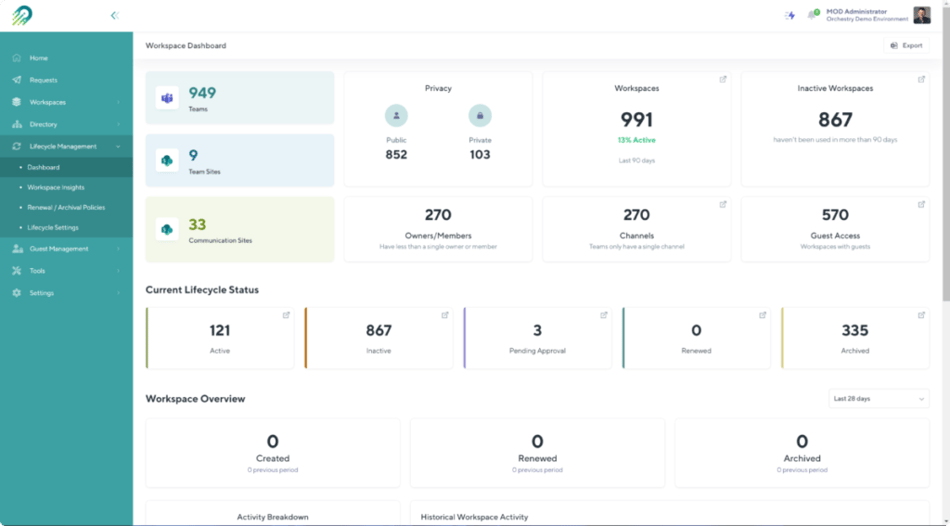
You can then take a deep dive into the SharePoint sites and Teams details to see which ones are active and inactive, and see the exact number of days of inactivity.
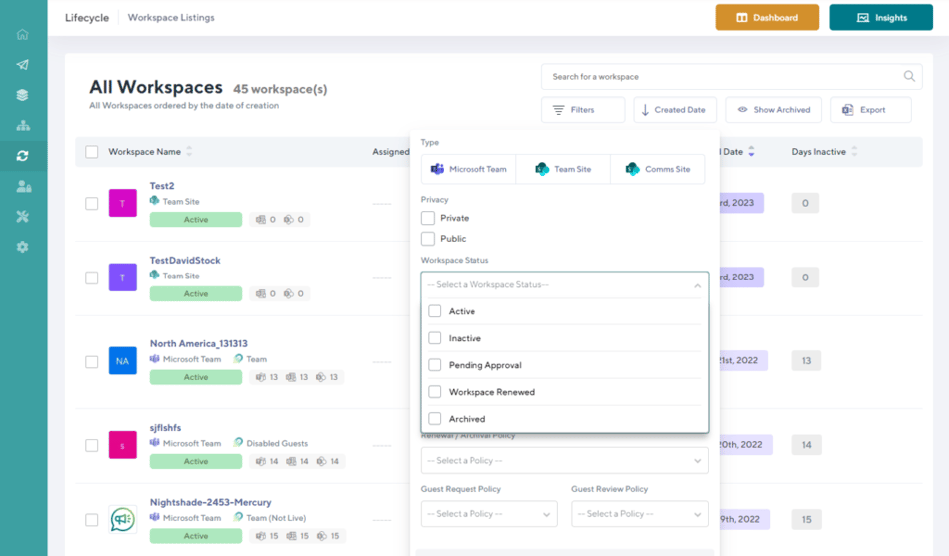
By using powerful filters, you can quickly access lists of public or private SharePoint team and Communication sites and Microsoft Teams that are active, inactive, archived, renewed, or pending approval, have specific members or owners, and more (for example if you are trying to find all Teams who are owned by a member of the organization who will soon be retiring).
Easy Microsoft Teams archiving
Once you’ve identified Teams and sites that are ripe for archival, you can being Teams and SharePoint cleanup. Start by easily creating archival and renewal policies and applying them to workspaces in bulk. These policies will automatically engage Teams and SharePoint Online site owners by notifying them of the looming archival and offering them the option to either request renewal of the workspace or prompt them to back up the content, as the workspace will soon be deleted or archived.
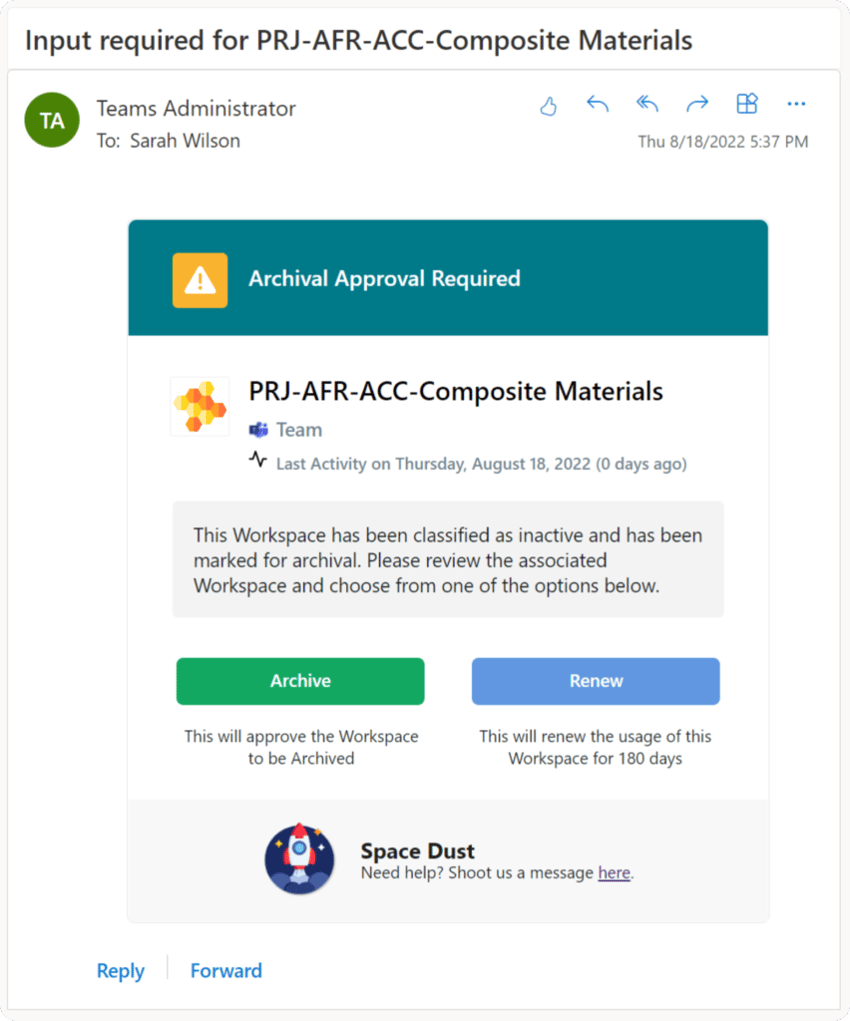
With these powerful features, Orchestry users clean up on average 75% of their unused Teams in the first 14 days of using the app.
We’ve put together a comprehensive blog that shows how you can not only clean up your Microsoft Teams and SharePoint sprawl but also prevent future sprawl. If you’ve performed a Microsoft Teams audit in the past and are concerned that your tenant may be suffering from a sprawl, have a read to see how Orchestry can save you endless hours on future audits, cleanups, and day-to-day administration and governance of your environment.
Want more insights like this one?
For more Microsoft 365, SharePoint Online, and Teams insights, tips and tricks, best practices, and exclusive events delivered straight to your inbox, join our mailing list today and level up your Microsoft 365 game!