/HubSpot%20-%20eBook%20-%20Proof%20Card%20Mockup%20001.jpg?length=1000&name=HubSpot%20-%20eBook%20-%20Proof%20Card%20Mockup%20001.jpg)
/HubSpot%20-%20eBook%20-%20Proof%20Card%20Mockup%20001.jpg?length=1000&name=HubSpot%20-%20eBook%20-%20Proof%20Card%20Mockup%20001.jpg)
/HubSpot%20-%20eBook%20-%20Proof%20Card%20Mockup%20001.jpg?length=1000&name=HubSpot%20-%20eBook%20-%20Proof%20Card%20Mockup%20001.jpg)
/HubSpot%20-%20eBook%20-%20Proof%20Card%20Mockup%20001.jpg?length=1000&name=HubSpot%20-%20eBook%20-%20Proof%20Card%20Mockup%20001.jpg)
/HubSpot%20-%20eBook%20-%20Proof%20Card%20Mockup%20001.jpg?length=1000&name=HubSpot%20-%20eBook%20-%20Proof%20Card%20Mockup%20001.jpg)
/HubSpot%20-%20eBook%20-%20Proof%20Card%20Mockup%20001.jpg?length=1000&name=HubSpot%20-%20eBook%20-%20Proof%20Card%20Mockup%20001.jpg)
/HubSpot%20-%20eBook%20-%20Proof%20Card%20Mockup%20001.jpg?length=1000&name=HubSpot%20-%20eBook%20-%20Proof%20Card%20Mockup%20001.jpg)
/HubSpot%20-%20eBook%20-%20Proof%20Card%20Mockup%20001-min.jpg?length=1000&name=HubSpot%20-%20eBook%20-%20Proof%20Card%20Mockup%20001-min.jpg)


As a user of Microsoft 365, you’ve probably asked the question, “What to use when…” time and time again. This blog provides a high level of answers to those common questions you hear from the users of Microsoft tools in your organization, so feel free to pull quotes or general inspiration from it, whether it be for your organization’s technical FAQ, or for training purposes.

It used to be easier to know which tool to use when because Microsoft 365 didn’t have a lot of options. But now, inside Microsoft 365, we have a lot of options. Almost too many.
Many of the apps we use day-to-day seem to do the same thing. When should I use OneDrive, SharePoint, or Teams? They all hold files, don’t they? I can share from any of these platforms, can’t I?
We need to know the use case to determine the best tool to use. Word of warning: There is rarely a cookie-cutter solution these days.
The new focus is on people and what they need to be successful. It’s not so much about technology, it’s about the people using technology that will determine our answers.
Let’s start with OneDrive. To be honest, it might be one of my favorites.
Let me tell you a story.
I am a recovering desktop dumper. I used to struggle with not wanting to take the time to organize my files. I would just save everything to my desktop. I had to break this habit about 6 years ago when my work laptop stopped being reliable. I never knew when it would just suddenly shut down, then it got to the point where it wouldn’t hold a charge consistently. When the issues started, I realized I needed to get all my working files and reference materials off my desktop and into OneDrive so I could get to them from any computer, anywhere.
It was a lifesaver. I already had the OneDrive app downloaded to my smartphone. Once I actually put my content in OneDrive, I could get to it from my phone. At this point, no matter where I was or what I was doing, I could get to my content, and send it to someone if a request came in while I was at the grocery store or in an airport… And it changed my life. It’s almost magical.
Enough about me, let’s talk OneDrive.
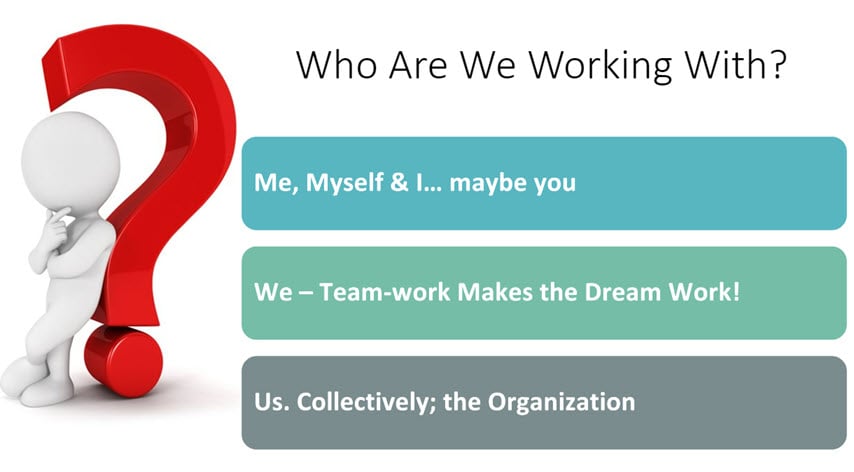
When I’m working with Me, Myself. And I… Maybe You, I look to OneDrive.
I often say, “OneDrive for one person.” That one statement then tells us if we need to be working with multiple people we probably shouldn’t be working in OneDrive.
OneDrive is “owned” by the individual. Look at the URL to your OneDrive. You’ll notice your company’s name followed by “-my.sharepoint.com personal/employee_name.” That alone is telling that it’s not the best place for group or team collaboration.
I can’t tell you the number of times I’ve gotten support calls and tickets because a user’s OneDrive account went away after they left the company and many others in the organization were still working on files through sharing links to that now gone colleague’s OneDrive.
Do you have files and documents that are just for you? Use OneDrive.
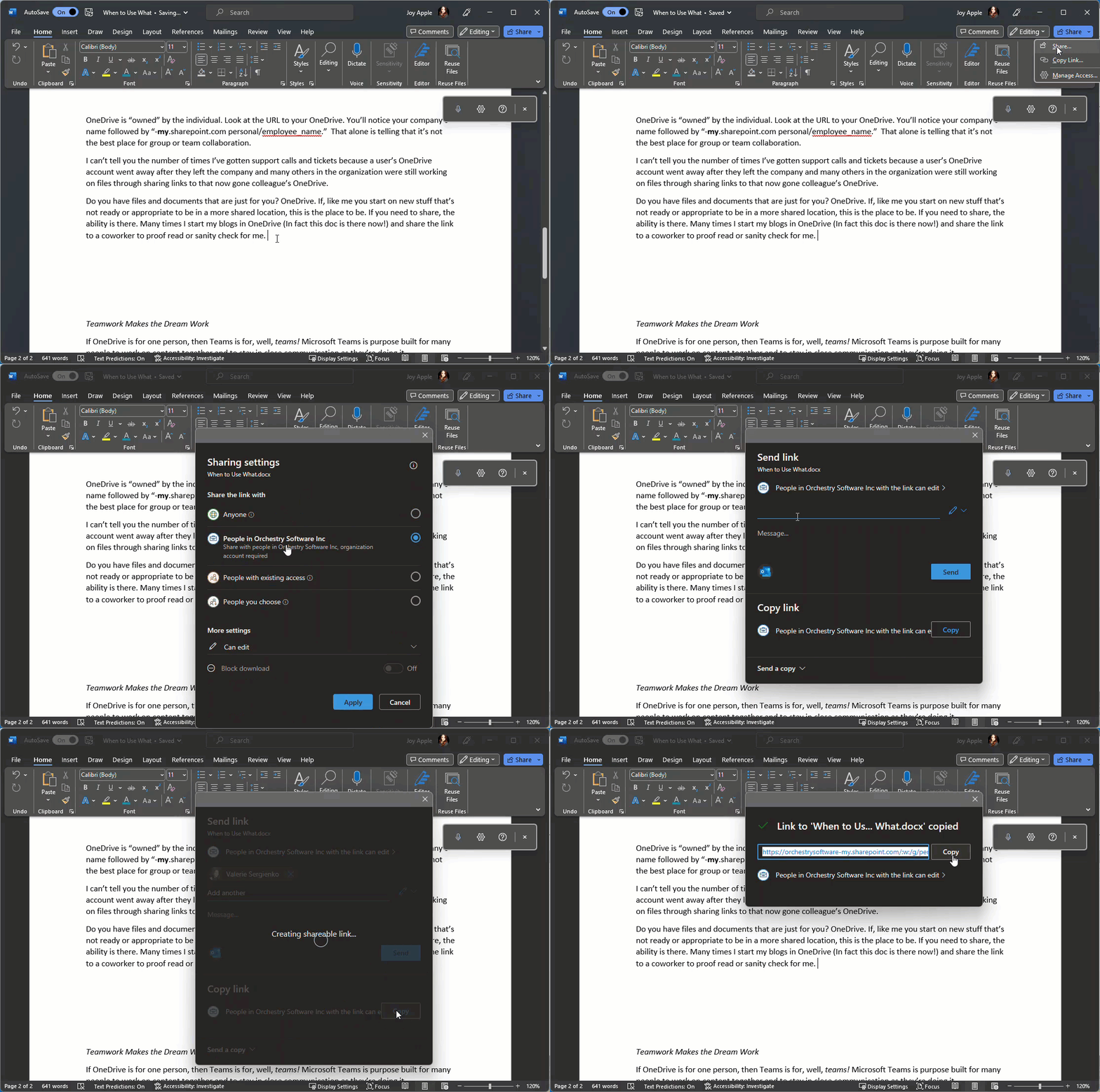
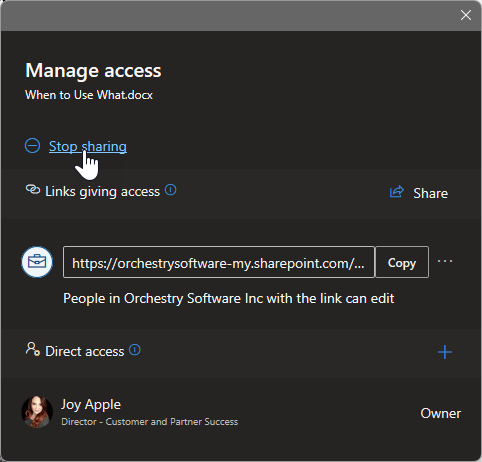
If like me you start on new stuff that’s not ready or appropriate to be in a more shared location, this is the place to be. If you need to share, the ability is there. Many times I start my blogs in OneDrive (in fact this doc is there now!) and share the link with a coworker to proofread or sanity check for me. Here’s how I typically do that:
Teamwork Makes the Dream Work
If OneDrive is for one person, then Teams is for, well, teams! Microsoft Teams is purpose-built for many people to work together on content and to stay in close communication as they’re doing it. Microsoft Teams utilize channels to organize content and communication together. If there are activities you do and talk about as a team, create a channel for them.
When working in a Team we’re using SharePoint for document management capabilities and Microsoft 365 Groups to manage access to the team content and conversations. When multiple people need to be able to collaborate on content and communicate closely throughout a day or week, Teams are the answer.
Examples of use cases for creating individual Teams include:
- Departments
-
- Human Resources
-
-
- All HR stuff lives here such as department-level policies, and the conversations are scoped to everyone that works in HR
- Channels may include:
-
-
-
-
- General for department announcements
- Training Opportunities or Career Development
-
-
-
-
-
- Pets of HR channel 🐈⬛🐕 (for fun and engagement)
-
-
- Functional areas of departments (part of HR but they need their own space and privacy)
-
- Wellness
-
-
- Health campaigns
- Shared channel for employee questions
-
- Project teams
-
- New Employee Engagement initiative
-
-
- Event planning
- Marketing materials
-
- Cross-functional collaboration
-
- Select members of Accounting and HR
-
-
- New hire processing
-
Permissions live at the Team level. Everyone in the Team and its standard channels has edit access. They’re there to work and communicate. By default, there is no “Read Only” in Teams.
Repeat after me: “If you’re in the Team you’re on the team.” Team members are there to participate. Communication lives in the Posts tab of the team, organized by channel. This structure allows content and conversations to live together! A side effect of this is that the focus on Outlook shifts from “everything” to content from folks outside my close collaboration circle. I typically recommend starting with a configured Team that has channels and tabs ready to go!
Sharing is Caring
And SharePoint is all about the controlled, secure sharing of content, information, and ideas. SharePoint is the document management tool of Microsoft 365. Think of SharePoint as the big blade in our M365 Swiss Army Knife.
OneDrive files? they’re in a personally secured area of SharePoint. Teams files? They’re in the connected team site’s Shared Documents. Sharing files internally or for collaborative purposes in Outlook? Sharing links facilitates this without the duplicative process of attachments.
There are 2 primary types of SharePoint sites: team sites and Communication sites.
Communication Sites
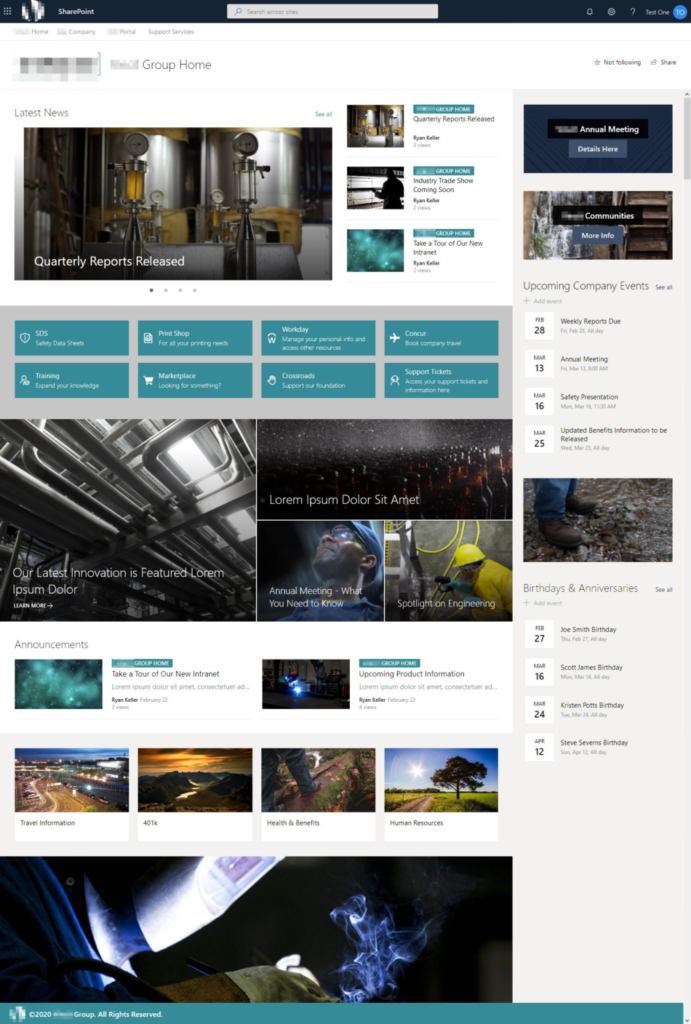
Communication sites are made to be visually interesting and are suited to broadcasting information from a small group of people to a larger one.
Modern SharePoint intranet home pages and department landing pages are best architected as Communication sites. I often refer to them as “Company Public.” Anyone in the org with a username and password should be able to access and consume the content on a Communication site.
Communication sites are not created with M365 groups and can not be connected to a Microsoft Team.
Team Sites
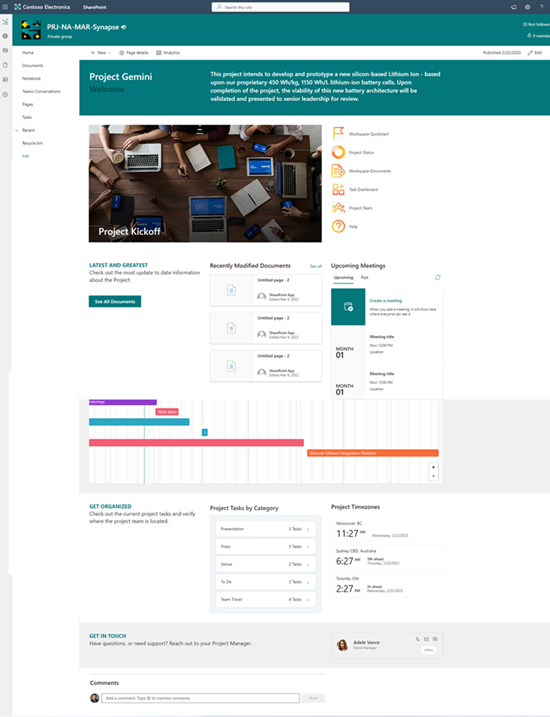
Team sites are where the work happens. They’re designed for robust document lifecycle management. A team site may or may not be tied to a Microsoft Team. For work that doesn’t require close communication during the project or perhaps will have a broader audience than makes sense for a Team.
In my experience in the modern workplace, it’s likely that a Teams connected workspace makes the most sense for a group that has collaborative work to do. If it’s for the sharing of content, just use a Communication site.
A slight twist on the Teams connected team site is the team site that’s created to be the document management tool for Viva Engage communities (formerly Yammer).
Looking Beyond the Tools
As mentioned earlier, there isn’t a cookie-cutter solution for most business scenarios, rather there are options. It’s best to look beyond the tools to the users and their needs.
- How do your teammates, and colleagues work?
-
- Fast-paced 1:1 or group chat
-
- Calls
-
-
- Voice or video?
-
-
- Working through an email queue
- Which communication tool will engage others?
-
- Live events
-
- Platforms with a more social aspect
- Email
-
-
- Follow emails with more engaging communication
-
How do you find you?
Talk to people. Find out their needs and build solutions to meet those needs. You’ll see an increase in adoption, reduce help desk tickets, and even reduce instances of shadow IT! Which is a conversation for another day. 😊
I hope this is helpful for you! M365 is an expansive platform but remember, you have options! Exploring those options with a “human-first” approach is the new best practice.
Want more insights delivered straight to your inbox?
For more Microsoft 365, SharePoint Online, and Teams insights, tips and tricks, best practices, and exclusive events delivered straight to your inbox, join our mailing list today and level up your Microsoft 365 game!