/HubSpot%20-%20eBook%20-%20Proof%20Card%20Mockup%20001.jpg?length=1000&name=HubSpot%20-%20eBook%20-%20Proof%20Card%20Mockup%20001.jpg)
/HubSpot%20-%20eBook%20-%20Proof%20Card%20Mockup%20001.jpg?length=1000&name=HubSpot%20-%20eBook%20-%20Proof%20Card%20Mockup%20001.jpg)
/HubSpot%20-%20eBook%20-%20Proof%20Card%20Mockup%20001.jpg?length=1000&name=HubSpot%20-%20eBook%20-%20Proof%20Card%20Mockup%20001.jpg)
/HubSpot%20-%20eBook%20-%20Proof%20Card%20Mockup%20001.jpg?length=1000&name=HubSpot%20-%20eBook%20-%20Proof%20Card%20Mockup%20001.jpg)
/HubSpot%20-%20eBook%20-%20Proof%20Card%20Mockup%20001.jpg?length=1000&name=HubSpot%20-%20eBook%20-%20Proof%20Card%20Mockup%20001.jpg)
/HubSpot%20-%20eBook%20-%20Proof%20Card%20Mockup%20001.jpg?length=1000&name=HubSpot%20-%20eBook%20-%20Proof%20Card%20Mockup%20001.jpg)
/HubSpot%20-%20eBook%20-%20Proof%20Card%20Mockup%20001.jpg?length=1000&name=HubSpot%20-%20eBook%20-%20Proof%20Card%20Mockup%20001.jpg)

/HubSpot%20-%20eBook%20-%20Proof%20Card%20Mockup%20001-min.jpg?length=1000&name=HubSpot%20-%20eBook%20-%20Proof%20Card%20Mockup%20001-min.jpg)


Most Microsoft 365 storage cost problems don't announce themselves until the bill arrives.
Storage doesn't grow in spikes. It grows through accumulation: files saved daily, versions created automatically, projects completed but never archived, Teams created for initiatives that ended two years ago and still sitting in active SharePoint storage. By the time you check the SharePoint admin center and see the tenant at 85% of its quota, the growth drivers have been running for years.
Understanding where Microsoft 365 storage costs come from, and which levers actually reduce them, is the prerequisite for managing them.
How Microsoft 365 storage costs work
Microsoft 365 commercial subscriptions include a pooled SharePoint storage allocation: 1 TB base plus 10 GB per licensed user. For a 500-person organization, that's roughly 6 TB of included storage.
Storage beyond that allocation is billed as standard SharePoint overage at $0.20 per GB per month, and Microsoft 365 Archive meters archived content at $0.05 per GB per month, a 75% per-GB reduction. For organizations that have accumulated content for years without active lifecycle management, overage can reach hundreds of gigabytes, adding thousands of dollars a month with no matching business value.
There's an important nuance worth getting right, and it works in your favor. When you archive a site or file, Microsoft 365 Archive reclassifies that content from active storage to archived storage. Your active storage usage drops by that amount, and with Archive enabled you're considered over quota only when active storage exceeds your licensed limit.
The archived data still counts toward total tenant storage, but it's metered separately, and the archive charge applies only to the portion of archived plus active storage that exceeds your included allocation. If your tenant is within its included storage, archiving has no billing impact.
The four real drivers of Microsoft 365 storage costs
1. Version history bloat
Version history is the single most common driver of unexpected storage growth, and it's almost invisible until you look for it.
By default, SharePoint keeps up to 500 major versions per file with no expiration. Microsoft now recommends the Automatic setting, which thins older versions over time, but many tenants still run the original 500-version default.
A 50 MB PowerPoint with 200 autosaved versions over a year can consume 10 GB of quota, and multiplied across every library in a large tenant, version history alone can account for hundreds of gigabytes that serve no active purpose. In document-heavy tenants it can grow by terabytes a year, and most of those versions are never opened again.
The fix is two stages: set org-level version limits to stop future accumulation, and purge existing version history from the sites and libraries where bloat has already built up. Neither step deletes active content; both target historical version data. Orchestry's version cleanup runs bulk version purging jobs across hundreds or thousands of SharePoint sites at once, clearing bloated version history at scale without site-by-site cleanup.
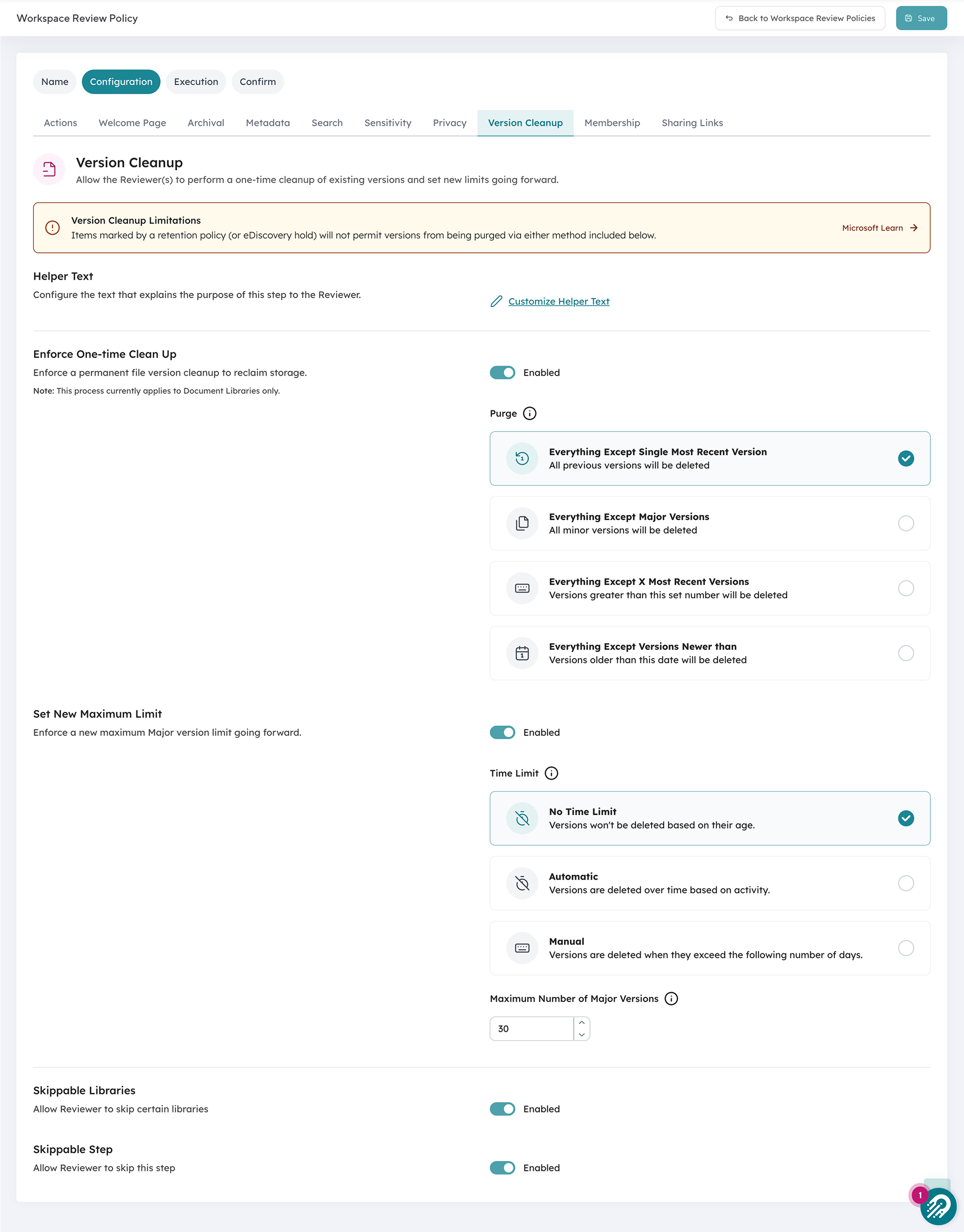
Orchestry's version cleanup purges existing versions and sets a new limit going forward, run across libraries inside a workspace review.
2. Dormant workspaces
Based on Orchestry data, roughly two in three Teams and SharePoint workspaces are inactive when governance tooling is first installed. Those inactive workspaces keep consuming storage, often the majority of the tenant's footprint, while delivering no active value.
The catch with site-level archive is that it needs a workspace to be inactive. A single recent file edit keeps the last-activity date current and makes site-level archive impractical without disrupting what's still in use. Identifying dormant workspaces, sites with no meaningful activity in 6 to 12 months, means filtering by activity signals and deciding on each candidate.
Orchestry's workspace review automation routes those decisions to the owners who know whether a workspace is done or simply quiet. Routing dormant-workspace decisions to owners and archiving sites that have been inactive for years can reclaim terabytes of storage quickly.
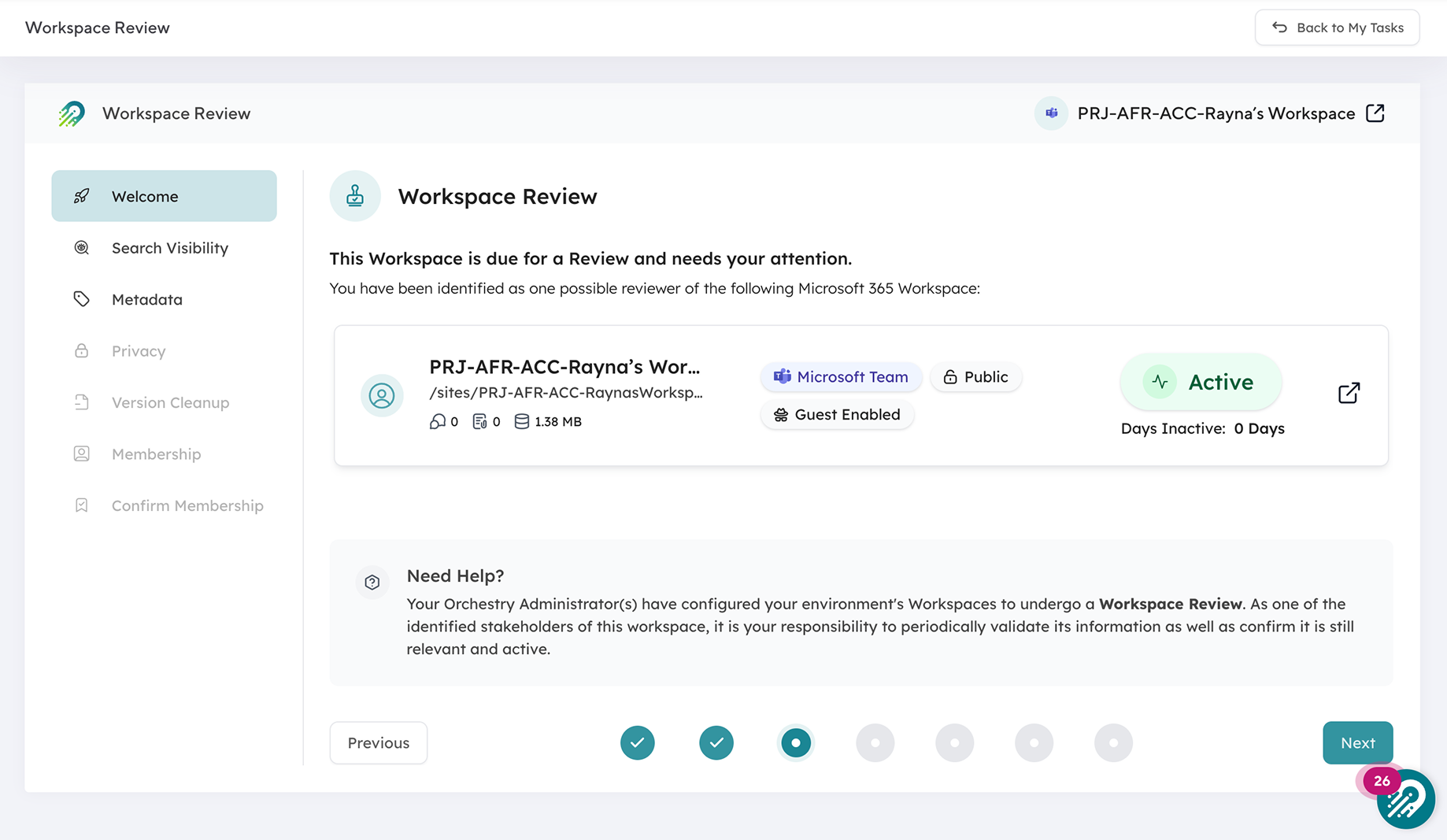
Dormant-workspace decisions route to owners, who confirm whether a site is done or just quiet before it's archived.
3. The mixed-activity site problem
Even sites that can't be fully archived often hold a lot of inactive content. A SharePoint site with one document updated this week may contain tens of thousands of files untouched for years. The last-activity date reflects the recent edit, while the other 95% of content keeps consuming storage.
Microsoft's file-level archiving, in public preview as of March 2026, addresses this by letting individual files and folders be archived within active sites. Archived files move to a lower-cost tier, excluded from Microsoft Copilot's index, without affecting the active content in the same site. That matters for large, long-standing sites that grew through migrations or organic use.
One limitation to set expectations on: file-level archive is available only for SharePoint sites during preview, and certain file types and applications don't yet support it.
4. Hidden growth drivers in native reporting
Native reports show total storage but don't easily surface what's driving it. Version history, retention holds, recycle bin content, and embedded containers are all common consumers that don't appear clearly in standard reports.
Recycle bins hold deleted content against quota for 93 days, and retention policies in Microsoft Purview can extend that window significantly. Content employees believe they deleted may keep consuming storage for months under a hold.
Getting a complete picture means running PowerShell against each site or using a tool that aggregates storage breakdown at the tenant level. Orchestry's storage reporting surfaces usage by workspace across OneDrive, SharePoint, and Teams, with the growth trends and drivers native reports leave out.
The order of operations for Microsoft 365 storage cost reduction
Storage cost reduction done in the wrong order produces worse results than the same actions done correctly.
- Establish version history limits. This stops future accumulation at the source. Set the org-level option in the SharePoint admin center so it applies to new libraries from that point forward.
- Purge existing version history at scale. New limits don't retroactively trim versions already stored, so a separate purge clears existing bloat. This is where mass version purging delivers immediate, large-scale reduction.
- Identify and archive dormant workspaces. Once version history is addressed, route dormant sites to owners for review and archive the ones confirmed as no longer needed.
- Apply file-level archiving to mixed-activity sites. For large, active sites with significant inactive content, file-level archiving removes specific files and folders from active storage while keeping the site operational.
- Trim before you archive. Archive a workspace without trimming version history first and you lock in the bloated storage at the archive tier rather than eliminating it. Version cleanup should come before archival, not after.
What each lever actually does to storage costs
| Action | Effect on storage quota | Effect on billing |
|---|---|---|
| Set version history limits | Reduces future growth | Prevents future overage |
| Purge existing version history | Reduces actual quota usage | Reduces or eliminates overage charge |
| Archive inactive site (M365 Archive) | Reclassifies content from active to archived storage, lowering active usage | Charges the lower $0.05/GB rate on archived storage above your allocation |
| File-level archiving | Reclassifies individual files from active to archived storage | Charges the lower $0.05/GB rate on the archived portion above your allocation |
| Delete content | Reduces actual quota usage (after 93-day recycle bin) | Reduces or eliminates overage charge |
Version purging and deletion shrink your total storage footprint. Archiving lowers your active usage and charges a reduced rate on the archived storage that sits above your allocation. Both have a role, and they solve different parts of the same problem.
Storage cost optimization as part of broader governance
Storage costs don't grow independently of other governance problems. They're a symptom of lifecycle management that isn't running. Version accumulation happens because no limits were set, dormant workspaces exist because no review cycle is running, and inactive content persists because no one owns the decision about what to do with it.
When you put effective M365 lifecycle management in place, structured provisioning, automated workspace reviews, and owner-delegated archival, you solve the storage problem as a byproduct of governance rather than as a separate project. Storage stays manageable because the governance process keeps running.
"We continue to gain value from the Orchestry solution as it's allowing us to keep on top of the never ending creation of new M365 workspaces which without Orchestry, would be left hanging around the tenant occupying space and increasing costs." - Consultant, utilities (verified Capterra review)
Frequently asked questions about Microsoft 365 storage costs
Does Microsoft 365 Archive reduce my SharePoint storage quota usage?
Yes, in the way that matters for quota. Archiving reclassifies content from active to archived storage, so your active storage usage, which is what determines whether you're over quota when Archive is enabled, decreases. The archived data still counts toward your total tenant storage and is billed separately at the lower $0.05 per GB rate, but only for the portion above your included allocation.
What is the fastest way to reduce Microsoft 365 storage?
Purging existing version history at scale. It removes large amounts of stored data with no impact on active content and produces immediate reductions. For tenants at or near quota, it's typically the highest-priority first step.
Does deleting content in SharePoint immediately free up storage?
No. Deleted content moves to the recycle bin, where it counts against quota for 93 days before permanent removal, and retention policies can extend that window. Content under a retention hold may not be permanently deleted even after the recycle bin window.
Can I reduce storage costs without archiving or deleting content?
Yes. Setting and enforcing version history limits reduces storage without touching active content or archiving anything. It stops accumulation at the source and, combined with purging existing version history, can produce significant reductions with no impact on what employees can access.
Ready to get your Microsoft 365 storage costs under control?
Orchestry gives you the visibility, version management, and lifecycle automation to reduce M365 storage costs before they compound, with workspace-level reporting that shows where storage is growing and why, and automated reviews that route archival decisions to the people who own the content. To see where your storage is going, book a 30-minute demo.