/HubSpot%20-%20eBook%20-%20Proof%20Card%20Mockup%20001.jpg?length=1000&name=HubSpot%20-%20eBook%20-%20Proof%20Card%20Mockup%20001.jpg)
/HubSpot%20-%20eBook%20-%20Proof%20Card%20Mockup%20001.jpg?length=1000&name=HubSpot%20-%20eBook%20-%20Proof%20Card%20Mockup%20001.jpg)
/HubSpot%20-%20eBook%20-%20Proof%20Card%20Mockup%20001.jpg?length=1000&name=HubSpot%20-%20eBook%20-%20Proof%20Card%20Mockup%20001.jpg)
/HubSpot%20-%20eBook%20-%20Proof%20Card%20Mockup%20001.jpg?length=1000&name=HubSpot%20-%20eBook%20-%20Proof%20Card%20Mockup%20001.jpg)
/HubSpot%20-%20eBook%20-%20Proof%20Card%20Mockup%20001.jpg?length=1000&name=HubSpot%20-%20eBook%20-%20Proof%20Card%20Mockup%20001.jpg)
/HubSpot%20-%20eBook%20-%20Proof%20Card%20Mockup%20001.jpg?length=1000&name=HubSpot%20-%20eBook%20-%20Proof%20Card%20Mockup%20001.jpg)
/HubSpot%20-%20eBook%20-%20Proof%20Card%20Mockup%20001.jpg?length=1000&name=HubSpot%20-%20eBook%20-%20Proof%20Card%20Mockup%20001.jpg)
/HubSpot%20-%20eBook%20-%20Proof%20Card%20Mockup%20001-min.jpg?length=1000&name=HubSpot%20-%20eBook%20-%20Proof%20Card%20Mockup%20001-min.jpg)

Most of the Copilot readiness conversation focuses on permissions: fixing oversharing and tightening external access. That work matters.
But Microsoft has also built a separate control layer for shaping what Copilot can discover and surface in your tenant, independent of who has access to what. Most organizations with Copilot licenses haven't configured it.
Microsoft 365 Copilot data access controls are a set of admin-configurable settings that determine what content Copilot retrieves, surfaces, and prioritizes. They sit above the permissions layer: your existing access controls still apply, but these settings let you be more deliberate about what Copilot does with the content it can technically reach.
Six controls make up this layer, each operating at a different scope, from tenant-wide down to a single file:
- Restricted SharePoint Search (RSS)
- Restricted Content Discovery (RCD)
- Restricted Access Control (RAC)
- DLP policies for Microsoft 365 Copilot
- Sensitivity label encryption
- SharePoint Authoritative Sites
Microsoft groups these and related capabilities under the Copilot Control System, its umbrella for Copilot governance, security, and reporting.
These controls govern what any AI grounded in Microsoft Graph can retrieve, not just Microsoft 365 Copilot. Custom Copilot agents and SharePoint agents read from the same index, so the same boundaries apply, which is the crux of the SharePoint AI agent governance gap.
Governing the agents themselves is a different layer: Microsoft's Agent 365 adds a tenant-level registry and access controls for agents, while the SharePoint controls here still decide what any agent can retrieve.
Each control does a different job and belongs at a different point in a rollout. If you're still working through permission remediation first, start with the foundations of SharePoint Copilot readiness.
How Copilot data access controls differ from permissions
File permissions and Copilot data access controls solve different problems. That distinction is worth being clear on before you configure anything.
Permissions govern who can access content. If a user doesn't have read access to a file or site, Copilot won't retrieve it for them; permissions still apply. This control layer sits on top of that.
The gap is usually understanding, not just configuration. Based on Orchestry data, only 13% of admins could accurately describe how the SharePoint Copy Link sharing default inherits, so the permissions many teams assume are tight are often broader than they think.
The control layer works differently from permissions. A user can have read access to a SharePoint site, and you can still keep that site's content out of organization-wide search and Copilot. Access and Copilot visibility are independent settings.
The user can still navigate to the site directly, search for files within it, and open documents from it. Copilot just won't proactively retrieve from it.
Copilot's proactive behavior is the reason these controls exist. When a user searches a SharePoint library, they find only what they go looking for.
When Copilot answers a question in Microsoft 365 Copilot Chat, it surfaces content the user didn't explicitly ask for: it retrieves broadly from everything it can access and builds a response. That's useful when the content is appropriate, and a problem when it isn't.
The six controls below are how you shape that proactive retrieval. Permissions set the floor; the controls let you be deliberate above it.
1. Restricted SharePoint Search: a temporary hold, not a governance strategy
Restricted SharePoint Search (RSS) is the bluntest tool in this set. When you enable it, SharePoint Search, and therefore Copilot, returns results only from sites on an explicit allowed list. Everything else is excluded from search and Copilot retrieval.
Microsoft is retiring RSS, which makes its temporary status official. New setups are blocked as of July 31, 2026, full retirement lands on January 31, 2027, and the PowerShell cmdlets follow on February 28, 2027 (Microsoft Message Center post MC1395311). There's no automatic migration, so anything RSS is holding back becomes discoverable again unless you move it to Restricted Content Discovery or fix the underlying permissions first.
That scope makes RSS useful in one specific situation: you've rolled out Copilot but you haven't finished cleaning up oversharing to the standard a Copilot pilot needs. RSS limits Copilot's reach to a known-safe set of sites while remediation is still in progress.
RSS isn't a permanent configuration. It limits Copilot's usefulness, because users expect Copilot to surface content from across their environment and RSS prevents that for everything outside the allowed list. Treat it as a holding position while you finish the real work.
Configure it: SharePoint admin center > Settings > Restricted SharePoint Search. Toggle the feature on and maintain the allowed list of site URLs.
The practical trigger for RSS: if your permissions debt is significant enough to be a real Copilot risk, enable RSS during the remediation window and remove it once the site-level controls below are in place.
2. Restricted Content Discovery: targeted suppression, site by site
Restricted Content Discovery (RCD) is more surgical than RSS. Instead of limiting Copilot across the whole tenant, RCD applies per site: a restricted site stops appearing in organization-wide search (SharePoint home, Office.com, and Bing) and in Microsoft 365 Copilot. It stays fully accessible to anyone with permission, through direct navigation and search from within the site itself.
There's an important boundary to the suppression: RCD doesn't remove content from the tenant search index, so eDiscovery, retention, and auto-labeling keep working. It also turns off SharePoint's own AI entry points on that site, like the Copilot button and agent creation, though live actions on an open file, such as summarizing the current document, still work.
One behavior to understand before rollout: content on a restricted site can still surface for a user who owns it or recently interacted with it, and searches run from within the site aren't affected. That partial suppression is by design, so treat RCD as a way to buy time while you remediate, not as a permanent control.
RCD requires SharePoint Advanced Management (SAM). SAM is included when your organization has at least one Microsoft 365 Copilot license assigned, so most organizations running Copilot already have the entitlement.
Since Ignite 2025, you can also delegate RCD and RAC management to site admins, rather than routing every site through the tenant admin.
Configure it: SharePoint admin center > Active sites > select a site > Settings, then toggle on Restrict content from Microsoft 365 Copilot.
The hard part with RCD is the decision work before the configuration. To apply it sensibly, you need to know which sites carry sensitive content that shouldn't be proactively surfaced, and that's a visibility problem.
Based on Orchestry data, an average of 67% of workspaces are inactive when organizations first connect Orchestry, so most tenants carry a large set of sites that still hold content Copilot can reach but no one has touched in months. Orchestry's workspace reporting shows active-versus-inactive status and last activity date across the tenant, and its oversharing detection runs a recurring scan for the conditions that raise AI disclosure risk and surfaces one-click actions at the workspace level.
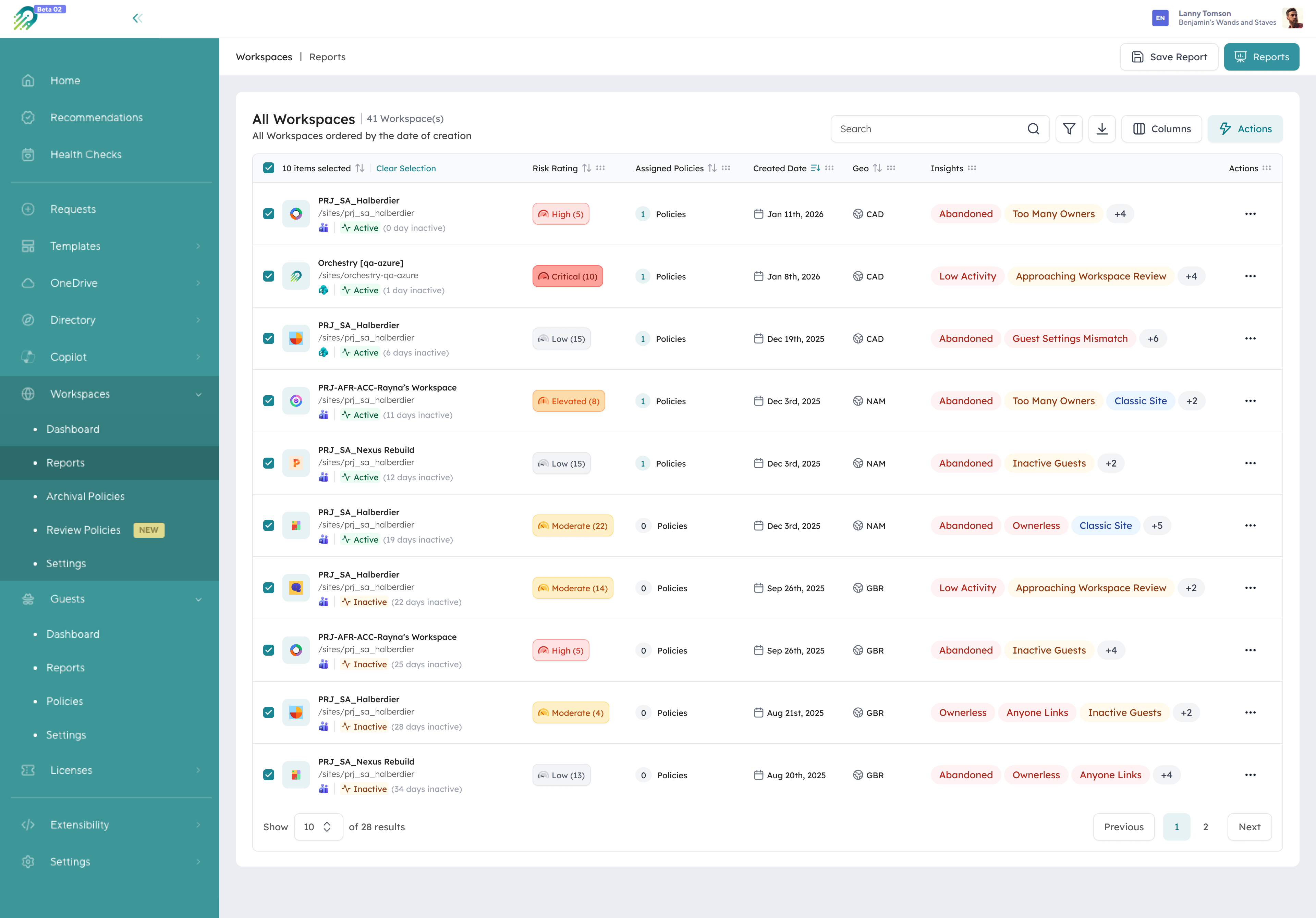
Orchestry Workspace Reporting: the All Workspaces report showing each site's active/inactive state, risk rating, and created date.
Orchestry's Copilot readiness dashboard scores your tenant 0 to 100 across 13 governance signals, so you can see where you stand before applying RCD site by site rather than protecting the sites you happen to remember.
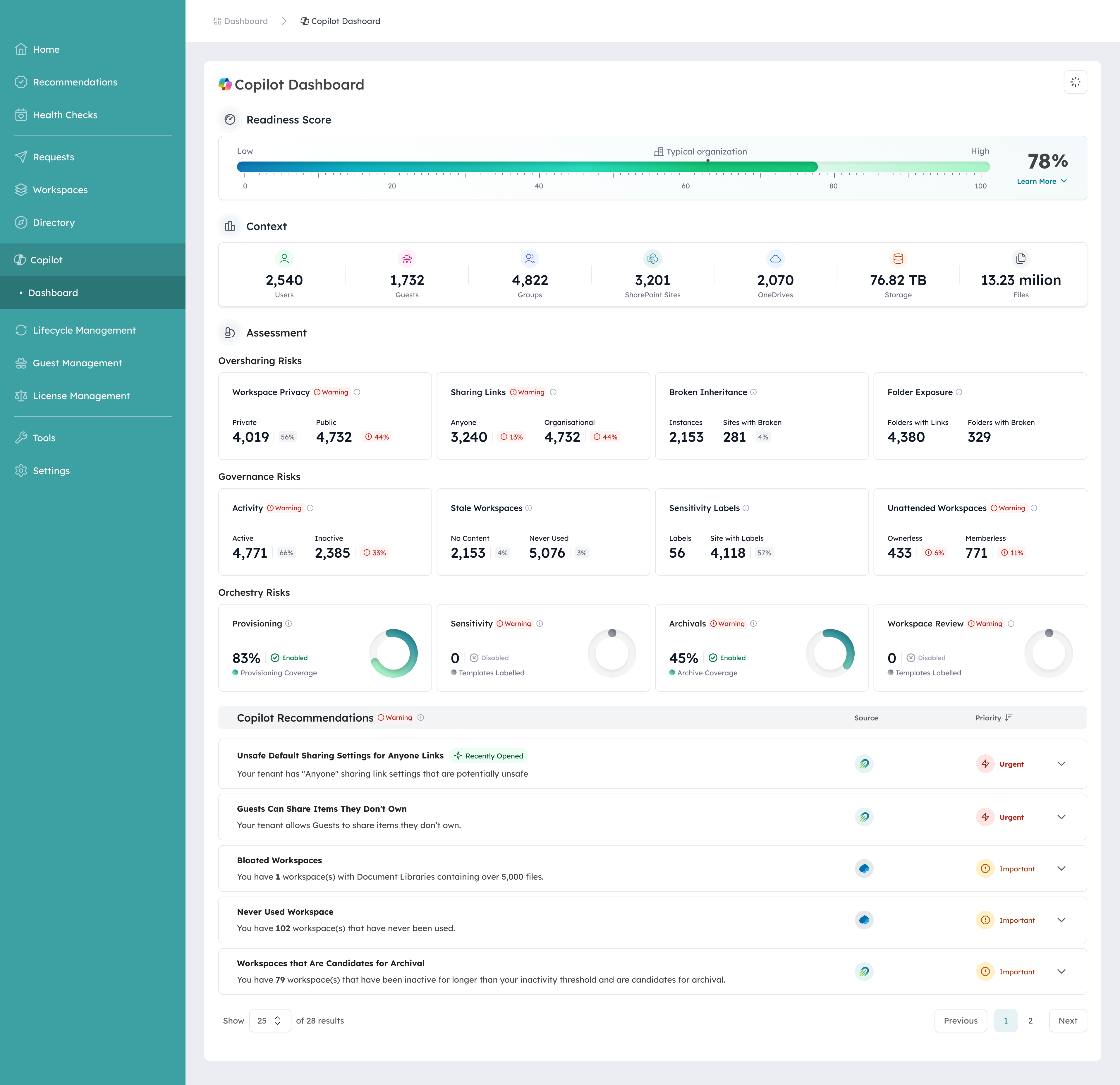
Orchestry's Copilot readiness Dashboard: a tenant readiness score with the governance signals behind it.
3. Restricted Access Control: hard limits for sensitive sites
The cleanest way to hold the two apart: Restricted Content Discovery controls whether content can be found, and Restricted Access Control controls whether it can be reached. One is a visibility filter, the other is a hard permission gate. Both live in SharePoint Advanced Management, so both need that licensing.
Restricted Access Control (RAC) limits a site to the members of a designated control group. Anyone outside that group loses access to the site and its content, even if they had prior permissions or a shared link, and the restriction is honored in organization-wide search and Copilot too.
RAC suits sites you don't want Copilot reaching at all: legal matter workspaces, M&A content, executive team sites, board materials. These are places where the risk of inadvertent retrieval is high enough that a visibility filter isn't enough.
Two things trip people up. You have to enable site-level access restriction for the tenant before you can apply it to any site, and you can set up to 10 Entra security or Microsoft 365 groups per site. Adding someone to the control group doesn't grant access on its own; the group is the outer boundary, and they still need actual permissions inside it.
RAC also requires SAM. Configure it in the SharePoint admin center under Policies > Access control > Site-level access restriction to turn it on for the tenant, then per site under Active sites > Settings > Restricted site access.
RCD and RAC are complementary, not competing. The usual sequence in a Copilot readiness push is to flag high-risk oversharing sites with RCD so they drop out of Copilot's reach immediately, run data access governance reports to find the real permission problems, then either remediate permissions directly or lock the site down with RAC where a clear group boundary makes sense. RCD buys you time; RAC closes the hole.
The gap both controls leave is the same: neither finds the oversharing for you, and neither tracks whether it's been resolved over time. RCD hides a site and RAC gates it, but the continuous inventory of where exposure lives, and proof that it's shrinking, is the layer a governance platform like Orchestry adds on top.
4. DLP policies: Copilot data security by content type
The controls so far operate at the site level. DLP policies and sensitivity labels operate at the content level, file by file rather than site by site. DLP and labels are where Copilot data security gets granular.
You can configure a Data Loss Prevention (DLP) policy that includes Microsoft 365 Copilot and Copilot Chat as a location. When a user's prompt or Copilot's response would involve content that violates the policy, Copilot restricts processing and returns a policy tip instead of the content.
DLP helps when the risk isn't about which site the content lives on, but what the content contains. Financial projections, health records, or PII can be scattered across sites that are otherwise fine for Copilot to search. A DLP policy enforces boundaries on content type rather than location.
Configure it: Microsoft Purview portal > Data Loss Prevention > Policies > Create policy > Locations > enable Microsoft 365 Copilot and Copilot Chat.
DLP scope has expanded since these policies first appeared. As of April 2026, DLP for Microsoft 365 Copilot is generally available, including the ability to use Sensitive Information Types as prompt conditions, so a policy can block a prompt that contains sensitive data even when the underlying content isn't labeled.
5. Sensitivity label encryption
Sensitivity labels with encryption are respected by Copilot. If a file is encrypted through a sensitivity label, Copilot won't surface it for users who lack decryption rights. This is the strongest file-level control in this set: it doesn't need a separate Copilot configuration step, the label enforces it.
The reverse is also true. If your files aren't labeled, Copilot has no signal about their sensitivity beyond the permissions layer, so content in accessible sites is retrievable regardless of how sensitive it is unless a DLP policy catches it. Labels give Copilot and your DLP policies the signal they need.
For practical guidance on labeling coverage and Copilot governance across your content estate, this overview covers the key considerations.
6. SharePoint Authoritative Sites: prioritizing what Copilot surfaces
The five controls above limit or shape what Copilot retrieves. SharePoint Authoritative Sites works in the opposite direction: it tells Copilot what to prioritize.
When you designate a site as authoritative, its content is treated as a trusted organizational source in Copilot Search and Copilot Chat, and users see a "From your organization" label on results from it. Trusted sources are weighted so they surface ahead of less official content.
Authoritative Sites suits intranet sites, HR policy libraries, IT knowledge bases, and approved documentation: anywhere you want Copilot surfacing your organization's official content rather than whatever ranks highest by recency or access frequency.
In the current release, Authoritative Sites is configured through PowerShell or CSOM rather than the admin center UI. You need the SharePoint Administrator or Global Administrator role and a Microsoft 365 Copilot license, you can mark up to 100 sites, and changes can take up to 72 hours to appear.
Configure it (SharePoint Online Management Shell):
# Connect to SharePoint Online
Connect-SPOService -Url https://yourtenant-admin.sharepoint.com
# Mark a site as authoritative
Set-SPOSite -Identity https://yourtenant.sharepoint.com/sites/yoursite -IsAuthoritative $true
Connect-SPOService -Url https://yourtenant-admin.sharepoint.com
# Mark a site as authoritative
Set-SPOSite -Identity https://yourtenant.sharepoint.com/sites/yoursite -IsAuthoritative $true
Most organizations configure the restriction controls (RSS, RCD, RAC) and never configure Authoritative Sites. The result is a Copilot that avoids sensitive content reasonably well but buries the content you most want it to cite. Prioritization is the half that turns a locked-down Copilot back into a useful one.
A decision framework for Microsoft 365 Copilot data access controls
The six controls aren't mutually exclusive; each addresses a different scenario.
| Situation | Control to apply |
|---|---|
| Permission remediation still in progress; Copilot is live | Restricted SharePoint Search (temporary) |
| Specific sites with sensitive content that should be accessible but not proactively surfaced | Restricted Content Discovery (per-site) |
| High-risk sites where Copilot should never retrieve content for any user | Restricted Access Control (per-site) |
| Content-type sensitivity regardless of site location (PII, financials, health data) | DLP policy targeting Copilot |
| File-level enforcement without site-level configuration | Sensitivity label encryption |
| Official knowledge sources that should rank higher in Copilot responses | SharePoint Authoritative Sites |
A reasonable sequence: if you have permission debt, enable RSS as a temporary hold. As remediation progresses, replace it with per-site RCD and RAC decisions, add DLP policies for content-type protection, ensure sensitivity-label coverage for the files that need it most, and configure Authoritative Sites for your official content.
Each layer addresses a different exposure. RSS stops broad retrieval from unsanctioned sites while you clean up; RCD and RAC then handle specific sites once you know which ones need soft suppression versus hard exclusion; DLP and labels cover the sensitive content that crosses site boundaries; and Authoritative Sites optimizes what's left so Copilot leads with your best sources.
The framework only works if you know what you're protecting. Without workspace-level visibility into which sites are active, which are stale, and which carry sensitive content, RCD, RAC, and Authoritative Sites decisions come down to memory and intuition.
Frequently asked questions about Microsoft 365 Copilot data access controls
Does Restricted Content Discovery prevent users from finding content on their own?
Not for people who already have access. RCD removes a site from organization-wide search and Copilot, but anyone with permission can still open it directly and search from within the site. It also leaves the tenant index intact, so eDiscovery, retention, and auto-labeling keep working.
Does Restricted Access Control require a license beyond Microsoft 365 Copilot?
RAC requires a SharePoint Advanced Management (SAM) license. SAM is included when your organization has at least one Microsoft 365 Copilot license assigned, so most organizations running Copilot already have the entitlement. If you're on a non-standard Copilot SKU, verify your SAM entitlement before configuring RAC.
When should I use Restricted Content Discovery versus Restricted Access Control?
Use RCD when a site should stay usable for the people who already have access but shouldn't show up in organization-wide search or Copilot. Use RAC when people outside a defined group shouldn't reach the site at all. In practice they work in sequence: RCD gets a risky site out of Copilot's reach while you investigate, and RAC locks it down once you know the group boundary.
Configuring these controls well starts with knowing what's in your tenant: which sites are active, which hold sensitive content, and where your official knowledge lives. Orchestry gives IT teams that visibility across the Microsoft 365 environment, so your RCD, RAC, and Authoritative Sites calls are grounded in what's actually in your tenant. See what that looks like in your own tenant.